

What This Automation Does
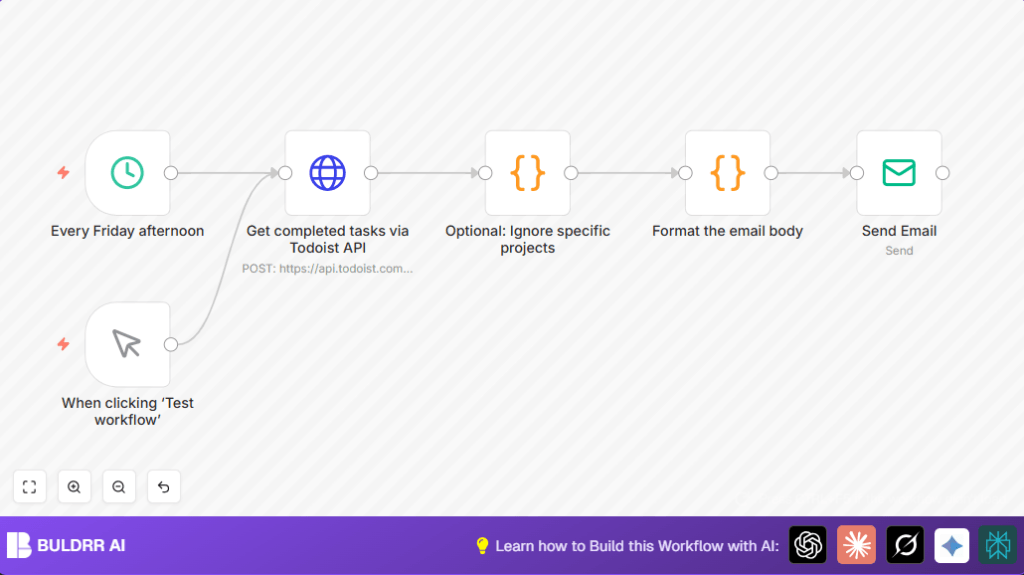
This workflow runs every Friday afternoon and gets all the tasks you finished in the last 7 days from Todoist.
Then, it removes tasks from projects you do not want to include.
Next, it groups the tasks by the date they were completed and builds a simple, clean HTML email with them.
Finally, the workflow sends that email to your inbox or your team.
You can also run it manually any time using a manual trigger node.
This helps you save time and not miss anything you finished during the week.
Who Should Use This Workflow
People who use Todoist and want to get a quick weekly summary of their completed tasks without copying or typing manually.
This helps project managers or workers who do many tasks and want a simple way to check what they did every week on email.
Tools and Services Used
- n8n automation platform: to build and run the workflow.
- Todoist API: to get the list of completed tasks.
- Email sending service inside n8n: to send the weekly review email.
Inputs, Processing Steps, and Output
Inputs
- Your Todoist API Key to access task data.
- The schedule trigger or manual trigger to start the workflow.
- List of project IDs to ignore (optional).
Processing Steps
- At Friday 3 PM or manual run, start the workflow.
- Send a request to Todoist API asking for all tasks completed in the last 7 days.
- Use JavaScript code to filter out tasks from unwanted project IDs.
- Group the remaining tasks by their completion date.
- Make a simple HTML email body listing the tasks under each date heading.
Output
- Send a formatted weekly summary email listing completed tasks by date.
Beginner Step-by-Step: How to Use This Workflow in n8n
Importing the Workflow
- Download the workflow file using the Download button on this page.
- Open the n8n editor where you build your automations.
- Click on “Import from File” and pick the downloaded workflow file.
Configuring the Workflow
- Add your Todoist API Key in the HTTP Request node credentials.
- Update the
ignoredProjectsarray in the filter Code node with your own project IDs to exclude, if needed. - Set your email address or team email in the Email Send node recipient field.
Testing and Activating
- Run the manual trigger node once to test if the workflow fetches data and sends email correctly.
- Once you confirm it working, turn on the workflow by activating it with the switch in the editor.
That’s all you need do to get automated weekly summaries without building from zero.
Remember to keep your Todoist API Key safe in n8n credentials.
Common Customizations
- Add more project IDs to ignore in the code node
ignoredProjectslist. - Change the email recipient in the Email Send node to alert different team members.
- Adjust schedule time or day in the Schedule Trigger node.
- Improve email looks by adding inline CSS or images in the email formatting code node.
Troubleshooting Common Issues
- Authentication Error: Check if Todoist API Key is correct and updated in n8n credentials.
- No Tasks Returned: Make sure
sinceanduntildates are right and tasks completed in that time exist. - Empty or Wrong Email Content: Review the email formatting code node for syntax mistakes or empty task lists.
- Email Sending Fails: Confirm Email Send node SMTP settings and credentials.
Production Use Notes
Always test with manual trigger before relying on scheduled runs.
Make sure your n8n instance is secure, especially if self-host n8n is used for safe API Key storage.
Monitor Friday runs in the n8n executions panel and check logs if errors show.
Summary of Benefits
✓ Save over 2 hours monthly by automating task review
✓ Prevent manual errors or missing completed tasks
✓ Receive clear, organized weekly email summaries
✓ Flexible manual or scheduled runs for convenience
✓ Minimal setup with only Todoist API and email configured
