

What this workflow does
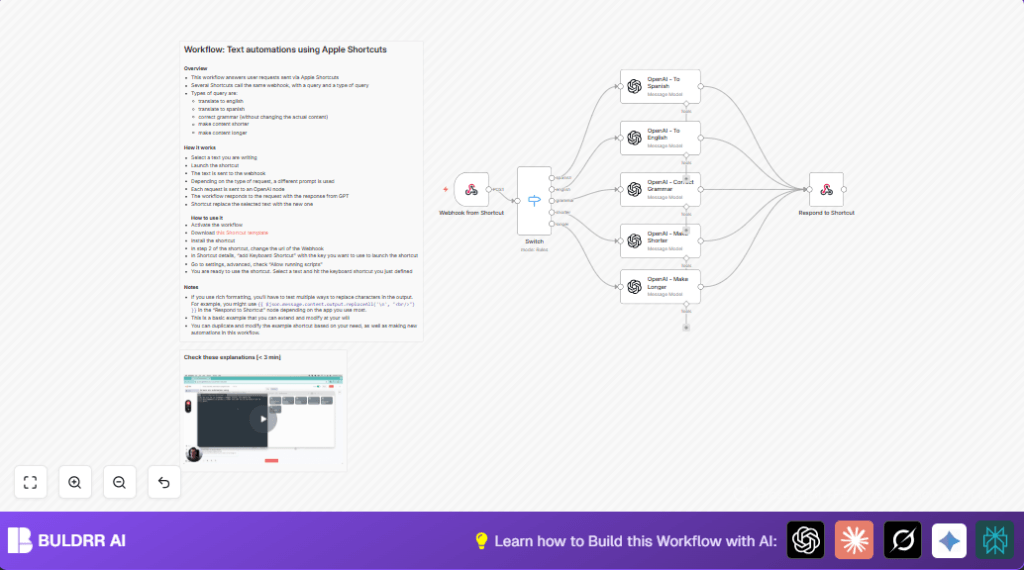
This workflow edits text automatically using AI. It fixes grammar, translates to English or Spanish, and changes text length slightly. It works when you select text and trigger a shortcut on Mac or iOS. The changed text replaces what was selected right away.
The problem it solves is slow manual editing and switching apps. The user saves time and gets consistent results.
Who should use this workflow
This is for writers or anyone editing text fast and often. It fits users who want quick fixes without leaving their writing app.
No deep tech skills needed, just basic use of shortcuts and n8n.
Tools and services used
- n8n: Runs automation workflows.
- OpenAI API: Processes text edits using GPT-4o-mini.
- Apple Shortcuts app: Triggers the workflow from Mac or iOS.
- Webhook URL: Receives requests from shortcuts.
Beginner step-by-step: How to build this in n8n
Importing the workflow
- Download the workflow JSON file using the Download button on this page.
- Open the n8n editor. Inside, choose “Import from File” to upload the downloaded JSON.
Configuring the workflow
- After import, add your OpenAI API Key in the OpenAI nodes credentials.
- Replace placeholder values like webhook URLs if any appear, using your own live webhook URL from the Webhook from Shortcut node.
- If there are IDs, emails, or folder names in the workflow related to your text or app, update those as needed.
- Look inside the OpenAI nodes for system prompts and copy that exact prompt if you want to customize or store it elsewhere.
Testing and activating
- Use a tool like Postman or Curl to send a test JSON payload with “content” and “type” fields to your webhook URL.
- Check the output for errors or expected rewritten text.
- Once tests pass, activate your workflow in n8n so the webhook accepts live requests.
- Make sure your webhook URL is accessible publicly or at least by the device running the Apple Shortcut.
You can now connect your Apple Shortcut on Mac or iOS to this webhook to run text edits quickly.
Workflow inputs, processing, and outputs
Input
The workflow input is JSON sent from the Apple Shortcut. It has two fields:
- content: The selected text to edit.
- type: The edit type like “translate to English”, “correct grammar”, “make shorter”, etc.
Processing steps
The Webhook from Shortcut node receives the input.
A Switch node checks the type field to decide which OpenAI node handles the text.
There are five OpenAI nodes. Each has a system prompt designed for a task:
- Translate to Spanish
- Translate to English
- Fix grammar without changing meaning
- Make the text about 5% shorter
- Make the text about 5% longer
OpenAI returns JSON with the edited text in the “output” field.
Output
The Respond to Shortcut node sends the edited text back as plain text.
The Apple Shortcut replaces the original selected text in the user’s app.
Edge cases and failures to watch for
- If the workflow is not activated, the webhook will not respond. Always check activation before going live.
- OpenAI may return errors if API keys are wrong or usage limits exceeded.
- Large text input can cause delays or API cost increases. Consider splitting big text into smaller parts.
- The Apple Shortcut won’t trigger if no keyboard shortcut is assigned or if “Allow running scripts” is off.
- Webhook URL must be correct and publicly accessible or accessible on the local network.
Customization ideas
- Add more languages by copying OpenAI nodes and changing system prompts.
- Change the amount of shortening or lengthening by editing OpenAI prompts.
- Include formal or informal tones by adding parameters and adjusting prompts.
- Add new text features like summarizing or keyword extraction using new OpenAI nodes.
- Modify output formatting with HTML inside the Respond to Shortcut node for richer text.
- For hosting, consider self-host n8n for better control and privacy.
Summary of benefits and outcomes
✓ Save many hours by automating text editing tasks.
✓ Keep your writing workflow focused with keyboard shortcut triggers.
✓ Maintain consistent grammar, translations, and text length easily.
→ Replace manual copy-paste editing with fast AI corrections.
→ Adapt or extend workflow for many language and text needs.
