

What this workflow does
This workflow takes many survey answers from Google Sheets and finds groups of similar replies.
It then writes short, clear summaries with feelings about each group back to Google Sheets.
This helps people understand big survey results fast, without reading every answer one by one.
You save time and get good insights from lots of open-text responses.
Who should use this workflow
This is for someone who has many text answers from surveys.
If you want to find patterns in answers and get readable summaries without manual work, this fits you.
It’s helpful when you have over hundreds of responses and want clear, question-by-question insights.
Tools and services used
- Google Sheets: Stores survey data and stores insights results.
- Qdrant Vector Database: Holds answer embeddings and helps find similar answers.
- OpenAI API: Creates answer embeddings and summarizes answer groups using GPT-4o-mini model.
- n8n Workflow Automation: Runs the whole process inside an automation tool.
How this workflow works – Input → Process → Output
Inputs
The workflow reads raw survey answers from Google Sheets.
It expects each participant’s answers in one row with questions as columns.
Processing Steps
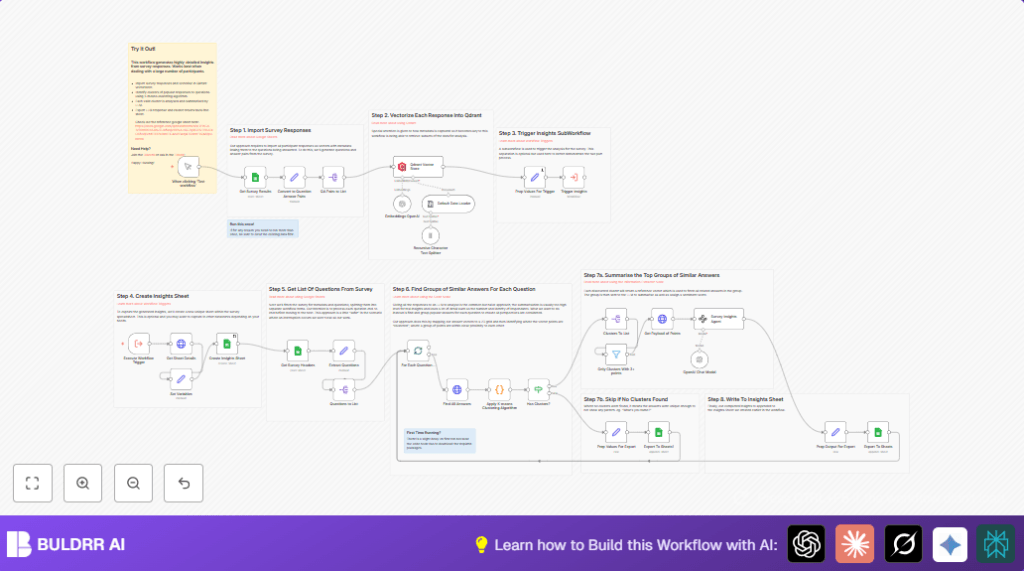
- Google Sheets node pulls all answer data.
- Set node changes each row into many question-answer pairs with participant info.
- Split Out node separates these pairs to handle each answer alone.
- Embeddings OpenAI node turns answers into vector numbers for comparison.
- Default Data Loader node adds needed metadata tags to each vector.
- Qdrant Vector Store node inserts all vectors into a Qdrant collection for search and clustering.
- Main workflow triggers a sub-workflow to work on insights per question.
- Sub-workflow creates a new Google Sheet tab named with the date for the new insights.
- It reads question headers from Google Sheets and filters only questions by checking for question mark marks.
- Each question is processed in batches:
- Fetches all vectors related to that question from Qdrant.
- Runs a Code node that applies K-means clustering on answers to find groups.
- Filters clusters with less than 3 answers.
- Fetches full answer details for each cluster.
- Langchain Information Extractor node asks GPT-4o-mini to write cluster summaries and find sentiment.
- Summaries and sentiments get prepared in a Set node and sent back to Google Sheets in the insights tab.
Outputs
At the end, the Google Sheet has a new tab with clusters of answers summarized with sentiment scores.
You see the main opinions grouped by question with clear texts.
Beginner step-by-step: How to use this workflow in n8n
Step 1: Import the workflow
- Download the workflow file using the Download button on this page.
- Open n8n editor where you want to use it.
- Use “Import from File” option in n8n to bring in the workflow.
Step 2: Configure credentials and IDs
- Add your Google Sheets credentials for reading and writing survey data.
- Add your OpenAI API Key for embeddings and GPT model calls.
- Configure access to your Qdrant instance by providing connection details.
- If any node has IDs like Spreadsheet ID or Sheet Name, update them to match your data.
Step 3: Review code and prompts
Check nodes that have custom code or prompts, especially the clustering and GPT summary steps.
Copy and paste code if needed.
Step 4: Test the workflow
- Run the workflow manually with a small survey dataset.
- Make sure it pulls data, creates embeddings, clusters, summarizes, and writes insights back to Google Sheets.
Step 5: Activate for production
- Turn the workflow’s trigger on or schedule regular runs in n8n.
- Watch the logs to check the progress.
If self-hosting n8n is needed for better control, see self-host n8n options.
Customization ideas
- Change embedding models in the Embeddings OpenAI node to improve understanding of answers.
- Adjust number of clusters or clustering algorithms in the Code node to better fit your data.
- Modify GPT system prompt to change sentiment categories or summary style.
- Export summaries to other places like Airtable or databases by changing export nodes.
- Change metadata tags in the Default Data Loader node to refine filtering and clustering.
Troubleshooting common problems
- Problem: Cannot fetch Google Sheets data or OAuth errors.
Cause: Google credentials expired or wrong.
Fix: Reauthorize Google Sheets credentials and check sheet permissions. - Problem: Clustering returns empty or no clusters found.
Cause: Data is too diverse or small.
Fix: Check data quality and lower cluster size or change K-means settings. - Problem: OpenAI API limit errors.
Cause: Too many requests or bad API key.
Fix: Monitor usage dashboard and add rate limiting in n8n.
Pre-production checklist
- Check Google Sheets format has participants as rows and questions as columns.
- Confirm Qdrant collection
ux_survey_insightsexists and accessible. - Validate OpenAI API keys have embedding and GPT-4o-mini permissions.
- Test workflow on small data first.
- Backup original survey sheet before running the workflow.
- Verify credentials in n8n are fully authorized.
Deployment guide
Enable the trigger node to start the workflow or schedule periodic runs.
Check logs in n8n to follow progress and fix errors fast.
Scale by running n8n on stronger server or increase Qdrant resources if processing very large surveys.
For self-host n8n options, see related links.
Summary
→ Converts thousands of written survey answers into clear groupings and summaries.
→ Uses Google Sheets for input and output to keep data in place.
→ Applies OpenAI embeddings and GPT-4o-mini for grouping and summarizing answers.
→ Uses Qdrant vector database to store and process answer vectors efficiently.
→ Automatically creates an insights report with sentiment and participant counts shown.
✓ Saves days of manual reading and writing.
✓ Detects themes and opinions clearly per question.
✓ Handles large survey datasets with recovery and batch processing.
