

What this workflow does
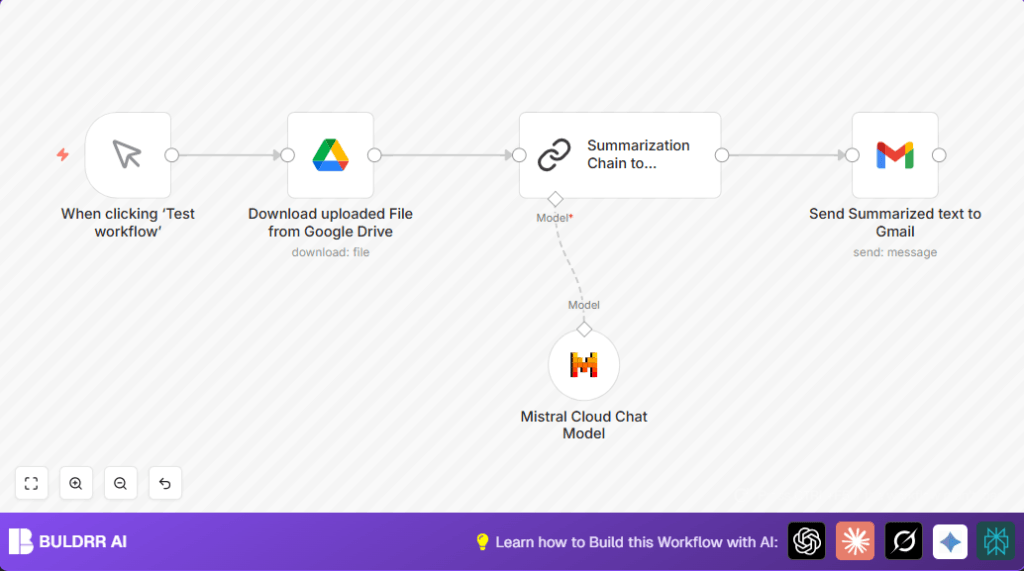
This workflow fetches a PDF from Google Drive, uses Mistral AI to summarize the content, and sends the summary by email via Gmail.
It solves the problem of spending many hours reading PDFs manually by automating extraction of shorter, easy-to-read summaries.
The user gets a fast, clear email with main points of the document without opening the file.
Who should use this workflow
This workflow is for anyone who regularly handles long PDF documents stored in Google Drive.
It helps users save time by automating document digestion and sharing summaries with their team or themselves.
No advanced technical skills are required to run it after setup in n8n.
Tools and services used
- Google Drive: Stores PDF files to summarize.
- Mistral Cloud AI: Processes document text to generate concise summaries.
- Gmail: Sends the summary email automatically.
- n8n automation platform: Runs the workflow connecting all nodes.
Inputs, Processing, and Output
Inputs
A PDF file identified by its File ID stored in Google Drive.
User-provided Mistral Cloud API key for summarization.
Gmail account credentials for sending email.
Processing Steps
The workflow first downloads the PDF using the Google Drive node.
The file is sent to the Mistral Cloud Chat Model node to create a summary.
The summary text is parsed and formatted by the Summarization Chain node.
Finally, the Gmail node sends the formatted summary to a specified email address.
Output
The user receives an email with a clean summary of the original PDF content.
The email includes a title, the summarized text formatted with HTML, and a timestamp of processing.
Beginner step-by-step: How to use this workflow in n8n
1. Import the workflow
- Download the workflow file using the Download button on this page.
- Inside the n8n editor, click on the menu and select "Import from File".
- Choose the downloaded workflow file to load it into n8n.
2. Configure credentials and settings
- Open the Google Drive Google Drive node and add API credentials if not set.
- Replace the
fileIdin the same node with the desired Google Drive PDF file ID. - Go to the LangChain Mistral Cloud Chat Model node and enter your Mistral Cloud API key.
- Set up your Gmail API OAuth2 credentials in the Gmail node.
- Check or update the recipient email address in the Gmail node to where summaries should be sent.
3. Test the workflow
- Click the manual trigger node and press "Execute Workflow" to run the process.
- Watch workflow progress in n8n and check the email inbox for the summary.
4. Activate for production use
- Once tested successfully, click "Activate" in n8n to enable automatic runs.
- You can later replace the manual trigger with a Cron node for scheduled automation.
If self-hosting n8n is desired, use self-host n8n resources.
Customization ideas
- Change the Gmail node recipient email to forward summaries to other users.
- Adjust
chunkSizein the Summarization Chain node to control summary length. - Replace the Google Drive file ID to process another document.
- Edit the email HTML message to add branding or change date/time formats.
Common problems and fixes
Google Drive node permission error
Cause: OAuth credentials expired or no access to the file.
Fix: Reauthenticate Google Drive in n8n and verify file permissions.
Mistral Cloud node authentication failure
Cause: Invalid or missing API key.
Fix: Update Mistral Cloud API key in node settings.
Email sending failure in Gmail node
Cause: Expired or missing Gmail OAuth credentials.
Fix: Refresh Gmail OAuth2 credentials and test email connectivity.
Summary of benefits and results
✓ Saves hours by automating PDF summarization.
✓ Sends quick, clear email summaries without manual reading.
✓ Keeps emails professionally formatted with consistent style.
✓ Easy setup and testing inside n8n with manual trigger.
→ Helps teams stay updated faster and avoid missed deadlines.
