
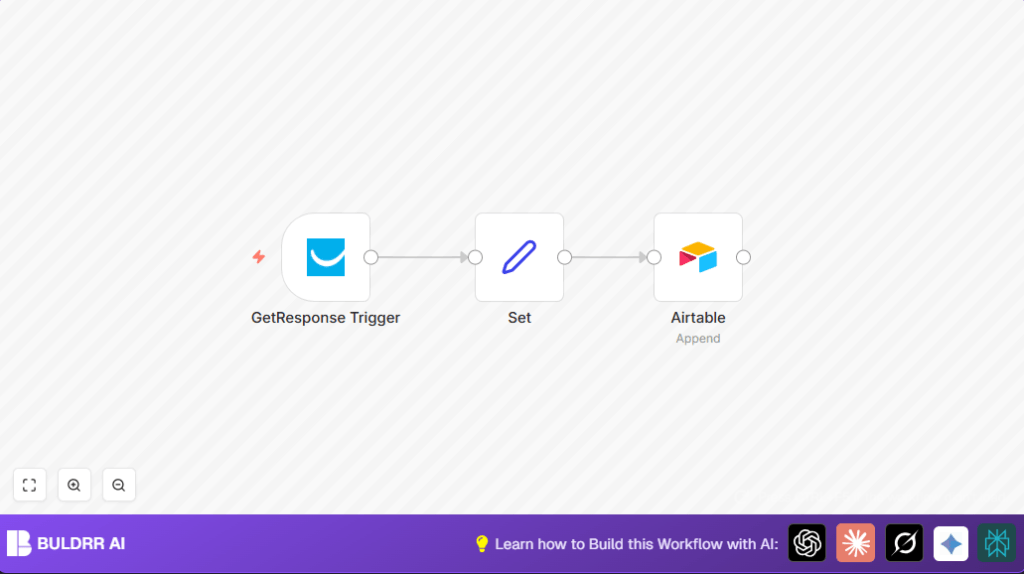

What this workflow does
This workflow automatically sends new subscriber data from GetResponse to Airtable without manual work.
It solves the problem of copying subscriber info by hand, saving time and avoiding mistakes.
When someone subscribes to a GetResponse list, their name and email are added to Airtable automatically.
Who should use this workflow
This is useful for small business owners or marketers who use GetResponse newsletters and want to keep contact records updated in Airtable.
If manual exporting and importing emails wastes time or causes errors, this workflow helps fix that.
Tools and services used
- GetResponse API: Sends subscriber events when someone joins a mailing list.
- Airtable API: Receives subscriber info to add new records in a base.
- n8n Automation: Orchestrates the process by catching events, formatting data, and posting to Airtable.
Workflow Inputs, Processing, and Output
Inputs
- New subscriber event data from GetResponse with fields like name and email.
- API credentials for GetResponse and Airtable.
Processing Steps
- GetResponse Trigger: Listens for new subscriptions on a chosen mailing list.
- Set Node: Extracts and formats the subscriber’s name and email from the incoming data.
- Airtable Node: Appends a new record with the formatted data to a specified Airtable base and table.
Output
A new contact record with name and email in Airtable automatically, synced from GetResponse subscriptions.
Beginner step-by-step: How to use this workflow in n8n
Import the workflow
- Download the workflow using the Download button on this page.
- Inside the n8n editor, click the menu and select “Import from File”.
- Choose the downloaded workflow file to add it to n8n.
Update credentials and settings
- Add your GetResponse API Key in the GetResponse Trigger node credentials section.
- Make sure the GetResponse mailing list ID matches your list to track new subscribers.
- Enter your Airtable API Key and select the base and table where subscriber data will go in the Airtable node.
Test and activate
- Trigger a test subscription in GetResponse to verify data flows through all nodes.
- Check that new records appear in Airtable with correct name and email.
- Turn on the workflow in n8n by toggling the active switch to start real-time syncing.
If using self hosting n8n, confirm the webhook URL is publicly reachable for GetResponse events to arrive.
For more on hosting, see self-host n8n.
Common input data and code used
The Set node uses these expressions to get subscriber info:
Name  =<?=$json["contact_name"]?>
Email =<?=$json["contact_email"]?>
This makes sure only the subscriber name and email go forward to Airtable.
Make sure your GetResponse event JSON includes fields exactly named “contact_name” and “contact_email”.
Customization ideas
- Add more subscriber details like phone or tags by including extra fields in the Set node.
- Change the Airtable node to insert into different tables for organizing contacts.
- Use an IF node before Airtable to filter subscribers by conditions like location or subscription type.
Handling possible problems
Webhook not receiving data
Cause—Webhook URL not entered correctly in GetResponse or wrong mailing list ID used.
Solution—Double-check the webhook URL shown by GetResponse Trigger and confirm subscription is to the right list.
Airtable record fails to save
Cause—Mismatch between fields sent and Airtable table columns.
Solution—Verify Airtable column names exactly match the fields passed from the Set node.
Pre-production checklist
- Check valid GetResponse API Key with webhook permission.
- Confirm mailing list ID exists and is active.
- Verify Airtable API Key and base/table are accessible.
- Run test subscription events and watch the nodes execute in n8n logs.
- Backup Airtable data before running the workflow first time.
Summary of results
✓ Saves time by removing manual subscriber data entry.
✓ Prevents errors like duplicates or missing contacts.
✓ Keeps Airtable contact list updated automatically when new subscribers join GetResponse.
✓ Runs continuously with no need to watch or trigger it manually.
