

What This Workflow Does
This workflow helps get clean, organized data from AI text. It solves the problem of slow, messy manual data extraction from AI replies. You get exact JSON output listing the largest U.S. states by area with top cities and population, without editing mistakes.
When run, it sends a prompt to an AI model, checks if the output follows a strict format, and fixes errors automatically until data is right. This saves time and stops errors in reporting or decision-making.
Who Should Use This Workflow
This is good for anyone needing accurate, structured info from AI texts. If manually copying and fixing AI text wastes hours or causes mistakes, this workflow helps.
It fits data analysts, researchers, or people who want quick, reliable AI data without coding.
Tools and Services Used
- n8n: Platform to build and run automation workflows.
- OpenAI API: Provides AI models like GPT-4o-mini for text generation.
- LangChain nodes in n8n: Manage AI communication, output parsing, and auto-correction.
Inputs, Processing Steps, and Output
Inputs
The workflow starts with a manual trigger. You type a prompt asking for data, for example:
Return the 5 largest states by area in the USA with their 3 largest cities and their population.This prompt tells the AI what info to provide.
Processing Steps
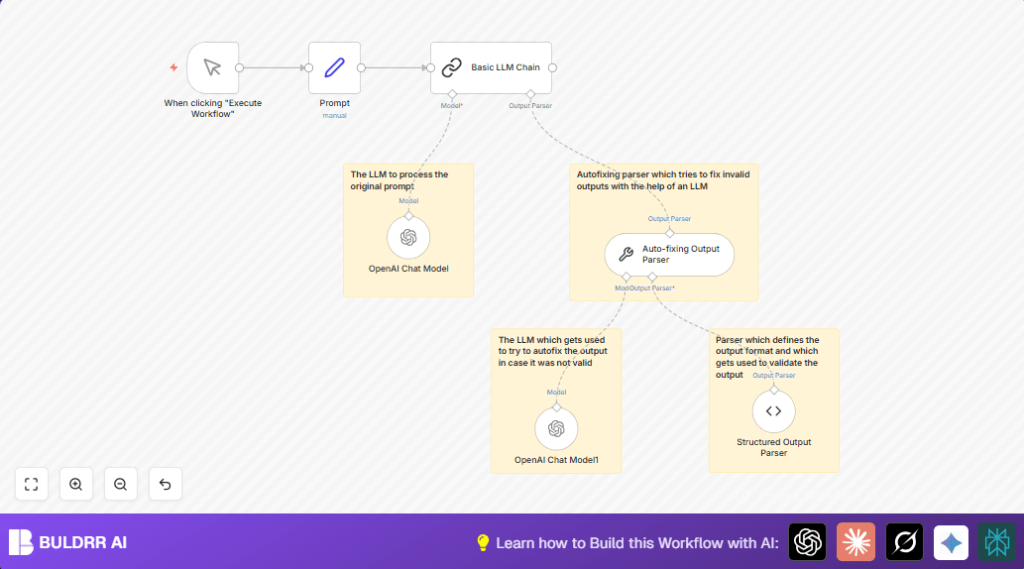
The prompt goes to a Basic LLM Chain node. This node passes the prompt to the GPT-4o-mini model using OpenAI Chat Model node.
The AI replies with text. This reply is checked by an Auto-fixing Output Parser node. It uses instructions and error reports to ask the AI again if the format is wrong.
The Auto-fixing node connects to a second OpenAI Chat Model node, also GPT-4o-mini, to retry generating the response. This loops until the AI response matches a strict JSON schema defined in the Structured Output Parser node.
Output
The final output is a clean JSON object. Each entry lists a state name as a string, and an array of city objects with their names and populations as numbers.
Beginner Step-by-Step: How to Use This Workflow in n8n Production
Step 1: Import Workflow
- Download the workflow file using the Download button on this page.
- Inside the n8n editor, click on “Import from File” and select the downloaded workflow.
Step 2: Add Credentials
- Go to Credentials in n8n and add your OpenAI API Key if not already added.
- Check that the OpenAI credentials linked to OpenAI Chat Model nodes are correct.
Step 3: Update Settings if Needed
- Edit the prompt text inside the Set node if you want different data. The variable is
chatInput. - In the Structured Output Parser node, confirm or adjust the JSON schema if you want to add or change fields.
Step 4: Test and Activate
- Click the “Execute Workflow” button on the Manual Trigger to test once.
- Review outputs at each node to confirm structured JSON data appears.
- Activate the workflow for live use by switching it on in the n8n Dashboard.
If running on your own server, consider self-host n8n for control and security.
Common Edge Cases and Failures
If the OpenAI API key is wrong, expect authentication errors in the AI nodes.
When output parsing fails, the Auto-fixing Output Parser tries to regenerate correct answers. Insufficient instruction detail can reduce its success.
If the trigger doesn’t start, check the Manual Trigger node is correctly connected and you are pressing the execute button.
Customization Ideas
- Change the prompt in Set node to get different AI data, like different countries or company info.
- Switch GPT models in the OpenAI Chat Model nodes for faster or more detailed results.
- Update JSON schema in Structured Output Parser to add fields like city area or state capitals.
- Add extra instructions in Auto-fixing Output Parser to handle special formatting rules.
- Insert logging nodes for tracking outputs or debugging.
Summary of Benefits and Outcomes
✓ Saves hours of manual data extraction from AI text.
✓ Ensures AI output matches strict JSON, removing errors.
✓ Automatically fixes AI output format on failure.
✓ Simple, manual trigger gives full control.
✓ Clean data ready for reports, analytics, or further automation.
