

What This Automation Does
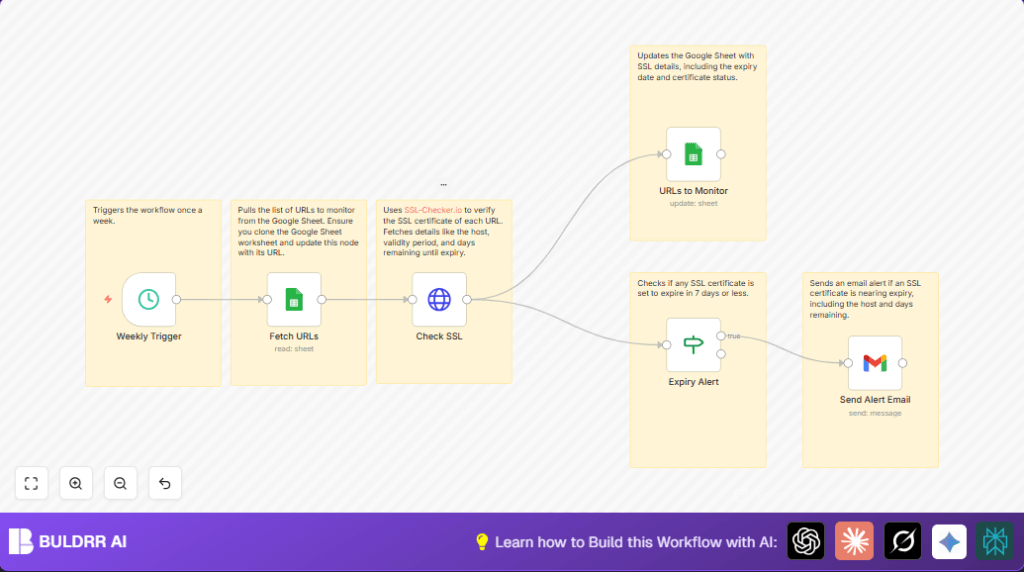
This workflow checks website SSL certificates for expiration every week.
It reads URLs from Google Sheets, calls SSL-Checker.io API to get expiry dates, and updates the sheet with new info.
If any certificate will expire soon—within 7 days—it sends an alert email via Gmail.
This stops missed renewals and avoids website downtime.
Tools & Services Used
- Google Sheets: Stores URLs and SSL expiry data.
- HTTP Request node: Calls SSL-Checker.io API to check certificate details.
- Gmail: Sends alert emails when certificates are near expiry.
- n8n Schedule Trigger: Runs workflow weekly on set day/time.
Inputs, Processing, and Output
Inputs
- URL list from Google Sheets with website addresses and last known expiry dates.
Processing Steps
- Fetch URL rows from Google Sheets.
- Call the SSL-Checker.io API for each URL to get fresh expiry info.
- Update Google Sheets with new expiry dates and days left.
- Check if any certificates expire in 7 days or less.
- Send alert emails for certificates expiring soon.
Output
- Google Sheets updated with current expiry info.
- Email alerts sent for SSL certificates nearing expiry.
Beginner Step-by-Step: How To Use This Workflow in n8n
Importing and Setting Up
- Download the workflow file using the Download button provided with this page.
- Open your n8n editor where you want to set up the workflow.
- Choose Import from File and select the downloaded workflow file.
- After import, add your Google Sheets and Gmail credentials.
- Update any sheet IDs, email addresses, or channel names if the workflow uses custom values.
- Review any code expressions provided, especially the URL field in the HTTP Request node, to make sure they match your data.
- Run the workflow once manually to test and confirm everything works as expected.
- If all looks good, activate the workflow to start the weekly automatic checks.
- For advanced users running n8n on a private server, consider self-host n8n for better control.
Step-by-Step Guide Outline (Key Node Configurations)
Step 1: Schedule Weekly Workflow Trigger
- Add a Schedule Trigger node.
- Set it to run weekly at your preferred day and time.
Step 2: Fetch URLs from Google Sheets
- Add a Google Sheets node named “Fetch URLs.”
- Authorize with Google OAuth2.
- Set operation to “Read Rows” and provide your sheet details.
Step 3: Check SSL Certificate via HTTP Request
- Add HTTP Request node called “Check SSL.”
- Use this URL expression to call the SSL-Checker.io API:
=https://ssl-checker.io/api/v1/check/{{ $json["URL"].replace(/^https?:\/\//, "").replace(/\/$/, "") }}Step 4: Update Google Sheets with Latest SSL Expiry Data
- Add another Google Sheets node named “URLs to Monitor.”
- Set operation to “Update” and map these fields:
- URL →
{{ $json.result.host }} - KnownExpiryDate →
{{ $json.result.valid_till }}
Step 5: Conditional Check on Expiry Date
- Add an If node named “Expiry Alert.”
- Condition: Number ≤ 7 on field
{{ $json.result.days_left }}.
Step 6: Send Alert Email via Gmail
- Add Gmail node called “Send Alert Email.”
- Set recipient email, subject, and body using:
- Subject:
SSL Expiry - {{ $json.result.days_left }} Days Left - {{ $json.result.host }} - Message body: Same as subject, plain text.
Customizations ✏️
- Change the expiry alert days in the If node to control how early alerts send.
- Add Slack notification to alert teams in chat instead of or along with email.
- Use webhooks or APIs to add URLs dynamically to Google Sheets.
- Make alert emails HTML formatted for better looks in the Gmail node.
- Configure retry logic on the HTTP Request node to handle temporary API failures.
Troubleshooting ????
- Google Sheets authentication fails: Fix by reauthenticating Google OAuth2 in n8n and check permissions.
- HTTP request URL or API errors: Double-check JS expressions in HTTP Request URL field and test URLs individually.
- Email sending issues: Reauthorize Gmail node, confirm OAuth2 setup, ensure account allows SMTP or app passwords if 2FA enabled.
Pre-Production Checklist ✅
- Verify Google Sheets nodes read and update sample data correctly.
- Test SSL-Checker.io API response with HTTP Request node alone.
- Confirm If node triggers on certificates expiring in 7 days or less.
- Test sending alert email to confirm Gmail node is working.
- Backup Google Sheets before running updates to prevent data loss.
Deployment Guide
After testing all nodes, activate the Schedule Trigger for weekly automatic runs.
Monitor workflow logs regularly for errors.
Set up additional error alerts if possible to respond quickly.
Summary and Results
✓ Weekly automated SSL expiry checks save time.
✓ Google Sheets stays up to date with current certificate status.
✓ Email alerts catch certificates expiring soon before they cause problems.
✓ Avoid downtime and loss of user trust caused by expired SSL.
