
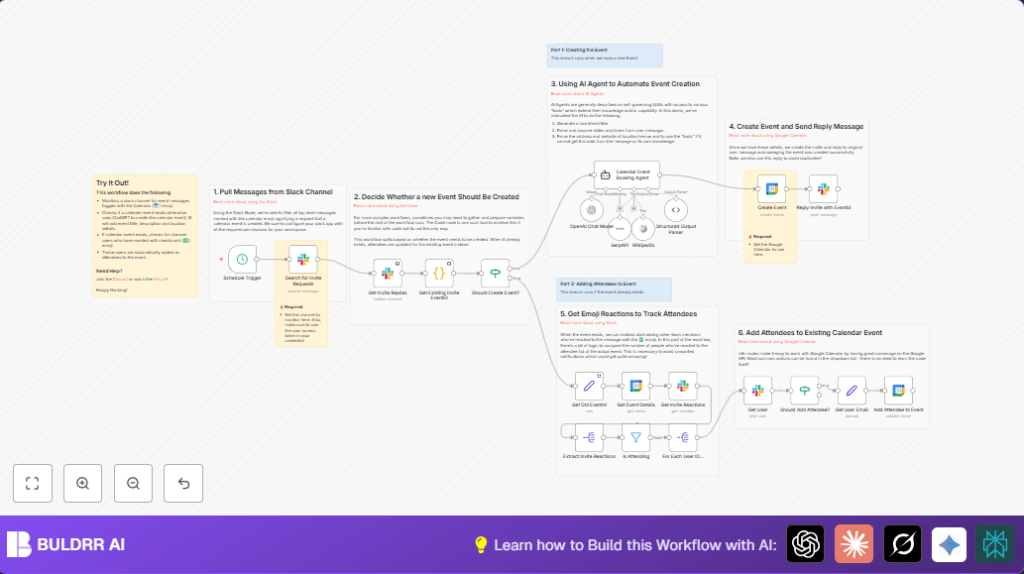

What this workflow does
This workflow watches a Slack channel for new event invites marked with a calendar emoji ????.
It reads those invites, uses AI to find event titles, times, and locations, and then creates Google Calendar events automatically.
It also checks if events already exist to avoid duplicates, and if users react with a ✅ emoji, it adds them as attendees to the event.
The workflow posts replies in Slack to confirm event creation or attendee additions.
Who should use this workflow
This automation suits anyone who manages event invites shared in Slack and needs to keep Google Calendar updated without manual work.
If tracking event details and attendees manually feels slow or error-prone, this workflow helps save time and reduce mistakes.
Tools and services used
- Slack API: Reads messages, fetches reactions, users, and posts replies.
- Google Calendar API: Creates and updates events and attendee lists.
- OpenAI API: Powers AI that extracts event details from messages.
- SerpAPI: Looks up location details based on event info.
- LangChain n8n nodes: Connects AI processing within n8n workflow.
Beginner step-by-step: How to use this workflow in n8n
1. Importing the workflow
- Download the workflow file using the Download button on this page.
- Open the n8n editor you already have access to.
- Use the “Import from File” option to load the workflow into n8n.
2. Configuring credentials and settings
- Add or connect your Slack app credentials with all required permissions.
- Set up Google Calendar credentials with write access to the target calendar.
- Enter your OpenAI API Key for the AI agent node.
- Provide SerpAPI API Key for location lookup.
- Check and update Slack channel IDs, calendar IDs, emails, or any other specific values in the nodes.
- Copy and paste any prompt text or code from nodes if needed for adjusting parsing or messages.
3. Testing and activating
- Run the workflow manually once to confirm it can find Slack messages and create calendar events.
- Check replies in Slack threads to see confirmation messages with event links.
- React to an invite message with the ✅ emoji to test attendee addition.
- When satisfied, toggle the workflow to active to run automatically on schedule.
If using self-host n8n, consider checking self-host n8n resources for deployment help.
Workflow inputs, processing, and outputs
Inputs
- Slack channel messages containing calendar emoji (????).
- Replies and reactions to those messages.
Processing steps
- Search Slack for new event invites every 30 minutes via the Schedule Trigger and Slack Search nodes.
- Fetch replies to event invite messages to track conversation and event ID tags.
- Use a Code node to detect if an event already exists linked in Slack thread.
- If no event exists, call the AI agent (OpenAI + LangChain) to extract event title, times, location, and event type.
- Use SerpAPI within AI to retrieve exact location URL and address.
- Create the event in Google Calendar with the parsed details.
- Post a reply in Slack thread confirming event creation and tagging event ID to avoid duplicate handling.
- If event exists, get event details and check Slack reactions.
- Filter users who reacted with ✅ emoji and fetch their email addresses from Slack profiles.
- Check if these emails are already attendees; if not, add them to the Google Calendar event.
- Post Slack replies confirming attendee additions.
- Process all attendees in a loop to keep event attendee list synced.
Outputs
- New or updated Google Calendar events with accurate timing and location.
- Slack replies confirming events are tracked and attendees added.
- Attendee list in Google Calendar matching Slack reactions.
Edge cases and failure points
- No Slack messages found: Happens if Slack app lacks permissions or channel ID is wrong. Fix by checking Slack app scopes and channel ID settings.
- Missing date/time in event: AI bot fails to parse. Fix by improving prompt wording or adding default time fallback.
- Attendees not added: Email missing or attendee already present on event. Fix by verifying Slack user profile email fields and attendee check logic.
Customization ideas
- Change Slack channel by editing channelId in the Slack Search node.
- Adjust default event start time in AI agent prompt if none is specified.
- Modify default event duration in Google Calendar create node expressions.
- Use a different emoji for attendee reactions by changing the filter node emoji name.
- Add Slack notifications tagging users or channels when new events are created.
Summary of benefits and results
✓ Saves time by removing manual event creation from Slack invites.
✓ Reduces errors by using AI to extract event details accurately.
✓ Keeps Google Calendar updated with attendee RSVP from Slack reactions.
✓ Sends Slack replies to inform users about event creation and attendance updates.
