

Automate Product Photography with n8n & OpenAI

Struggling with creating professional product photos? This unique n8n workflow uses Google Sheets, OpenAI, and Google Drive to analyze product images and generate realistic photography prompts, saving hours of manual editing and improving your ecommerce visuals.
lmChatOpenAi
googleSheets
httpRequest
+7
Workflow Identifier: 2130
NODES in Use: lmChatOpenAi, merge, googleSheets, httpRequest, openAi, chainLlm, convertToFile, googleDrive, manualTrigger, stickyNote
Automate product photos with n8n and OpenAI

Press CTRL+F5 if the workflow didn't load.

Learn how to Build this Workflow with AI:

What this workflow does

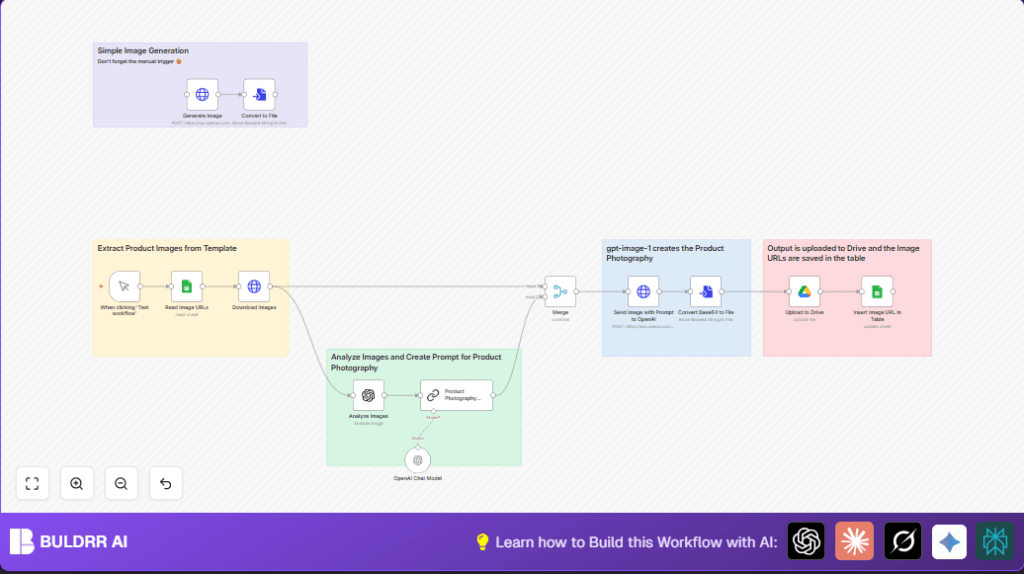
This workflow reads product image URLs from a Google Sheets file. It downloads each image, uses OpenAI to analyze and describe the image briefly, then creates detailed prompts to generate realistic product photos. The images get edited by OpenAI’s API to get a professional look. Final images upload to Google Drive, and new URLs update back in the sheet. This saves time and keeps product photos consistent and high quality.


Who should use this workflow

This workflow is for ecommerce store owners or anyone handling many product photos. It helps people who want to avoid manual editing and inconsistent styles. Users who have product images online and want to create professional photos fast will find this useful.

Basic knowledge of n8n and accounts for Google Sheets, Google Drive, and OpenAI API is needed.


Tools and services used

  • Google Sheets: Stores the list of product image URLs.
  • Google Drive: Uploads the edited images.
  • OpenAI API: Analyzes images and edits them based on prompts.
  • n8n: Automates the whole process in one workflow.

Inputs, processing, and outputs

Inputs

  • Spreadsheet with product image URLs.
  • OpenAI API key and Google credentials.

Processing steps

  • Read URLs from Google Sheets.
  • Download images from URLs.
  • Use OpenAI image analysis to describe images shortly.
  • Create detailed photography prompts with OpenAI’s GPT-4.
  • Send images and prompts to OpenAI’s image editing endpoint.
  • Convert OpenAI’s base64 response to files.
  • Upload final images to Google Drive.
  • Update Google Sheets with new image URLs and prompts.

Outputs

  • Edited product photos in Google Drive.
  • Updated Google Sheets rows with new image links and prompt info.

Beginner step-by-step: How to use this workflow in n8n

Importing the workflow

  1. Download the workflow file using the Download button on this page.
  2. Open n8n editor where the workflow will run.
  3. Use the “Import from File” option to load the workflow JSON file.

Configuring credentials and settings

  1. Add your Google Sheets and Google Drive OAuth credentials in the respective nodes.
  2. Insert your valid OpenAI API key in the OpenAI nodes.
  3. Update the Google Sheets node to point to your spreadsheet by setting the correct Document ID and Sheet Name.
  4. Set the Google Drive upload node’s folder ID to your target folder.

Running and activating

  1. Test the workflow using the Manual Trigger node by clicking ‘Execute Workflow’.
  2. Check outputs for errors and verify new images appear in Google Drive, and URLs update in Sheets.
  3. Activate the workflow for automatic or scheduled runs within n8n.

If you want more control or security, consider self-host n8n on your server.


Edge cases and failures

Errors reading Google Sheets often come from missing or wrong OAuth permissions.

OpenAI image editing can fail if the HTTP Request node does not send proper multipart/form-data or misses the image binary.

Make sure to use correct document IDs, API keys, and binary references to avoid these problems.


Customization ideas

  • Change the OpenAI image model in the editing HTTP Request node for different photo styles.
  • Edit the photography prompt in the Chain LLM node to adjust lighting, human model pose, or effects.
  • Add an image processing node to add watermarks after editing and before upload.

Summary of workflow results

✓ Saves hours of manual photo editing.
✓ Ensures all product photos have a consistent, professional look.
✓ Automatically updates product photo links in Google Sheets.
✓ Reduces errors in photo management and speeds product launches.

Automate product photos with n8n and OpenAI

Visit through Desktop to Interact with the Workflow.

Frequently Asked Questions

Download the workflow file using the Download button, then import it into n8n with the Import from File option.
Google Sheets and Google Drive OAuth credentials are required, along with a valid OpenAI API key.
Check the HTTP Request node to ensure multipart/form-data is used and the correct image binary is attached.
Yes, but it needs modifications to replace the Google Drive node with another cloud storage service like Dropbox.

Promoted by BULDRR AI

Related Workflows

Automate Twist Channel Creation and Messaging with n8n

This workflow automates creating and updating a channel in Twist and sending a personalized message to specific users. It eliminates manual setup errors and saves time managing Twist communications.

Automate Ideogram Image Generation with Google Sheets & Gmail

This workflow automates graphic design image generation via Ideogram AI, storing image data in Google Sheets and Google Drive, with email alerts via Gmail. It saves designers hours by automating image creation, remixing, review, and record-keeping.

Automate IT Support with Slack and OpenAI in n8n

Streamline IT support by automating Slack message handling using n8n and OpenAI. This workflow handles Slack DMs, filters bots, queries a Confluence knowledge base, and delivers AI-generated responses, improving support efficiency and response time.

Automate Crypto Analysis with CoinMarketCap & n8n AI Agent

Discover how this unique n8n workflow leverages CoinMarketCap’s multi-agent AI to deliver precise, real-time cryptocurrency insights directly via Telegram. Manage crypto data analysis efficiently with automated multi-source API integration.

Automate Gumroad to Beehiiv Subscriber Sync with n8n

Learn how to automatically add new Gumroad sales customers as Beehiiv newsletter subscribers using n8n automation. This workflow saves time by syncing sales data to Google Sheets CRM and notifying your Telegram channel instantly.

Generate On-Brand Blog Articles Using n8n and OpenAI

This workflow automates the creation of on-brand blog articles by analyzing existing company content using n8n and OpenAI. It extracts article structures and brand voice to produce consistent draft articles, saving significant content creation time.
1:1 Free Strategy Session
Your competitors are already automating. Are you still paying for it manually?

Do you want to adopt AI Automation?

Every hour your team does repetitive work, you're burning real money.
While you wait, faster businesses are cutting costs and moving quicker.
AI and automations aren't the future anymore — they're the present.

Book a live 1-on-1 session where we show you exactly which of your daily tasks can be automated — and what it’s costing you not to.