
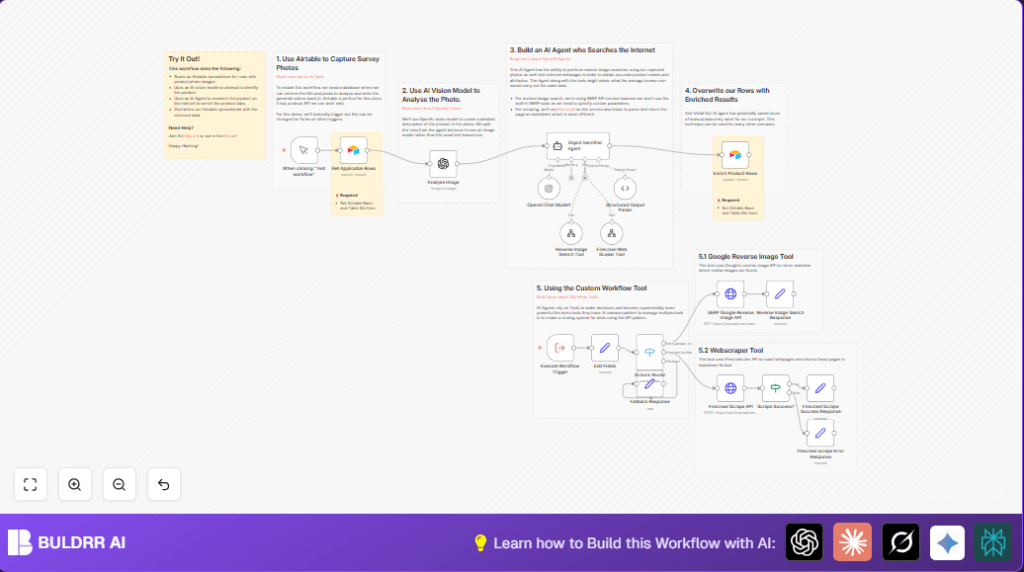

What This Workflow Does
This workflow finds product photos in Airtable that lack detailed info. It uses AI vision to describe the image. Then it runs a smart agent that searches the web and scrapes pages to get missing details like model, color, or condition. Finally, it writes all the info back to Airtable. This saves many hours of manual work and cuts down errors.
The workflow works step-by-step to use AI and web APIs so you get full, accurate product data linked to each photo automatically.
Who Should Use This Workflow
This is great for people managing big inventories with photos but missing key product info. It fits surveyors, inventory managers, and procurement teams dealing with many building materials or similar items.
Anyone who wants to save time and improve accuracy in logging product details in Airtable can use this. It helps avoid tedious manual lookups and copy-paste errors.
Tools and Services Used
- Airtable: Stores the product photos and fields for data.
- OpenAI API: Runs AI vision on images and chat agents for smart data extraction.
- SerpAPI: Does reverse image search via Google to find matching web pages.
- Firecrawl API: Scrapes web pages and converts them to markdown for better AI reading.
- n8n automation platform: Runs the workflow steps and handles API calls.
Inputs → Processing → Outputs
Inputs
- Airtable rows with product images but without AI-enriched details.
- Image URLs of product photos that are accessible publicly.
- Fetch Airtable rows with missing info.
- Send first product image to OpenAI vision to get a description and initial attributes.
- Pass this to an AI agent using OpenAI chat. The agent asks SerpAPI for reverse image search results.
- Agent also requests Firecrawl to scrape and extract content from relevant product webpages.
- Agent parses and compiles a richer set of product details like model, color, and condition.
- Route these calls properly using a switch node so each API gets the right request.
- Handle success or failure for scraping, sending results back to the agent.
- Update Airtable rows with AI-generated data, marking them processed to avoid duplicates.
- Airtable records updated with well-structured product info fields.
- Automated flag marking that AI processing is done on those rows.
Processing Steps
Output
Beginner Step-by-Step: How to Use This Workflow in n8n
Step 1: Import the Workflow
- Download the workflow file using the Download button on this page.
- Open your n8n editor where you want to run this workflow.
- Choose “Import from File” and select the downloaded workflow.
Step 2: Configure Credentials and IDs
- Add your Airtable API Key and connect it in the Get Applicable Rows and Enrich Product Rows nodes.
- Input your OpenAI API Key for the vision and chat nodes.
- Fill in SerpAPI API Key in the HTTP request node for reverse image searches.
- Add Firecrawl API Key in the HTTP request node for web scraping.
- Check Airtable base and table IDs in both Airtable nodes and update if different.
Step 3: Test & Activate
- Run the workflow manually using the manualTrigger node to test.
- Look at output in intermediate nodes to verify each step is working.
- Fix any errors, then activate the workflow to run manually or schedule runs.
- If you use hosted n8n, you can also check self-host n8n options for saving costs or handling large batches.
Edge Cases and Failure Handling
If Airtable fetch returns no rows, check IDs and filter formula.
OpenAI vision may fail if image URL is invalid or API key is wrong.
SerpAPI requests error out without correct API key or if quota is exceeded.
Firecrawl scraping fails if request body or headers are missing or malformed.
The workflow uses an if node to detect Firecrawl success, sending fallback messages if scraping fails.
Logs and intermediate outputs help you find step where failure occurs.
Customization Ideas
- Change Airtable base or table IDs to your own.
- Add more product attributes for AI to extract by editing the AI prompt text.
- Switch between OpenAI models like GPT-4 or GPT-3.5 depending on cost or accuracy.
- Replace SerpAPI or Firecrawl endpoints with other providers by changing HTTP node URLs.
- Replace the manual trigger with a scheduled trigger or Airtable webhook to automate entirely.
Summary of Results
✓ Saves many hours weekly by automating product data lookup.
✓ Reduces errors from manual data entry.
✓ Delivers detailed, structured product info like model, color, and condition.
✓ Keeps Airtable records up to date without manual copy-paste.
✓ Enables scaling inventory management for bigger teams.
