

What This Automation Does
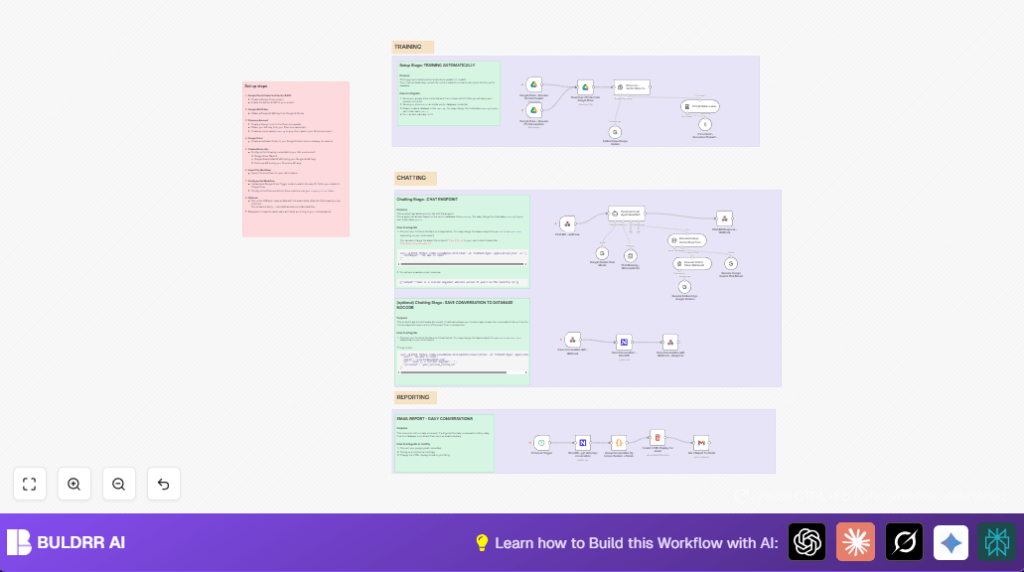
This workflow acts like a smart assistant to manage your resumes in Google Drive. It watches a special folder for new or updated resume files. When a file changes, the workflow downloads it, breaks the resume text into small pieces, and changes those pieces into vectors using Google Gemini. Then it saves these vectors in Pinecone, a fast search database. When someone asks a question through a chatbot, it looks into Pinecone and answers based on your resume data. You also get a daily email summary of all chats. This saves hours of manual work and keeps your info ready to answer instantly.
Tools and Services Used
- Google Drive: Stores resume files and triggers workflow on updates.
- Google Gemini (PaLM) API: Creates semantic embeddings from resume text for better search.
- Pinecone Vector Database: Stores and retrieves resume vectors fast.
- n8n: Automation platform running the workflow with credential integration.
- NocoDB: Saves chat conversation history and supports querying for reports.
- Gmail via OAuth: Sends daily email reports of chat summaries.
Who Should Use This Workflow
This automation fits users who update their resumes often and want a way to answer questions about skills and experiences quickly. It suits professionals wanting an AI chatbot for personal resumes without manual searching. Anyone handling multiple CV formats in Google Drive and needing chat-based info retrieval can benefit. It also helps track chat history and get daily summaries by email.
How This Workflow Works
Inputs
- New or updated resume files in a specific Google Drive folder.
- Chat questions submitted via a Webhook endpoint.
- Scheduled daily trigger to collect conversation logs.
Processing Steps
- Detects file creation or update in Google Drive, downloads the resume.
- Splits the resume content into overlapping text chunks to preserve context.
- Converts each chunk into vector embeddings using Google Gemini’s text-embedding-004 model.
- Indexes vectors in the Pinecone vector database for fast semantic search.
- Listens for incoming chat messages on the Webhook node.
- Uses the Personal CV AI Agent Assistant node with Google Gemini to answer queries referencing the Pinecone vector store.
- Maintains chat session memory using Chat Memory – Window Buffer to keep conversations contextually aware.
- Saves chat session data into NocoDB via Save Conversation API – Webhook nodes.
- Daily scheduled trigger gets all conversations from NocoDB.
- Groups and formats conversations into an HTML email report.
- Sends the daily email report using Gmail OAuth credentials.
Outputs
- Context-aware answers in chat based on resume content.
- Saved conversation history for analytics and review.
- Daily email summary of chatbot interactions.
Beginner Step-by-Step: How to Use This Workflow in n8n
Step 1: Import the Workflow
- Download the workflow file using the Download button on this page.
- Open your n8n editor and click on “Import from File.”
- Select the downloaded workflow file to load it in n8n.
Step 2: Add Credentials and Configure IDs
- Go to each node requiring credentials (Google Drive, Google Gemini, Pinecone, NocoDB, Gmail).
- Add your API keys or OAuth credentials for these services.
- Update folder IDs in Google Drive trigger nodes to match your resume folder.
- Change the Pinecone index name if you use a different index than “seanrag.”
- Set your email address in the Gmail node to receive daily reports.
- Adjust any webhook URLs or database table names if needed.
Step 3: Test the Workflow
- Upload or update a resume file in your specified Google Drive folder.
- Send a test chat message to the Webhook endpoint using a tool like Postman or curl.
- Check that the chatbot replies and the data is saved in NocoDB correctly.
Step 4: Activate the Workflow
- After testing, toggle the workflow in n8n from inactive to active.
- Make sure the Webhook endpoints are publicly accessible for chat and save conversation APIs.
- Verify the scheduled email trigger runs at the set time and you receive the report.
If running self hosting n8n, check out self-host n8n for best practices on uptime and security.
Common Problems and How to Fix Them
- Google Drive trigger not firing: Check folder ID and Drive API permissions in your credentials.
- Pinecone API insertions fail: Confirm the correct API key, index name, and region settings.
- Chatbot answers with “I cannot find the answer”: Resume vectors might not be updated. Upload resume again to refresh vectors.
- Daily email summary is empty: Make sure chat logs are saved in NocoDB and grouping JavaScript runs without errors.
Customization Ideas
- Change the Pinecone index name from “seanrag” if using another index.
- Edit the system prompt in Personal CV AI Agent Assistant to change the chatbot’s voice or style.
- Tune the chunk size and overlap in Recursive Character Text Splitter to fit your document size.
- Modify the email HTML template for daily reports in the formatting node.
- Disable conversation logging by turning off the save conversation webhook and NocoDB nodes if privacy is needed.
Summary of Benefits
✓ Automatically updates resume vectors on every file change.
✓ Handles chat questions with quick, accurate AI answers.
✓ Saves conversation history for later review and insight.
✓ Sends daily email reports summarizing all chatbot interactions.
→ Saves many hours by automating resume data management and Q&A.
→ Keeps your personal portfolio always ready for instant, smart replies.
