
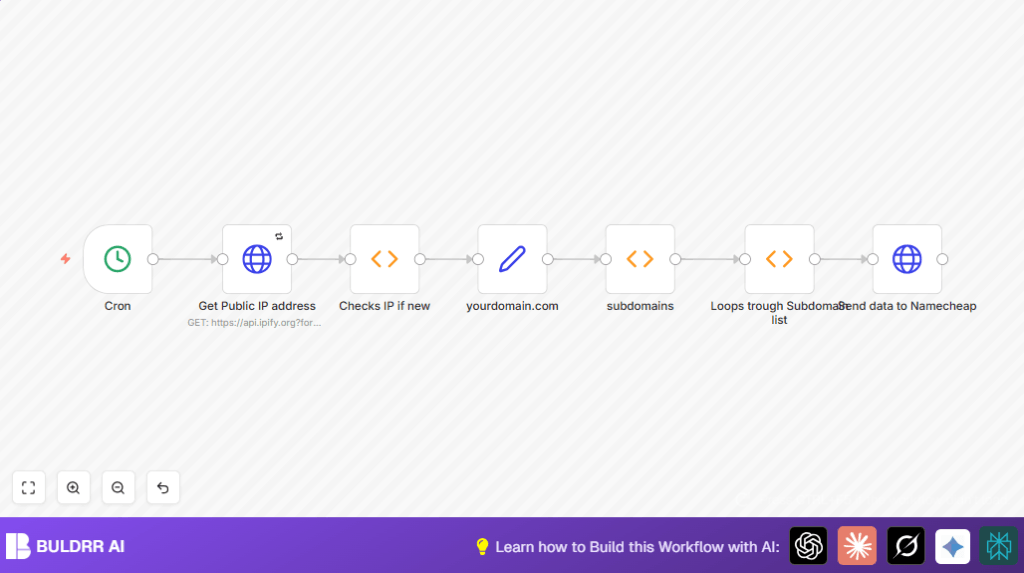

What This Workflow Does
This workflow checks your public IP every 15 minutes and updates NameCheap dynamic DNS only if your IP has changed.
It stops repeated updates if the IP is still the same.
You get your subdomains always pointing to the correct IP without manual work.
The workflow loops through your subdomains and updates each one using NameCheap’s API.
It stores the last IP to avoid unnecessary updates.
Tools and Services Used
- n8n automation platform: To build and run the workflow.
- NameCheap dynamic DNS API: To update DNS records automatically.
- ipify.org API: To get the public IP address in JSON format.
Inputs, Processing Steps, and Outputs
Inputs
- Your current public IP address fetched from ipify API every 15 minutes.
- Your domain name and dynamic DNS password for NameCheap.
- List of subdomains to update.
Processing Steps
- Fetch public IP with HTTP Request node.
- Check if IP changed since last check using Function node and workflow static data.
- If IP is new, pass domain, password, and subdomains forward.
- Loop through subdomains with Function node creating individual items.
- Send update requests to NameCheap for each subdomain using HTTP Request node.
- Save new IP in static data to compare on next run.
Outputs
- Updated DNS records on NameCheap for each subdomain with new IP.
- HTTP 200 success responses indicating successful DNS update.
- Idle workflow runs with no updates if IP has not changed.
Beginner Step-by-Step: How to Use This Workflow in n8n
Import the Workflow
- Click the Download button on this page to get the workflow file.
- Open your n8n editor.
- Use Import from File option to load the workflow JSON file.
Configure Credentials and Variables
- Add your NameCheap dynamic DNS password and domain name in the yourdomain.com Set node.
- Update the subdomains list inside the subdomains Function node to your real subdomains.
- Check the Send data to Namecheap HTTP Request node URL uses proper expressions referencing correct nodes.
- If using self-host n8n, ensure your server has internet access to call external APIs like ipify and NameCheap.
Test and Activate Workflow
- Run the workflow manually once to check it fetches IP and updates your NameCheap DDNS.
- Review execution logs for success, especially HTTP 200 responses from NameCheap.
- Activate the workflow toggle to enable scheduled, automatic runs every 15 minutes.
Customization Ideas
- Add extra subdomains by adding objects in the array inside the subdomains Function node.
- Change update frequency by changing the minutes in the Cron node.
- Add notification nodes like Slack or Email after Checks IP if new to get alerts on IP changes.
- Improve security by using environment variables or n8n credentials to store domain and password.
Troubleshooting Common Issues
- No IP updates despite IP change: Check if the Checks IP if new node can access workflow static data and the workflow state is preserved.
- Failed to update NameCheap: Verify API URL format and password are correct in the Send data to Namecheap node.
- Workflow not triggering: Ensure the Cron node is active and your server time is set correctly.
- Incorrect subdomain names: Confirm subdomain IDs exactly match your NameCheap DNS hosts in the subdomains node.
Pre-Production Checklist
- Test the NameCheap DDNS password with direct API calls to confirm validity.
- Test the Get Public IP address node alone to ensure IP retrieval.
- Confirm the static workflow data keeps IP between runs.
- Validate subdomain names are set accurately.
- Run the entire workflow once and check for 200 OK responses.
Deployment Guide
After testing, turn your workflow switch to active in n8n.
The workflow runs every 15 minutes automatically, keeping your DNS updated only when IP changes.
Monitor workflow execution in dashboard for failed runs or errors.
Add notification nodes for alerts on errors or IP updates as needed.
Hosting on a VPS or server? Use self-host n8n for reliable uptime and internet access.
