
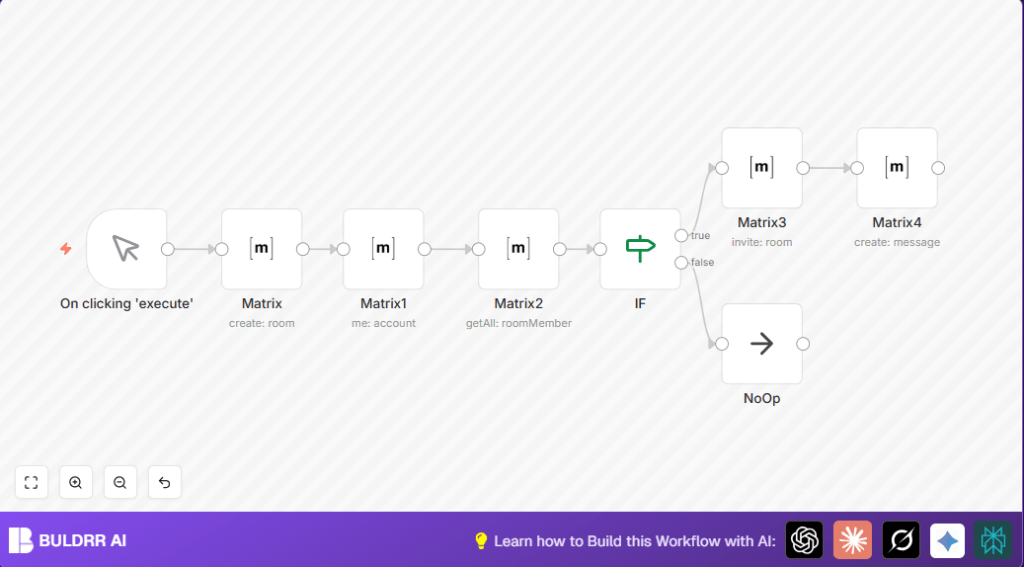

What This Automation Does
This workflow creates a new Matrix room automatically, invites members from another room to it, and sends a welcome message.
This solves the problem of spending hours manually setting up rooms, inviting users, and messaging.
When it runs, it saves time and stops mistakes like missing invites or unclear messages.
How This Workflow Works – Input, Process, Output
Inputs
- Room name and alias for the new Matrix room.
- Room ID of an existing Matrix room to copy members from.
- Matrix account API credentials named “matrixApi” configured in n8n.
Processing Steps
- Create a new Matrix room with the specified name and alias.
- Fetch details of the current logged-in user to avoid re-inviting self.
- Get list of all members from the existing room.
- Filter out the current user from members list.
- Invite each remaining member to the newly created room.
- Send a welcome message to the new room.
- Use conditional logic with If and NoOp nodes to manage invitations and workflow cleanly.
Output
- New Matrix room is ready with invited members.
- A welcome message is posted in the new room.
Beginner Step-by-Step: How to Use This Workflow in n8n
Importing the Workflow
- Download the workflow file from the “Download” button on this page.
- Open the n8n editor where the workflow will run.
- Go to “Import from File” in n8n and upload the downloaded workflow file.
Configuring the Workflow
- Add the required Matrix API credentials named “matrixApi” if not set.
- Update the room name and alias in the node that creates the new Matrix room.
- Set the Room ID of the existing Matrix room you want to copy members from.
- Optionally customize the welcome message text in the last Matrix node.
Testing and Activation
- Test the workflow by pressing Execute inside n8n.
- Check the new room has been created, members invited, and the welcome message appears.
- Once satisfied, activate the workflow to run on demand or via other triggers.
- If hosting n8n yourself, see self-host n8n for useful help.
Who Should Use This Workflow
This automation fits team managers or community leaders who handle many Matrix rooms.
It is helpful for people who want to avoid tedious room setup, save three or more hours per project, and reduce mistakes with invites and messages.
Tools and Services Used
- n8n: Automation platform used to build and run the workflow.
- Matrix API: Used through Matrix nodes for room management and messaging.
Customization Ideas
- Change the room name and alias to match new projects or communities.
- Write your own welcome message in the last Matrix node.
- Add extra conditions to invite only specific users based on roles or attributes.
- Replace the Manual Trigger with a Webhook node for external starting.
- Add logging nodes to record who got invited for tracking.
Troubleshooting Common Issues
“user_id” Missing or Undefined
Check Matrix node credentials for accuracy.
Ensure API access has correct rights.
Invitations Not Sent
Verify the If node conditions correctly compare current user and members.
Use correct JSON paths for user_id fields from nodes.
Matrix API Rate Limits or Errors
Check if too many invites go out too fast.
Add delays or batch invites to respect limits and permission rules.
Pre-Production Checklist
- Verify Matrix API credentials named “matrixApi” are set correctly in n8n.
- Run and test each Matrix node individually for expected response.
- Make sure new room alias and name do not exist already.
- Test invites on a trial room to confirm If node filtering works.
- Back up workflow versions before active deployment.
Deployment Guide
Activate the workflow in n8n once tests pass.
Monitor executions and logs to catch errors early.
Optionally add notification or alert nodes for issue awareness.
Summary
✓ Saves 3+ hours on room creation and invites.
✓ Avoids invite mistakes by automating user filtering.
✓ Ensures new Matrix rooms start with invited users and clear welcome messages.
✓ Easy to import and configure inside n8n for production use.
