

What this workflow does
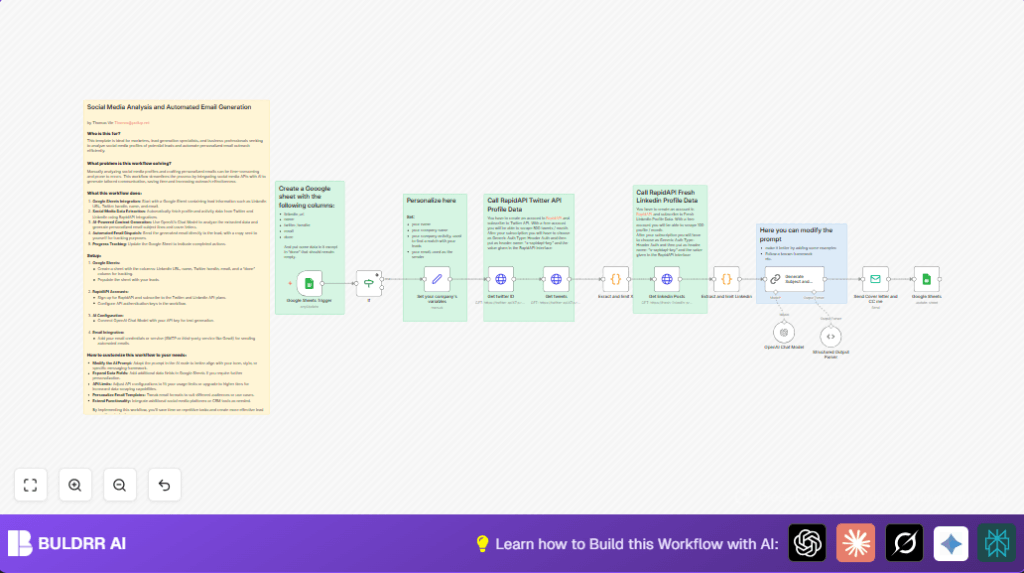
This workflow automatically reads leads from Google Sheets, collects their LinkedIn and Twitter posts, and then creates a personal email for each lead.
It helps marketers save time by stopping manual research of social media content.
After running, it sends a custom email to each lead and marks them as done in the sheet to avoid repeats.
Who should use this workflow
This workflow is best for people who do marketing outreach and want to make emails more personal without spending many hours.
It is simple enough for beginners who use n8n to automate tasks but don’t want to code everything from zero.
Having basic Google Sheets and API keys ready is needed, but no deep tech skills are required.
Tools and services used
- Google Sheets: Stores the leads with LinkedIn URLs, Twitter handles, names, emails, and a done field.
- RapidAPI: Provides LinkedIn and Twitter APIs to get recent posts and tweets.
- OpenAI GPT-4: Analyzes social media content and writes personalized email text.
- SMTP Email service: Sends personalized emails from the workflow.
- n8n: Automates the entire process with nodes and workflows.
Workflow inputs, processing, and outputs
Inputs
- A Google Sheet with columns for LinkedIn URL, Twitter handle, name, email, and done.
- API keys for RapidAPI and OpenAI GPT-4.
- SMTP credentials for sending emails.
Processing steps
- Trigger runs when a new lead is found with an empty done field.
- Check the done field to only continue for new leads.
- Set your company details for AI prompts.
- Call RapidAPI to get Twitter user ID from the handle.
- Fetch recent tweets for the Twitter user ID.
- Use code to extract tweet texts, limiting to 10 posts.
- Call RapidAPI to get recent LinkedIn posts from the LinkedIn URL.
- Use code to extract LinkedIn post titles and text, limiting to 10 posts.
- Send all collected posts plus company info to OpenAI GPT-4 to create an email subject and HTML letter.
- Parse the AI response to get subject and body.
- Send the personalized email to the lead and CC yourself.
- Update the Google Sheet marking the lead as done with an X.
Outputs
- Emails sent to each lead based on their social media posts.
- Google Sheet updated to not resend to processed leads.
Beginner step-by-step: How to build this workflow in n8n
Import the workflow
- Download the workflow using the Download button on this page.
- Open n8n editor and click “Import from File”.
- Select the downloaded JSON file to load the workflow.
Configure API Keys and credentials
- Add your Google Sheets credentials in the Google Sheets Trigger and update to your sheet and range.
- Insert your RapidAPI key in the HTTP Request nodes for Twitter and LinkedIn with correct headers.
- Add your OpenAI API key to the OpenAI Chat Model node, and confirm GPT-4 is selected.
- Set your SMTP email credentials in the Email Send node.
- Check the company details in the Set node, change name, company, or email if needed.
- Make sure the Google Sheets node at the end updates the correct sheet and cell.
Test the workflow
- Try running the workflow in n8n with one test lead row that has empty done field.
- Review the logs and output at each node to confirm data flows properly.
- Confirm an email is sent to the test lead’s email and CC to your email.
Activate for production
- Switch on the workflow trigger to run every minute or as needed.
- Watch the execution results in the n8n interface or configure alerts for errors.
- Update the Google Sheet with new leads as usual and see them processed automatically.
For users running self-host n8n, ensure the workflow import and environment configurations are done properly in your instance.
Common edge cases and failures
- API Authentication failed: Check RapidAPI keys, make sure “x-rapidapi-key” header is correct.
- No tweets or LinkedIn posts found: Profiles may be private, inactive, or API rate limits hit. Confirm API quotas.
- Email not sent: SMTP settings might be wrong or blocked ports. Test SMTP separately.
- Code nodes skipping data: Social media posts may not have expected structure. The JavaScript checks and skips bad data.
Ideas for customization
- Change AI prompt tone: Edit the OpenAI node prompt to fit a friendlier or more formal voice.
- Adjust how many posts to analyze: Change max_posts in JavaScript Code nodes to collect more or fewer tweets and posts.
- Add new social networks: Insert extra HTTP Request nodes and code to fetch from Instagram or Facebook.
- Modify email template: Customize the HTML inside the Email Send node for branding or personalized greetings.
- Add lead scoring: Use another node to rank leads based on activity before sending emails.
Summary of benefits and results
✓ Saves leads research time from hours to minutes.
✓ Sends personalized, relevant emails automatically.
✓ Keeps lead status up to date to avoid repeats.
→ Enables more focused marketing outreach with minimal manual work.
