

What This Automation Does
This workflow changes a new English word in a Google Sheet into a full Chinese flashcard automatically.
It solves the problem of slow, error-prone manual flashcard making.
The result is a Google Sheet row filled with Chinese translation, pinyin, example sentence, and a matching image link.
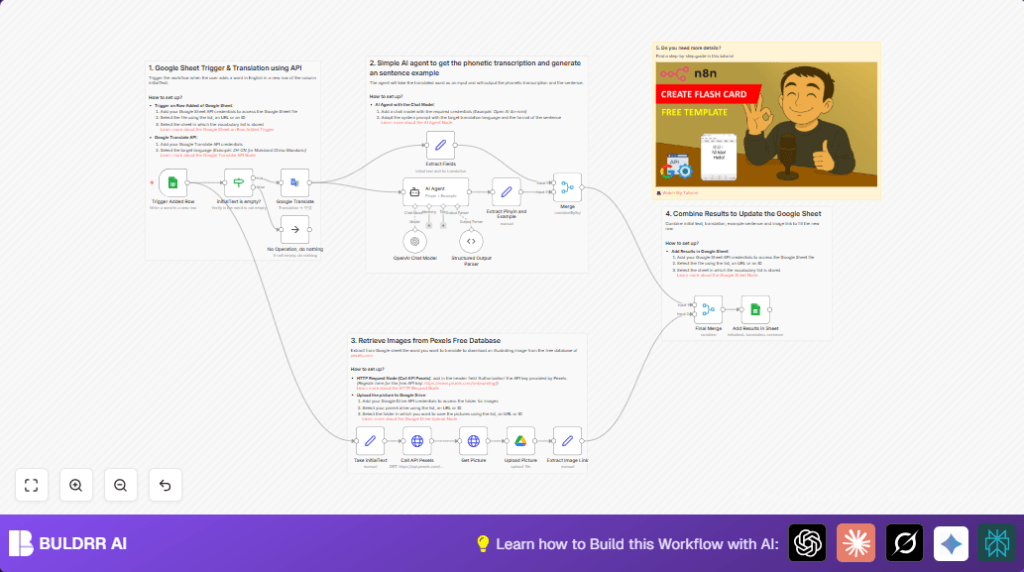
It does these things: detects new words added, translates with Google Translate, creates pinyin and example sentences using AI, finds free images from Pexels, uploads images to Google Drive, then updates the sheet.
Inputs, Processing, and Output
Inputs
- New English word entered in a Google Sheet row.
- API keys for Google Translate, OpenAI GPT-4o-mini (via LangChain), Pexels, and Google Drive.
Processing Steps
- Watch for new rows added in Google Sheet using the Google Sheets Trigger.
- Check if the English word cell is not empty.
- Translate the English word to Simplified Chinese with Google Translate.
- Extract the word and translation for next use.
- Use an AI agent (LangChain + GPT-4o-mini) to create pinyin transcription and a short example sentence in JSON.
- Parse the AI JSON output into separate pinyin and example fields.
- Fetch a related image from Pexels API using the English word.
- Download the first image from Pexels result.
- Upload the image to Google Drive in the chosen folder.
- Extract the public link to the uploaded image.
- Merge all gathered data – original word, translation, pinyin, example, image filename, and image link.
- Update the same Google Sheet row with all flashcard data.
Output
One row in Google Sheets updated with:
– English word
– Chinese translation
– Pinyin transcription
– Example sentence
– Image file name
– Public link to flashed image
Who Should Use This Workflow
This suits any language learners wanting quicker flashcard making.
It is for users wanting less manual copy-paste and more accurate, enriched content.
No heavy tech skills required if the user can handle basic Google Sheets and API key setups.
It works well in n8n’s no-code platform.
Tools and Services Used
- Google Sheets: Stores vocabulary words and flashcard data.
- Google Translate API: Converts English to Chinese.
- OpenAI GPT-4o-mini (via LangChain AI Agent): Generates pinyin and example sentences.
- Pexels API: Finds free images matching the English words.
- Google Drive API: Uploads images and provides accessible links.
- n8n platform: Connects all these steps in automation.
Beginner Step-by-Step: How to Use This Workflow in n8n
Import Workflow
- Download the workflow file using the Download button on this page.
- Open n8n editor.
- Import workflow via “Import from File” option.
Configure Credentials and IDs
- Add your API Keys for Google Translate, OpenAI, Pexels, and Google Drive in n8n credentials.
- Update Google Sheet Document ID and Sheet Name inside Google Sheets Trigger and update nodes.
- Set the Google Drive Folder ID where images will be uploaded.
Update Node Settings if Needed
Check any hardcoded fields like image file name template or prompt inside the AI Agent node.
Copy-paste prompts or expressions exactly from workflow content.
Test Workflow
- Add a new English word row in the targeted Google Sheet.
- Run workflow manually or watch trigger fire and full workflow to execute.
- Verify output data appears correctly in the Google Sheet row including translation, pinyin, sentence, and image link.
Activate for Production
- Turn on the workflow toggle to run continuously.
- Optionally configure polling frequency in the Google Sheets Trigger.
- Monitor executions tab for errors.
If running self-host n8n, deploy in secure environment for stable automation.
Customization Ideas
- Change the target language in the Google Translate node by changing the language code.
- Improve the AI Agent’s prompt to get longer or more complex example sentences.
- Switch the image source API to Unsplash or another free provider.
- Set the Google Drive upload folder dynamically based on word categories.
Common Problems and Fixes
- Trigger stops firing: Check Google Sheets OAuth permissions and verify Document ID.
- Empty or wrong translation: Check Google Translate API key is valid and language code is correct.
- AI Agent gives bad JSON: Verify prompt is exact and ask for JSON output.
- No image from Pexels: Check API key, rate limits, or try other search terms.
Pre-Production Checklist
- Validate all API keys have proper access.
- Confirm the trigger catches newly added words.
- Verify translation output is correct.
- Test AI prompt outputs clear pinyin and example sentence.
- Make sure Pexels returns images and uploads succeed.
- Final check: Google Sheet rows update as expected.
Deployment Tips
After testing, activate the workflow to run automatically.
Keep an eye on API usage and update keys if expired.
Adjust trigger polling to balance workload and latency.
Self-host the workflow on secure servers if privacy or uptime matters.
Summary
✓ Converts English words into full Chinese flashcards in Google Sheets.
✓ Automates translation, pinyin, example sentences, and image fetching.
✓ Saves hours by avoiding manual data entry and searching.
✓ Ensures higher accuracy and consistent study material.
✓ Easy to import, configure, test, and activate in n8n.
✓ Customizable for other languages or image providers.
