

What This Automation Does
This workflow gets keywords from a Google Sheet and tells if each is a known IT software or service name.
It helps avoid slow manual checks and errors.
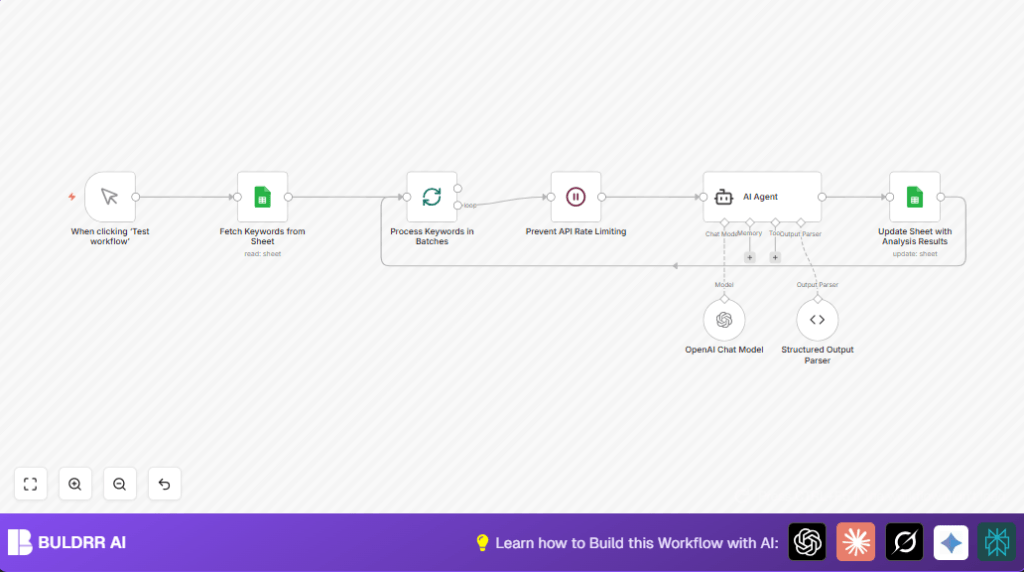
The steps are simple: fetch keywords, split them into small groups, pause to avoid API limits, send each group to an AI model that says yes or no, and then update the original sheet with these answers.
This saves lots of time and makes keyword checking easier and clearer.
Step-by-Step Guide
How to Use This Workflow in Production
1. Import the Workflow
- Open the n8n editor.
- Click on “Import from File” and select the workflow file downloaded from this page.
2. Configure Credentials and IDs
- Add Google Sheets credentials with read/write access to your keywords sheet.
- Add OpenAI API Key with GPT-4o-mini model access.
- Check and update the Google Sheet document ID and sheet ID if your sheet is different.
3. Edit AI Prompt if Needed
- Open the AI Agent node.
- Check the System Message prompt and adjust it if you want to detect different keyword types.
- For example, use this prompt exactly as shown:
Check the keyword I provided and define if this keyword has a name of the known IT software, service, tool or app as a part of it (for example, ServiceNow or Salesforce) and return yes or no.4. Test the Workflow
- Use the Manual Trigger node by clicking “Execute Workflow” or “Test Workflow”.
- Verify that keywords are fetched, processed, and results update the Google Sheet.
5. Activate for Production
- Enable the workflow trigger if you want it to run on a schedule or event.
- Monitor runs in the Execution List and keep backups of your Google Sheet data.
Follow self-host n8n if running on your own server for better control.
What Inputs, Processing, and Outputs Happen
Inputs
- Google Sheet: List of keywords in a designated sheet and column.
- OpenAI API Key: Allows communication with GPT-4o-mini model.
Processing Steps
- Fetch Keywords: Retrieves keyword list using Google Sheets API.
- Batch Keywords: Groups the list into sets of 6 keywords each for safe API calls.
- Wait Node: Pauses flow briefly to prevent hitting rate limits.
- AI Analysis: Each batch is sent to the AI Agent node with a clear prompt to label keywords as known IT services or not.
- Parse Output: Transforms the AI reply into simple JSON with “Isservice”: “yes” or “no”.
- Update Sheet: Writes the classification back in the Google Sheet in a new column called “Service?”.
Outputs
- Enhanced Google Sheet: Original keyword list with an added column showing AI’s yes/no classification.
Customizations
- Change the batch size in the Process Keywords in Batches node to tune speed versus API limits.
- Edit the AI prompt in the AI Agent node to detect things other than software names, like industries or competitors.
- Add new columns in Google Sheets and update the Update Sheet with Analysis Results node to save extra insights such as confidence scores.
- Add error-handling nodes to retry or log API call failures after the AI Agent node.
Troubleshooting
Issue: “Error 429 Too Many Requests” from OpenAI API.
Cause: Too many requests sent too fast.
Fix: Increase wait time in Prevent API Rate Limiting node or reduce batch size in Process Keywords in Batches.
Issue: Google Sheets node can’t read or write data.
Cause: OAuth credentials expired or wrong sheet/document ID used.
Fix: Re-check Google Sheets OAuth setup and sheet/document ID fields.
Pre-Production Checklist
- Confirm Google Sheets credentials have read and write access to the keyword sheet.
- Make sure OpenAI API key is valid and has access to GPT-4o-mini model.
- Run a test with a few keywords to check data flow and classification.
- Adjust batch sizes and wait times according to API limits and speed needs.
- Backup Google Sheet before large updates to avoid data loss.
Deployment Guide
Enable workflow triggers as needed for scheduled or manual runs.
Use Manual Trigger node for on-demand executions and testing.
Watch executions inside n8n’s Execution List to catch errors early.
Keep regular backups of the Google Sheet as updates happen automatically.
