
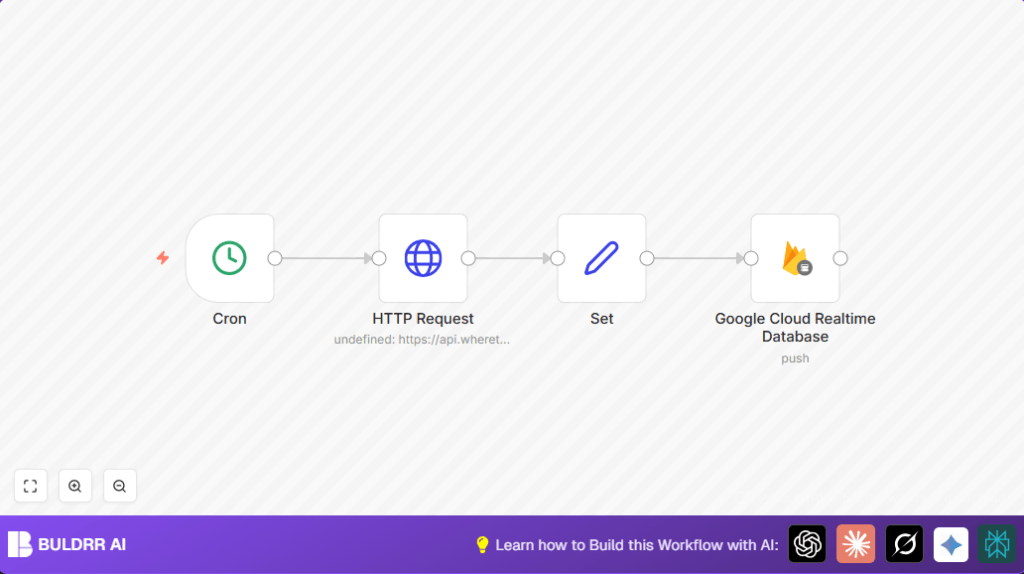

What This Workflow Does
This workflow collects the location of the International Space Station every minute. It takes that position data — latitude, longitude, and timestamp — and saves it directly into a Google Firebase Realtime Database. This stops the need for manual tracking, making space location updates fast and automatic.
The workflow runs automatically on a timer, calls a public ISS API, cleans the data, and pushes it to Firebase for real-time use.
Who Should Use This Workflow
This is useful for educators, students, space fans, or developers wanting live ISS position data without manual effort. It helps to keep any ISS tracking app or dashboard updated easily and accurately.
Anyone with a basic n8n setup and Firebase account can use this workflow to automate ISS tracking.
Tools and Services Used
- n8n automation platform: runs the workflow tasks on schedule.
- wheretheiss.at API: provides free, public ISS position data without API keys.
- Google Firebase Realtime Database: stores and syncs the ISS position data in real time.
How the Workflow Works – Inputs, Processing, and Outputs
Inputs
- The workflow uses a timer to start every minute.
- It sends the current time as a timestamp for API request.
Processing Steps
- The workflow triggers using a Cron node every minute.
- The HTTP Request node calls the ISS API with current timestamp using the expression
{{Date.now();}}. - The Set node takes the API response and picks only latitude, longitude, and timestamp.
- The Google Firebase Realtime Database node pushes this clean data into the database under the path ‘iss’.
Outputs
- Updated ISS location data saved automatically in Firebase every minute.
- Data is ready for viewing or using in apps with live updates.
Beginner Step-by-Step: How To Use This Workflow In n8n
Step 1: Import Workflow
Click the Download button on this page to get the workflow file.
Go to your n8n editor and choose Import from File to upload the workflow.
Step 2: Set Credentials
After import, add your Google Firebase OAuth2 credentials inside the Firebase node.
Check the Firebase Project ID and database path. Change if your setup is different from ‘iss’.
Step 3: Test Workflow
Run the workflow once manually. This makes sure the API call and Firebase push work correctly.
Step 4: Activate Workflow
Turn on the workflow by switching it from inactive to active in n8n.
This makes it run every minute automatically without more action.
If you use self-host n8n, the same import and setup steps apply.
Customization Ideas
- Change the frequency in the Cron node to every 5 or 10 minutes to lower API traffic.
- Add more data fields in the Set node if the API returns altitude or velocity.
- Modify the Firebase path to organize data differently (for example, ‘iss_positions/logs’).
- Add error alerts via Email or Slack nodes for API or Firebase issues.
Common Problems and Solutions
- OAuth2 credentials error in Firebase node means credentials need re-authorization inside n8n.
- Empty API data usually means wrong URL or query format. The timestamp must use
{{Date.now();}}. - Data not showing in Firebase can mean wrong database path or insufficient write permissions.
Summary of Results
✓ Automatic ISS position updates every minute saved in Firebase.
✓ Real-time data ready for apps, dashboards, or education.
✓ Fully hands-off process replacing manual data logging.
→ Simplifies keeping space location info current and accurate without effort.
→ Can be expanded with alerts or different database setups.
