

What This Workflow Does
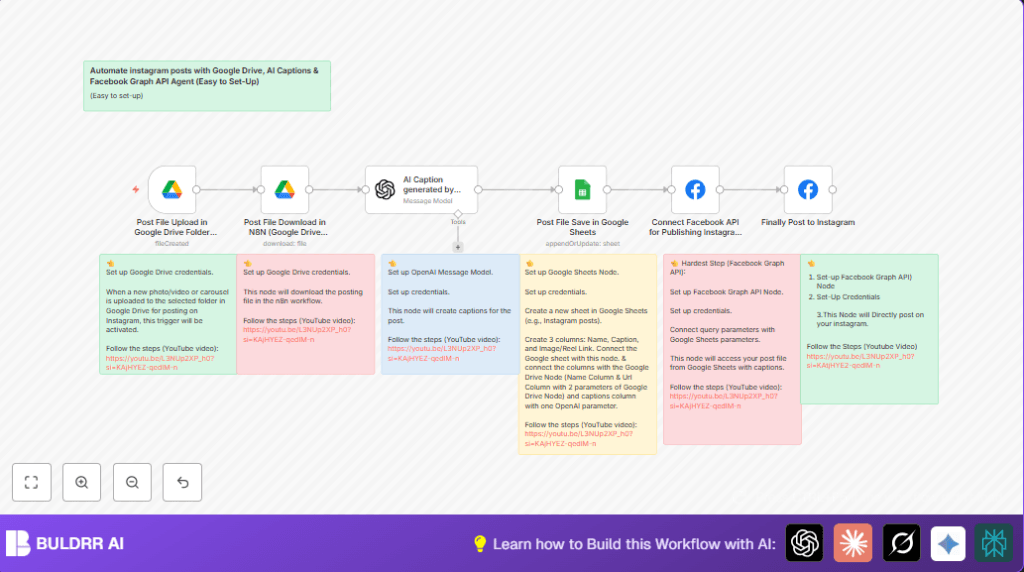
This workflow watches for new photos or videos added to a Google Drive folder.
It downloads the media, then uses AI to write an Instagram caption.
After that it saves post info in a Google Sheet.
Finally, it creates and publishes the post on Instagram automatically.
This helps avoid manual posting and missed deadlines.
Tools and Services Used
- Google Drive: Stores media files uploaded by the creative team.
- OpenAI GPT-4o-mini: Generates creative Instagram captions based on the media file.
- Google Sheets: Logs post details including captions and media URLs for tracking.
- Facebook Graph API: Creates and publishes posts on Instagram business accounts.
- n8n: Runs the automated workflow connecting all services.
How the Workflow Works (Input → Process → Output)
Inputs
- New media files (photos, videos, carousels) added to a chosen Google Drive folder.
Processing Steps
- The Google Drive Trigger detects file creation in the folder.
- Google Drive node downloads the actual media file using the dynamic file ID.
- OpenAI node generates an Instagram caption using the filename and a prompt.
- Google Sheets node saves the filename, caption, media URL, and thumbnail into a spreadsheet.
- Facebook Graph API node creates an Instagram post draft with media and caption.
- A second Facebook Graph API node publishes the post live using creation ID.
Output
- Instagram post published with media and AI-generated caption.
- Organized record of every post in Google Sheets for review.
Who Should Use This Workflow
This workflow is good for social media managers and teams who handle multiple client Instagram accounts.
It suits those who get images or videos from shared Google Drive folders.
This saves time from manual posting and writing captions.
It also fits users who want consistent daily posts without missing deadlines.
Beginner Step-by-Step: How to Use This Workflow in n8n
Importing the Workflow
- Inside the n8n editor, click the Download button on this page to get the workflow JSON file.
- In n8n, choose Import from File and select the downloaded file.
Configuring Credentials and IDs
- Add your Google Drive credentials to the Google Drive Trigger and Google Drive nodes.
- Add your OpenAI API Key in the OpenAI node.
- Input your Google Sheets API credentials and specify the spreadsheet ID where post data will be stored.
- Update the Facebook Graph API nodes with your Instagram Business account numeric ID.
- Set URLs and other parameters in Facebook Graph API nodes using dynamic expressions from previous steps if needed.
Prompt for Caption Generation
The OpenAI prompt looks like this:
=Generate an engaging Instagram caption for a {{ $('Post File Upload in Google Drive Folder  Trigger').item.json.name }} about [Description]. Include:
2-3 sentences with emojis
3-5 relevant hashtags
A call-to-action
Keep it under 150 characters...
You can copy and paste this directly into the OpenAI node message content field.
Testing and Activating
- After configurations, test the workflow by uploading a sample media file to the Google Drive folder.
- Check if the caption is generated and the post is created in Instagram as a draft.
- Review Google Sheets for correct data logging.
- When ready, activate the workflow by switching it on in n8n editor.
For full control and scaling, consider self-host n8n.
Common Input and Output Details
Inputs: Media files with names uploaded to Google Drive folder.
Outputs: Published Instagram posts with captions and entry records in Google Sheets.
Edge Cases and Troubleshooting
File not found error: Usually means file ID is wrong or folder permissions are insufficient.
Empty captions: Check if OpenAI prompt is correct and API key is valid.
Failed Instagram media upload: Confirm Instagram Business ID and API parameters are correct.
Customization Ideas
- Change the AI prompt style for different tones like formal or casual.
- Update
media-typeparameter to post images, videos, or carousels as needed. - Add extra data columns in Google Sheets for dates or engagement tracking.
- Modify Google Drive folder watch to cover multiple client folders.
- Add delays or conditions to control exact posting schedule.
Summary of Benefits and Results
✓ Saves hours weekly by automating media posting.
✓ Reduces errors from manual uploads and caption writing.
✓ Provides consistent Instagram content with AI-crafted captions.
✓ Keeps post records neatly in Google Sheets for management.
→ Instagram posts publish automatically once media is uploaded.
→ Workflow runs continuously after activation with minimal user input.
