

What This Automation Does
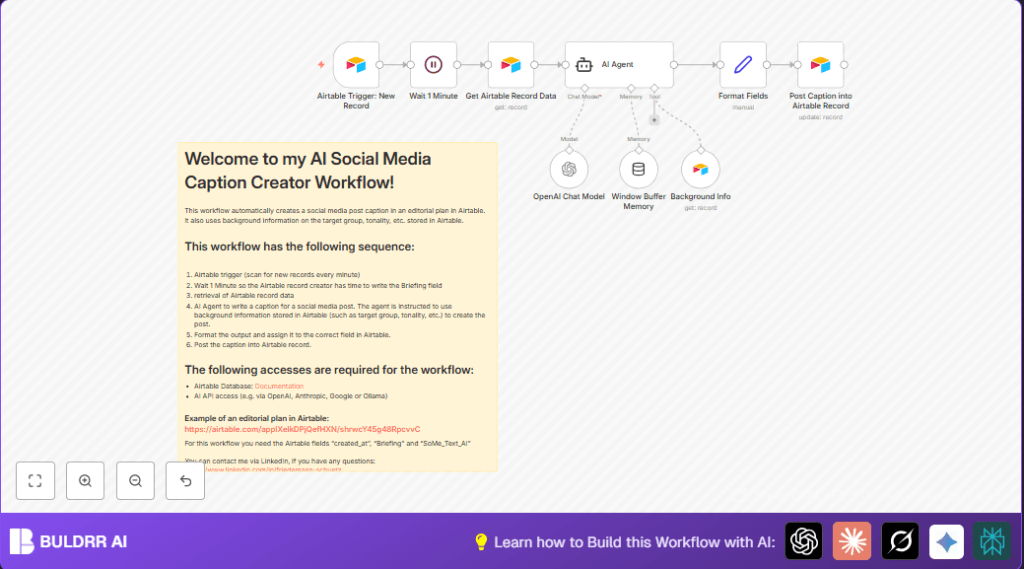
This workflow creates Instagram captions automatically when a new post idea is added in Airtable.
It reads the briefing and audience details, then uses AI to write a caption with a call-to-action.
The caption is saved back in Airtable ready for publishing.
This saves hours by stopping manual writing and makes captions better for the target audience.
Inputs, Processing Steps, and Output
Inputs
- A new record added in Airtable with fields like
created_atand a briefing text. - Audience background info stored in another Airtable table.
Processing Steps
- A Airtable Trigger waits for new records.
- A Wait node delays one minute to let briefing details be added.
- Airtable node reads the complete post briefing data.
- Airtable Tool node fetches the target audience information.
- LangChain AI Agent node uses AI to analyze briefing and background, then generates a creative caption with a call-to-action.
- OpenAI Chat model node provides AI power using GPT-4o.
- Window Buffer Memory node keeps context between runs.
- Set (Format Fields) node adjusts the caption to fit Airtable’s field format.
- Airtable node updates the record with the final caption.
Output
An Instagram caption, tailored to audience and campaign, saved into the Airtable post record.
Who Should Use This Workflow
This workflow suits social media managers or content creators who use Airtable to plan posts.
It helps people who want to save time, keep captions consistent, and write to fit their audience better.
If the manual writing of captions is slow or uneven, this solves that problem simply.
Tools and Services Used
- Airtable API: Stores posts and audience info, triggers workflow on new entries.
- n8n: Automates the workflow with nodes and triggers.
- OpenAI GPT-4o: Generates creative captions from briefings.
- LangChain AI Agent: Manages AI context and prompt logic.
- Window Buffer Memory: Saves AI session context during runs.
Beginner Step-by-Step: How to use this Workflow in n8n
Step 1: Download and Import Workflow
- Click the Download button on this page to get the workflow file.
- In the n8n editor, choose Import from File and upload the downloaded workflow.
Step 2: Configure Credentials and IDs
- Add your Airtable API Key and OpenAI API Key to n8n’s credentials section.
- Update Airtable Base IDs, Table Names, or Field Names if different from defaults.
- If needed, update campaign emails, channels, or folder IDs to fit your setup.
Step 3: Review Prompts and Expressions
- Check the LangChain AI Agent node for the prompt text. Use the copy below if needed:
Analyze the post briefing and audience info. Generate an Instagram caption that is creative and fits the target tone. Include a clear call-to-action at the end.
Step 4: Test the Workflow Run
- Trigger the workflow by adding a new post record in Airtable, ensuring briefing text is filled promptly.
- Check the workflow run history in n8n for errors or success messages.
- Confirm the caption appears in Airtable updated field
SoMe_Text_KI.
Step 5: Activate Workflow for Production
- Once tested successfully, set the workflow’s toggle switch to “Active” in n8n.
- Monitor first few runs to ensure smooth operation.
This quick setup lets beginners use the AI caption generation fully in production without building the workflow manually.
Customization Ideas
- Change social media platform by editing AI Agent prompt for Facebook, LinkedIn, or others.
- Adjust delay in Wait node to match briefing entry speed.
- Add or improve audience profiles in Airtable’s background data table for better caption fit.
- Modify call-to-action text by editing the system prompt.
- Switch OpenAI GPT-4o to other AI models supported by n8n if desired.
Try also self-host n8n for more control and security over data.
Common Failures and Troubleshooting
Problem: No Caption Generated
Cause is usually empty or incomplete briefing field when workflow triggers.
Solution is to ensure briefing is filled before the delay ends or increase wait time.
Problem: Airtable Record Update Fails
Cause is wrong record ID or insufficient API permissions.
Solution is to check mappings and confirm API key allows writing to Airtable.
Problem: OpenAI API Errors
Cause is invalid API key or exceeded quota.
Solution is to verify API credentials and model names are correct in n8n.
Pre-Production Checklist
- Confirm Airtable Trigger fires on new records correctly.
- Make sure briefing text is completed before AI processing starts.
- Test read and update nodes for Airtable connectivity.
- Run sample workflow to check caption quality.
- Backup Airtable data before active deployment.
Summary of Results
✓ Saves content creators many hours weekly by automating caption writing.
✓ Produces consistent and audience-tailored captions that fit campaign needs.
→ Turns manual caption writing into an automatic, fast process triggered by record creation.
→ Provides a simple way to improve social media messaging quality and speed using AI.
