
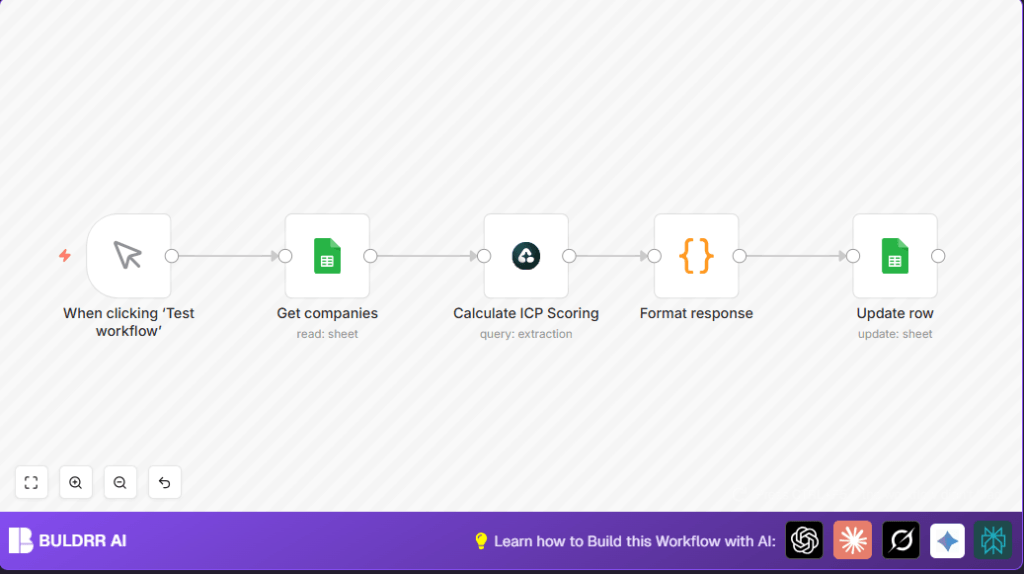

What This Automation Does
This n8n workflow reads company data from a Google Sheet and scores each company based on LinkedIn profile info.
It solves long, manual work by automating data extraction, scoring, and sheet updates.
The workflow returns updated ICP scores for faster, more accurate sales targeting.
The input is a Google Sheet with LinkedIn URLs.
The process uses Airtop AI to analyze LinkedIn pages for company size, tech level, AI focus, funding, and more.
A weighted score is calculated and sent back to the sheet.
You get a Google Sheet with exact ICP scoring per company, saving time and errors.
Who Should Use This Workflow
This workflow is good for sales teams, growth strategists, and marketers who want to score many B2B companies quickly.
Non-technical people can run it with little help, saving hours of manual research.
It helps sales focus on the best company prospects by giving reliable, AI-based scores.
Tools and Services Used
- Google Sheets: Stores company data rows with LinkedIn URLs.
- Airtop AI: Extracts detailed company profiles and computes the ICP scoring.
- n8n: Automates workflow steps and data flow.
Inputs, Processing Steps, and Output
Inputs: List of companies in Google Sheets with LinkedIn URLs and row numbers.
Processing:
1. Read companies from the sheet.
2. Send LinkedIn URLs to Airtop with a prompt to get company data and compute ICP score.
3. Run JavaScript code in n8n to extract scores and row mapping.
4. Update the original Google Sheet rows with new ICP scores.
Output: Updated Google Sheet with an additional column for ICP score next to each company row.
Beginner Step-by-Step: How to Use This Workflow in Production in n8n
Download and Import
- Download the workflow file using the Download button on this page.
- Open the n8n editor where the workflow will run.
- Click on “Import from File” and select the downloaded workflow JSON file.
Configure Credentials and Settings
- Add required Google Sheets credentials in n8n to allow reading and updating your sheet.
- Add Airtop API credentials in the Airtop node configuration.
- Update the Google Sheets Document ID and sheet name if they differ from the defaults.
- Verify the Google Sheet has columns named exactly as expected, such as Linkedin_URL_Company and row_number.
- In the Airtop node, check the prompt runs with the expression
{{$json["Linkedin_URL_Company"]}}as URL input. - Check the JavaScript code node uses correct variable names matching data paths shown below.
const row_number = $('Get companies').item.json.row_number;
const Linkedin_URL_Company = $('Get companies').item.json.Linkedin_URL_Company;
const icp_scoring = JSON.parse($input.item.json.data.modelResponse).icp_scoring;

return { json: {
  row_number,
  Linkedin_URL_Company,
  ICP_Score_Company: icp_scoring.total_score
}};
Test and Activate
- Run the workflow manually inside n8n once to confirm all nodes work properly and data updates correctly.
- If data updates fine, activate the workflow for production use.
- Optionally, replace the manual trigger with a schedule trigger to run automatically over time.
Note: For users wanting more control or security, consider hosting n8n yourself via self-host n8n.
Customization Ideas
- Change the Airtop AI prompt to adjust ICP score weights or include different company attributes.
- Add additional Google Sheets columns that provide more company details for richer AI analysis.
- Create alerting nodes like Slack or email to notify sales teams when scores update.
- Switch the manual trigger to a time trigger for fully automated scoring on a schedule.
Troubleshooting Common Issues
- Google Sheets returns no rows: Check Document ID and sheet name spellings exactly. Re-authenticate Google Drive credentials.
- Airtop AI node errors: Confirm API key is valid. Make sure the LinkedIn URL is passed correctly. Verify prompt format is right.
- Google Sheets update fails: Ensure row_number exists in input JSON and update node matches on row_number column.
Pre-Production Checklist
- Verify Google Sheets and Airtop API credentials are current and working.
- Check LinkedIn URLs are correct and in the expected Google Sheet column.
- Test workflow with few companies before large batch runs.
- Back up the Google Sheet to prevent data loss on updates.
Deployment Guide
Once testing finishes, activate the workflow in n8n.
Run it manually first or schedule automatic executions.
Observe execution logs in n8n for any failed nodes.
For large volumes, split data into smaller batches.
Run during off-peak hours to avoid API rate limits.
Summary
✓ Saves over 5 hours of manual work weekly
✓ Eliminates human data entry errors
✓ Delivers consistent, automated ICP company scores
✓ Updates Google Sheets automatically with AI-analyzed scores
✓ Helps sales teams focus on best client prospects quickly
