
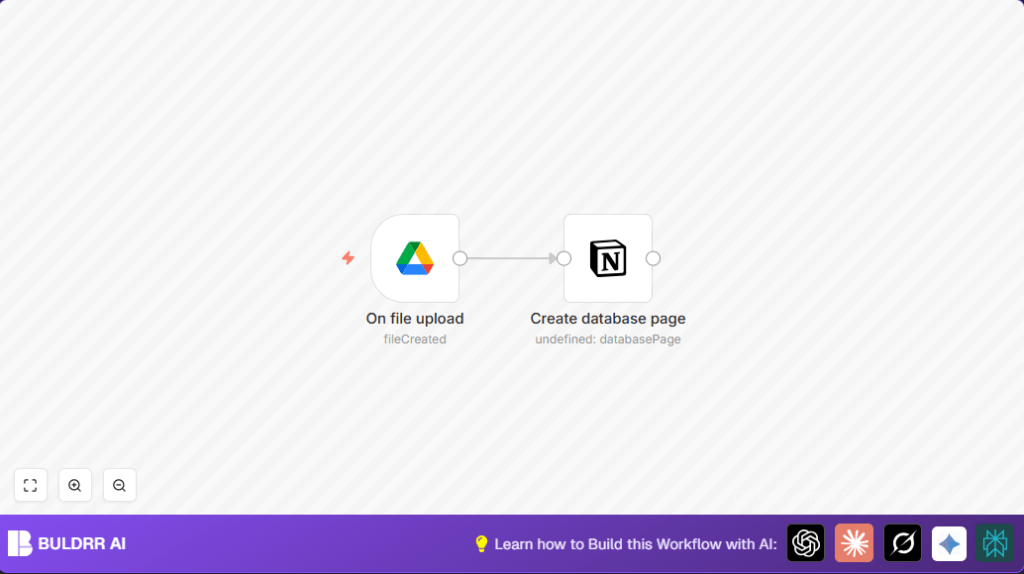

What This Automation Does
This workflow watches a Google Drive folder for new files every minute.
When a new file appears, it grabs the name and link of the file.
Then it makes a new page in a Notion database using the file name as title.
It also adds the Google Drive file link inside that Notion page.
This stops you from manually typing details and saves about 30 minutes daily.
It helps teams track files in Notion right after upload.
Tools and Services Used
- Google Drive: To store and upload files monitored for changes.
- Notion: As a project management database where file info is logged.
- n8n Automation Platform: Runs the workflow connecting Google Drive and Notion.
Inputs, Processing, and Outputs
Inputs
- New file uploads in a chosen Google Drive folder.
Processing Steps
- The Google Drive Trigger node checks every minute if a new file is added.
- It extracts file details like the name and a web link.
- The Notion node creates a new page in the specified database.
- The page’s title is the file’s name.
- The file’s Google Drive URL is added in a file property on the page.
Output
- A new Notion database page for every new Google Drive file.
- Each page shows the file name and clickable Google Drive link.
Beginner Step-by-Step: How to Use This Workflow in n8n
Step 1: Download and Import
- Download the workflow file by clicking the Download button on this page.
- Open n8n editor and click on “Import from File”.
- Upload the downloaded workflow JSON file.
Step 2: Configure Credentials and IDs
- Edit the Google Drive Trigger node to add your Google Drive OAuth credentials.
- Paste the Google Drive folder ID you want to watch.
- Edit the Notion node to add your Notion API integration token.
- Enter your Notion database ID where new pages should be created.
Step 3: Test the Workflow
- Upload a test file to the specified Google Drive folder.
- Run the workflow manually or wait for the trigger.
- Check if a new page appears in your Notion database with the file name and link.
Step 4: Activate for Production
- Switch the workflow toggle from inactive to active in the n8n dashboard.
- Make sure n8n runs continuously for real-time triggers, you can consider self-host n8n if you want full control.
Step 1: Set Up Google Drive Trigger Node
In your n8n workflow editor, click Add Node → type and select Google Drive Trigger.
Configure it as follows:
- Event: Select fileCreated to listen for new files.
- Trigger On: Choose specificFolder.
- Folder To Watch: Paste the Google Drive folder ID you want to monitor (e.g.,
1_vYi00lSdzU2p6wGrnW_IqsOblOL-3zG). - Poll Times: Set mode to everyMinute for near real-time detection.
- Authenticate your Google Drive account with OAuth credentials if not done yet.
On successful configuration, you should see the node ready and waiting for file creation events.
Common mistake: Ensure you use the correct folder ID from Google Drive’s folder link and that OAuth permissions allow access.
Step 2: Add Notion Node to Create Database Page
Click Add Node → search and pick Notion. Set the node parameters:
- Resource: Select databasePage to create a new page inside your database.
- Database ID: Enter your Notion database’s unique ID where the file info will be stored (e.g.,
d637c796-d33b-4768-b955-55c66a0966b7). - Title: Use the expression
{{$node["On file upload"].json["name"]}}to set the file name as the new page’s title dynamically.
- Properties: Map the file URL from Google Drive to a file property in Notion using this expression:
{{$json["webViewLink"]}} - Ensure your Notion API credentials are authenticated correctly.
After configuration, connect the On file upload Google Drive Trigger node’s output to this Notion node’s input.
You should see a new page created in your Notion database with the title matching newly uploaded file name, including a clickable link to the file.
Common mistake: Double-check your database property keys match the names in the Notion schema.
Customizations
- Add File Metadata: You can add more properties in the Notion node like “Created Time” or “File Size” by mapping Google Drive metadata fields.
- Multiple Folder Watching: Copy the Google Drive Trigger node to watch more folders and link them to one or many Notion databases.
- Notification on Upload: Add nodes like Slack or Email after the Notion node to alert team members when new files are added.
Troubleshooting
Problem: “Google Drive Trigger node does not detect new files”
Cause: Wrong folder ID or missing OAuth permissions.
Solution: Get the folder ID by opening the folder in Google Drive and copy from URL.
Refresh OAuth credentials with scopes like “drive.readonly” or “drive.metadata.readonly”.
Problem: “Notion page creation fails with property errors”
Cause: Property keys in Notion node do not match database fields.
Solution: Check property names carefully against Notion database schema using API or developer tools.
Pre-Production Checklist
- Confirm Google Drive OAuth has rights for folder access.
- Verify Notion integration token can write to the database.
- Test upload to Google Drive and check if Notion page appears.
- Save your n8n workflow JSON as a backup in case rollback is needed.
Deployment Guide
Turn the workflow on in n8n by toggling the active switch.
Watch the execution log to confirm files are detected and pages created.
If using self hosting, ensure n8n instance keeps running for real-time detection, see self-host n8n.
Summary
✓ Workflow tracks new Google Drive files every minute.
✓ Automatically creates new pages in Notion with file details.
✓ Saves about 30 minutes daily by stopping manual logging.
✓ Keeps project teams updated instantly.
→ This stops mistakes and delays in tracking uploaded files.
→ User gets a clear, automatic record of documents in Notion.
