

What This Workflow Does
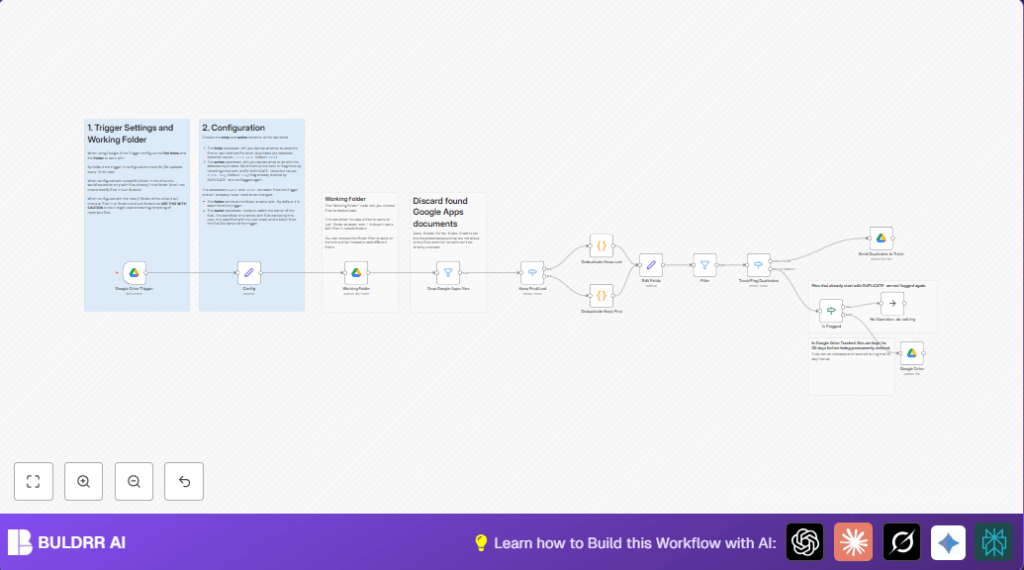
This workflow finds duplicate files in a set Google Drive folder.
It solves the problem of having many copies of the same file stored together.
The outcome is fewer duplicates, either marked or moved to trash automatically.
The workflow runs every 15 minutes and looks for new files created in the folder.
It ignores Google Docs, Sheets, and other app files that don’t have direct file content.
It uses the MD5 checksum, a unique code for file content, to find duplicates.
Then it either renames duplicates by adding a “DUPLICATE-” prefix or sends duplicates to trash.
The user picks whether to keep the oldest or newest file.
Already flagged duplicates are not renamed again.
Tools and Services Used
- Google Drive: Stores files and triggers file creation events.
- n8n: Runs automated workflows with nodes and logic.
- Google Drive OAuth2 credentials: Allow n8n to access Google Drive files.
Inputs, Processing Steps, and Output
Inputs
- New files created in a specific Google Drive folder.
- User settings for which file to keep: oldest or newest.
- User settings for action: rename duplicates or trash duplicates.
Processing Steps
- The Google Drive Trigger polls every 15 minutes for new files in the folder.
- The workflow fetches all owned files in that folder excluding Google Apps files.
- Files are sorted by creation date based on the user choice to keep first or last.
- MD5 checksums identify which files have the same contents (duplicates).
- Duplicates are either renamed to have a “DUPLICATE-” prefix or sent to trash.
- Files already renamed with “DUPLICATE-” are skipped to avoid renaming loops.
Outputs
- A Google Drive folder free of duplicate files or with duplicates flagged.
- Automatic cleanup saves user time and reduces manual errors.
Beginner Step-by-Step: How to Use This Workflow in n8n
Download and Import Workflow
- Click the Download button on this page to save the workflow file.
- Inside the n8n editor, select “Import from File” and upload the downloaded file.
Configure Workflow Settings
- Add Google Drive OAuth2 credentials in n8n if not done already.
- Update the folder ID inside the Google Drive Trigger to the folder to watch.
- Set the owner email in the Set node named Config.
- Choose whether to keep the first or last file and whether to flag or trash duplicates in Config.
Test and Activate
- Run the workflow once with test files to check that duplicates are detected and handled.
- If the test is successful, activate the workflow for regular use.
This workflow can also work on a self-host n8n instance. For help with self-host n8n, check online resources.
Customization Ideas
- Change the keep preference between oldest or newest files in the Set Config node.
- Switch the action from flagging to trashing duplicates in the same Set node.
- Adjust the folder filter in the Google Drive node to check wider areas or the whole drive.
- Modify the polling interval in the Google Drive Trigger to check more or less often.
Troubleshooting
Problem: No files detected by the Google Drive Trigger
Cause: Wrong folder ID or missing permissions may stop file detection.
Solution: Double-check the folder ID and Google Drive OAuth2 permission scopes.
Try uploading a test file to verify trigger works.
Problem: Duplicates are not flagged or trashed
Cause: Misconfiguration in keep or action parameters or incorrect renaming format.
Solution: Verify values in the Set node Config exactly match “first” or “last” for keep and “flag” or “trash” for action.
Make sure the renaming prefix “DUPLICATE-” is applied correctly.
Pre-Production Checklist
- Check Google Drive OAuth2 credentials are valid and allowed to read and update files.
- Confirm the watched folder ID is correct in the Google Drive Trigger.
- Test the trigger by uploading a new file to that folder.
- Run workflow on sample files to confirm duplicates are caught and handled right.
- Backup important files before running workflow live to prevent data loss.
Deployment Guide
After testing, activate the workflow in n8n.
Keep an eye on workflow execution logs for errors.
If trashing duplicates, review the Google Drive trash folder regularly to recover files if wrongly deleted during the 30-day retention.
Summary
✓ Saves time by automating duplicate detection and cleanup in Google Drive.
✓ Reduces errors from manual checking and accidental version confusion.
✓ Flexible options to either rename or trash duplicate files based on user preference.
✓ Easy to configure and run inside n8n with clear step-by-step setup.
