

What This Automation Does
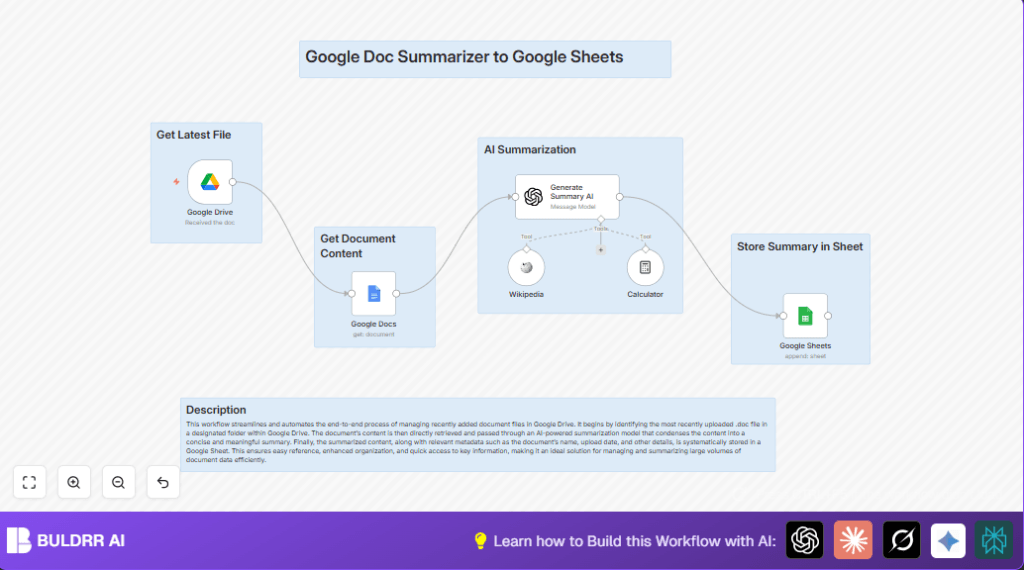
This workflow watches a Google Drive folder for new Google Docs files.
It then gets the full text of those documents.
After that, it uses an AI model to make short summaries of the content.
Finally, it saves these summaries and some file details into a Google Sheet.
This reduces time spent reading long documents and helps share quick updates.
Inputs, Processing Steps, and Output
Inputs
- New Google Docs files inside a specified Google Drive folder.
Processing Steps
- Detect file creation events in the target Google Drive folder.
- Retrieve the full text content of each new Google Doc.
- Send the document text to the OpenAI GPT-4o-mini model to create summaries.
- Collect metadata like the owner’s name and email address from the file info.
- Optionally use other AI nodes like Wikipedia or Calculator for added info (not used here).
Output
- Append rows inside a Google Sheet with the document summaries and metadata.
- Keep records neatly organized for fast reading and reference.
Tools and Services Used
- Google Drive Trigger node: Watches folder for new files.
- Google Docs node: Gets full text from documents.
- Generate Summary AI node (OpenAI GPT-4o-mini): Summarizes document text.
- Google Sheets node: Saves summaries and metadata.
- Wikipedia and Calculator nodes: Optional AI helpers for extra data.
Who Should Use This Workflow
This workflow fits content teams or managers who must handle many Google Docs reports.
It’s good for people who want to save time reading and make summaries easy for others.
Users with basic n8n skills can adopt this to automate slow manual work.
Beginner Step-by-Step: How to Use This Workflow in n8n
Step 1: Import Workflow into n8n
- Download the workflow file from the Download button on this page.
- Inside the n8n editor, click on the menu and choose “Import from File”.
- Select the downloaded workflow JSON file to load it into n8n.
Step 2: Configure Credentials and IDs
- Add Google Drive, Google Docs, Google Sheets, and OpenAI API credentials under n8n’s credentials section.
- In the Google Drive Trigger node, update the folder ID or URL to select the folder to watch.
- In the Google Sheets node, set the correct Sheet ID and sheet name (like “Sheet1”).
- If needed, check the expressions used for fields like document ID and summary prompt to make sure they fit the imported workflow.
Step 3: Test the Workflow
- Upload a new Google Doc file to the selected Drive folder.
- Watch if the workflow triggers and if the summary appears in the Google Sheet.
Step 4: Activate for Production
- Turn on the workflow by toggling the active switch in the top right of the editor.
- Monitor execution logs in n8n dashboard to catch errors or misses.
- Adjust settings or credentials if any problems appear.
If using self hosting n8n, consult self-host n8n for setup tips.
Customization Ideas
- Switch to another OpenAI model in the Generate Summary AI node for different summary styles.
- Add a creation date column to the Google Sheet by passing document creation date from trigger node.
- Filter Google Drive watch to only certain file types to avoid unneeded runs.
- Add a Gmail node to send the summaries by email automatically after appending them.
- Use the Wikipedia node to add relevant facts about key terms for richer summaries.
Troubleshooting Common Issues
- Google Docs node returns 403 Forbidden
Cause: Missing file access or expired OAuth token.
Fix: Reconnect Google Docs credentials and check file permissions. - Summary API call fails or returns no data
Cause: Incorrect prompt or OpenAI API limits.
Fix: Confirm correct model ID, API key, and try prompt separately. - Google Sheets append operation fails
Cause: Wrong Sheet ID or mismatched columns.
Fix: Verify Sheet ID and confirm Google Sheet headers match mapped fields.
Pre-Production Checklist and Deployment
- Confirm access and correct folder URL in Google Drive trigger.
- Verify all OAuth credentials work for Google Docs, Drive, Sheets, and OpenAI.
- Test by uploading a sample file and checking output.
- Regularly backup Google Sheet to avoid data loss.
- Activate workflow and watch runs in n8n dashboard.
Summary of Benefits and Results
✓ Automates reading new Google Docs and making summaries.
✓ Saves hours of manual reading work every day.
✓ Keeps summaries organized and easy to share in Google Sheets.
✓ Improves accuracy and consistency of summaries.
✓ Makes document overviews available fast for teams.
