
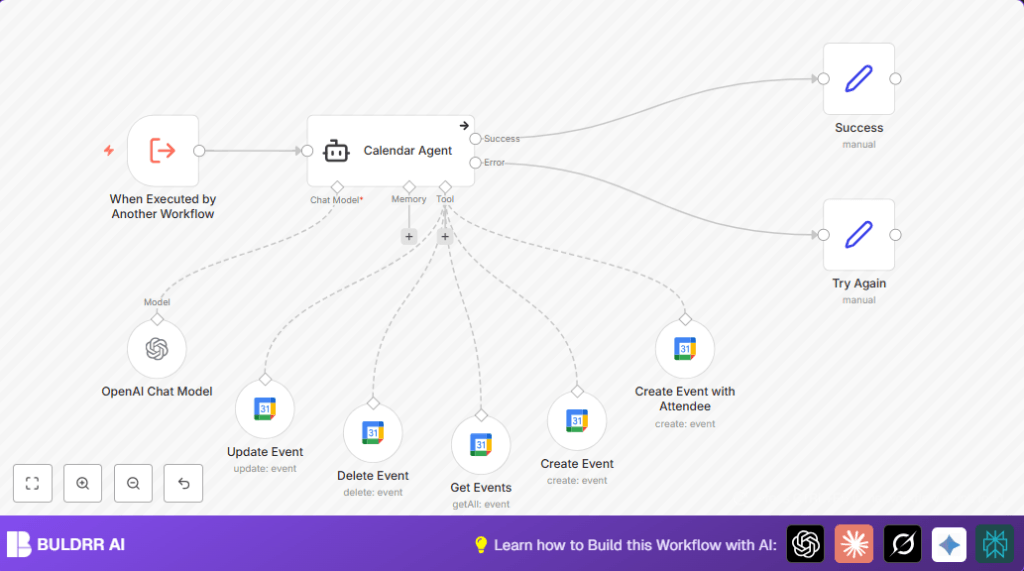

What this workflow does
This workflow uses GPT-4 AI with Google Calendar to manage calendar tasks. It understands simple sentences like scheduling, updating, or canceling events. It links those requests into real Google Calendar actions automatically. It helps avoid errors and saves time by not doing manual updates.
The AI reads natural language input and decides to create, change, delete, or list calendar events. It sends these commands to Google Calendar using set nodes. If something goes wrong, it sends a clear message asking to try again.
Who should use this workflow
This is for people who use Google Calendar a lot and want less work. If you often forget meetings or double-book, this can help. It works well if you want to speak or write commands easily and have them done for you.
You do not need to be technical, but some basic n8n knowledge helps. This can also be used by small teams by adding more calendar nodes for different accounts.
Tools and services used
- n8n Automation Platform: Runs the workflow and connects nodes.
- OpenAI GPT-4 (model gpt-4o): Understands natural language calendar commands.
- Google Calendar API (OAuth2): Performs calendar operations like create, update, delete, and fetch events.
Beginner step-by-step: How to use this workflow in n8n
Download and Import the Workflow
- Download the workflow file using the Download button on this page.
- Open the n8n editor where you want to run this automation.
- Use the n8n menu and choose “Import from File” to add the workflow to your environment.
Configure Credentials and Settings
- Add your OpenAI API Key in the OpenAI Chat Model node settings.
- Add your Google Calendar OAuth2 credentials in all Google Calendar nodes. Make sure client ID, secret, and tokens are correct.
- Update personal details like your calendar email address in Google Calendar nodes (example: “[email protected]”).
- Check the system prompt inside the Calendar Agent node if you want to change default times or other settings.
Test the Workflow
- Trigger the workflow with a simple phrase like “Schedule meeting tomorrow at 3pm” using the Execute Workflow Trigger node.
- Check if Google Calendar has the new event created as expected.
- If errors happen, read the response message for instructions or retry.
Activate for Production
- Turn on the workflow inside n8n to make it listen for triggers continuously.
- Optionally, connect this workflow to other tools or chatbots so users can send commands directly.
- If using self-host n8n, make sure the server runs reliably and is accessible for input.
Inputs, Processing Steps, and Outputs
Inputs
- User natural language commands like “Add meeting with [email protected] next Monday at 10am”.
Processing Steps
- The OpenAI Chat Model node reads the command and figures out the intent and event details.
- The Calendar Agent node runs a system prompt telling it to make sure actions are safe and clear.
- Depending on the action, the workflow chooses the right Google Calendar node to create, update, delete, or list events.
- If errors occur, the workflow routes to a retry message node, asking for the user to try again.
Outputs
- Google Calendar is changed automatically to add, update, or remove events as requested.
- Workflow returns clear success messages or retry prompts based on results.
Handling Errors and Edge Cases
If the Google API credentials are wrong or expired, the workflow cannot update the calendar. It shows an “Invalid credentials” error. The user should refresh OAuth2 tokens or re-add credentials.
If the GPT-4 node cannot understand the input or reaches API limits, the workflow replies with “Unable to perform task. Please try again.” The user should verify API keys and usage limits.
The workflow never deletes events without fetching the event ID first to avoid mistakes.
Customization ideas
- Change the default event time in the calendar by editing the prompt in the Calendar Agent node.
- Add more calendar accounts by adding extra Google Calendar nodes for multi-user setups.
- Add support for recurring events by detecting recurrence rules in AI prompts and configuring that in Google Calendar nodes.
- Adjust for time zones by modifying prompt details and date/time formats to fit different local zones.
Summary of results
✓ Save hours daily by automating calendar tasks.
✓ Avoid double bookings with AI checking and safe deletion.
→ Easily manage calendar events with simple natural language commands.
→ Get clear success messages or retry prompts when needed.
