

What This Workflow Does
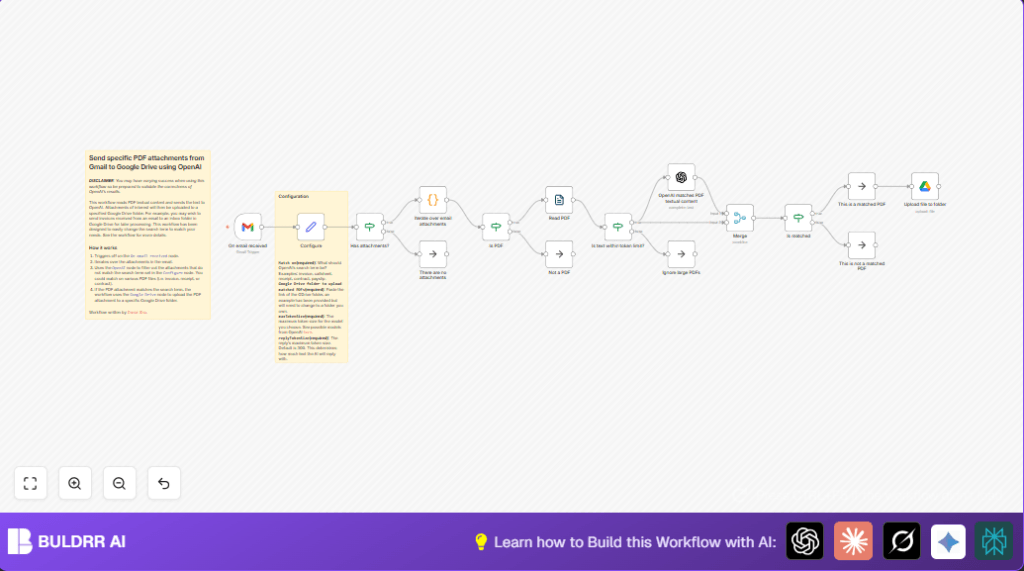
This workflow watches for new emails with attachments in Gmail.
It opens each attachment and checks if it is a PDF.
Then it reads the text inside the PDF and asks OpenAI if the PDF contains the keyword like “payslip”.
If OpenAI says yes, the file is uploaded to a Google Drive folder.
This saves time by only saving important PDFs automatically.
Who Should Use This Workflow
This is for people who get many emails with PDFs mixed inside.
Anyone needing to pick specific document types like payslips, invoices, or contracts.
It is useful for HR, finance, and admin roles tired of manual download and sorting.
No deep coding skill is needed since the process is mostly drag and drop in n8n.
Tools and Services Used
- Gmail: To receive emails and attachments.
- OpenAI API: To read PDF text and decide if the file matches keyword.
- Google Drive: To store the selected PDF files.
- n8n: To build and run the automation workflow.
Beginner Step-by-Step: How to Use This Workflow in n8n
Step 1: Import the Workflow
- Click the Download button on this page to get the workflow file.
- Open the n8n editor where you want to run the workflow.
- Use the Import from File option in n8n to load the workflow.
Step 2: Add Your Credentials and Settings
- Open the Gmail Trigger node and add Gmail OAuth2 credentials.
- Open the OpenAI node and add your OpenAI API Key.
- Open the Google Drive node and add Google Drive OAuth2 credentials.
- Go to the Configure (Set) node and enter the keyword to match, like “payslip”.
- In the Configure node, paste your Google Drive folder URL where files will upload.
Step 3: Test the Workflow
- Send an email to your Gmail with some PDF attachments to test.
- Run the workflow manually or wait for it to trigger.
- Check if the matched PDF files appear in your Google Drive folder.
Step 4: Activate for Production
- Enable the Gmail Trigger node to run live.
- Make sure your n8n is running continuously to catch new emails.
- Monitor logs to ensure no errors happen.
For more control and security consider self-host n8n.
Inputs, Processing, and Outputs
Inputs
- Email arrival in Gmail with attachments.
- PDF files included in those emails.
Processing Steps
- Extract each attachment from the email.
- Check if the file is PDF format.
- Read the text inside the PDF.
- Send text to OpenAI for keyword matching.
- Filter the files based on OpenAI’s “true” or “false” answer.
Outputs
- Matched PDF files uploaded to Google Drive folder.
- Ignored non-PDFs or unmatched files are skipped silently.
Edge Cases and Failures
- If OpenAI response errors or no reply, the workflow stops for that file.
- PDFs larger than token limit are ignored by design.
- Non-PDF attachments skip upload.
- If Google Drive folder ID is wrong or credentials expire, uploads fail.
Customization Ideas
- Change the keyword in Configure node to match other terms like “invoice”.
- Adjust OpenAI max tokens to control response size.
- Switch Google Drive upload folder by changing the folder link.
- Handle large PDFs by adding PDF splitting nodes or alerts.
Sample Code to Iterate Attachments
The Code node uses this code to handle each attachment:
// Iterate over all binary attachments
let results = [];
for (const item of $input.all()) {
  for (key of Object.keys(item.binary)) {
        results.push({
            json: {},
            binary: {
                data: item.binary[key],
            }
        });
    }
}
return results;
Sample OpenAI Prompt Used
The prompt asks OpenAI to decide if the PDF matches the keyword like this:
Does this PDF file look like a {{ $("Configure").first().json["Match on"] }}? Return "true" if it is and "false" if not. Only reply with lowercase letters.

This is the PDF filename:
{{ $binary.data.fileName }}

This is the PDF text content:
{{ $json.text }}
Summary of Results
✓ Emails with PDFs are checked automatically.
✓ Only PDFs with matching text get saved.
✓ Saves time by cutting manual search.
✓ Keeps Google Drive clean and organized.
✓ Works fully inside n8n with no extra tools.
