
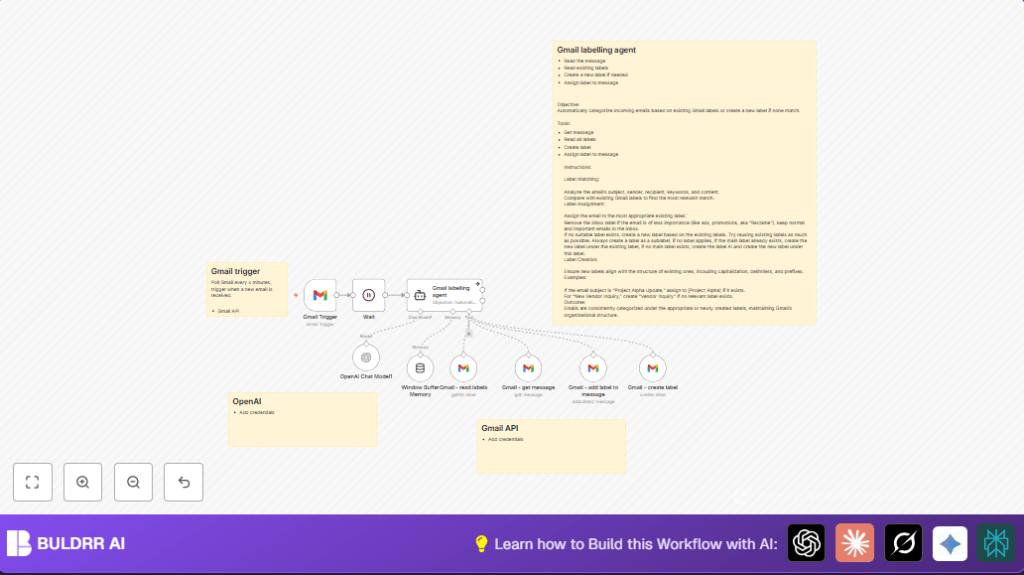

What This Automation Does
This workflow checks new Gmail emails every 5 minutes.
It uses AI to read email details and choose the right label.
If the label does not exist, it makes a new one.
Then it adds the label to the email and can remove the inbox label.
This saves you time and stops you from missing important emails.
How This Workflow Works
Inputs: New Gmail emails coming into your inbox every 5 minutes.
Process Steps:
- The Gmail Trigger node watches for new emails.
- The Gmail – get message node pulls full details of each new email.
- The Gmail – read labels node gets all existing Gmail labels.
- The OpenAI Chat Model and Gmail labelling agent (LangChain agent) analyze email text and pick the best label.
- If no label matches well, the workflow creates a new Gmail label using Gmail – create label.
- The workflow then adds the chosen label with Gmail – add label to message and can remove the inbox label if needed.
Output: Each email gets a relevant label automatically, keeping the inbox neat and easy to use.
Why Use This Workflow
Manually sorting emails takes too much time.
Mistakes like wrong labels slow down work and cause stress.
This workflow does this work for you without needing daily management.
It helps keep emails organized and makes finding messages faster.
Tools and Services Used
- Gmail API: To read emails and manage labels.
- OpenAI API: To understand email content using AI.
- n8n Platform: To run the automation workflow.
Beginner Step-by-Step: How to Use This Workflow in n8n
Step 1: Import the Workflow
- Download the workflow file using the “Download” button on this page.
- Open your n8n editor and click “Import from File”.
- Select the downloaded workflow file and import it.
Step 2: Set Up Credentials
- Add your Gmail OAuth2 credentials in n8n and update API settings if needed.
- Add your OpenAI API key in the credential section.
- Check any IDs, emails, or labels in the workflow nodes and update them to match your Gmail setup.
Step 3: Test the Workflow
- Send a test email to your Gmail inbox.
- Run the workflow manually in n8n editor to see if the email gets labeled.
Step 4: Activate for Production
- Once testing is successful, click “Activate” in your n8n editor to enable automatic running.
- Make sure n8n runs continuously either on desktop or a server setup.
- Monitor workflow runs and errors in the execution panel.
- If using self-host n8n, ensure stable internet and permissions.
Customizations
- You can change how new labels are named inside the Gmail labelling agent prompt.
- Change the check frequency by editing the Gmail Trigger polling interval.
- Adjust how many tokens OpenAI uses in the OpenAI Chat Model node to balance cost and detail.
- Add filters to the Gmail Trigger to skip certain emails by sender or type.
- Extend the workflow to archive emails or send notifications by adding Gmail API calls in the automation.
Troubleshooting
- Problem: Gmail Trigger does not start.
Cause: OAuth2 credentials not authorized or expired.
Fix: Re-authorize in credentials and test trigger again. - Problem: OpenAI calls fail.
Cause: Wrong or insufficient API key.
Fix: Check API key is correct and has quota, then update credentials in n8n. - Problem: Labels not applied to emails.
Cause: Dynamic expressions with wrong or missing message IDs.
Fix: Confirm message ID expressions match triggers and outputs.
Pre-Production Checklist
- Check Gmail API OAuth2 credentials have permission to read and write emails and labels.
- Send a test email and watch if Gmail Trigger fires correctly.
- Run test queries in OpenAI Chat Model to verify AI access.
- Observe label creation and assignment during test runs.
- Backup important Gmail data before starting automation.
Deployment Guide
After testing, activate your workflow in n8n editor.
Make sure your n8n environment runs continuous operations.
Track running logs to catch any failures or limits.
Adjust timing and token use to keep costs and speed balanced.
Summary and Final Result
✓ Automatically labels new Gmail emails using AI.
✓ Saves time by removing manual sorting steps.
✓ Creates new labels if no match found.
✓ Keeps inbox neat and organized without daily work.
✓ Helps avoid lost or wrongly labeled emails.
