
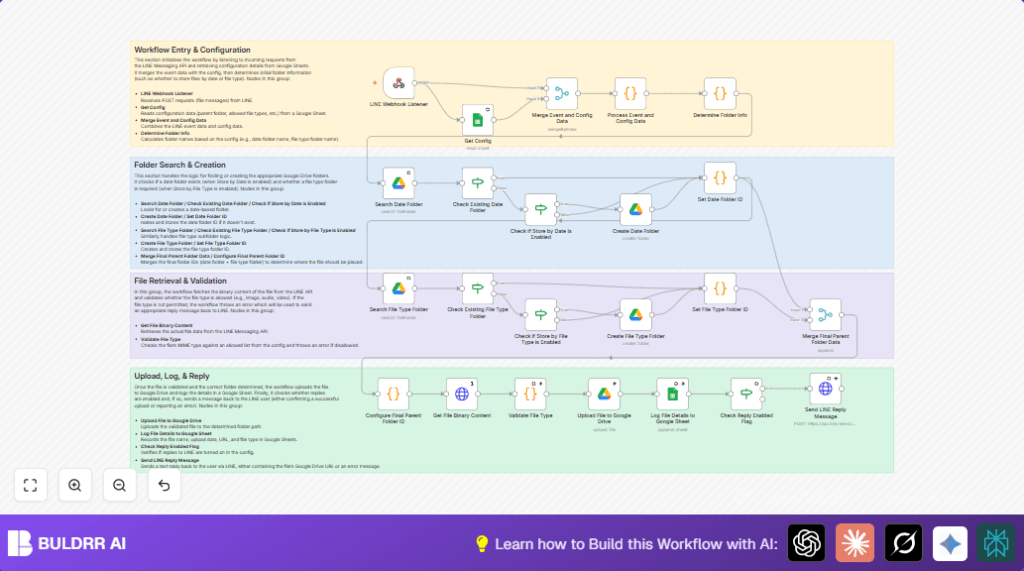

What this workflow does
This workflow downloads files sent through LINE Messaging API automatically.
It saves files into Google Drive folders organized by date and type.
It also checks if the file type is allowed using data in Google Sheets.
The workflow logs file info like name, upload date, type, and link into Google Sheets.
You can choose if a reply message is sent back to the LINE user with the file URL or error.
This helps reduce hours of manual work, mistakes, and speeds up file handling.
Who should use this workflow
This workflow is for people who receive many files via LINE app and want to save and organize them automatically.
It helps customer support agents or teams managing images, audio, and videos daily.
It is useful if file types must be checked before saving and if organized storage and logs are needed.
Tools and services used
- LINE Messaging API: Sends file messages to trigger the workflow.
- Google Sheets: Holds configuration like allowed file types and logs file details.
- Google Drive: Stores files in folders arranged by date and file type.
- n8n: Orchestrates the entire automation workflow handling API calls and logic.
- HTTP Header Authentication: Authenticates LINE API requests with channel access token.
Inputs, processing steps, and outputs
Inputs
- Incoming file message events from LINE through webhook.
- Allowed file types and configuration data from Google Sheets.
Processing Steps
- Receive webhook event with file details.
- Fetch config from Google Sheets (allowed types, folder IDs, flags).
- Combine event and config data.
- Calculate folder names based on date and file type if needed.
- Check if date and file type folders exist in Google Drive; create them if missing.
- Decide final Google Drive folder for uploading.
- Download file binary content from LINE API using file message ID.
- Validate if the file type matches the allowed list.
- Upload the file to Google Drive into the correct folder.
- Record file details (name, type, date, URL) in Google Sheets.
- Optionally send a LINE reply message confirming upload or error.
Outputs
- Files saved in organized Google Drive folders.
- Log entries in Google Sheets with metadata for each file.
- LINE user messages confirming upload or explaining error.
Beginner step-by-step: How to use this workflow in n8n
Importing the workflow
- Download the workflow file using the Download button on this page.
- Open the n8n editor.
- Use Import from File option to load the downloaded workflow.
Configuration after import
- Add all required credentials like Google Sheets OAuth2, Google Drive OAuth2, and LINE API channel access token.
- Update configuration values such as Google Sheet ID, Google Drive Parent Folder ID, and LINE channel info if needed.
- Check flags in the config sheet like Store by Date, Store by File Type, and Reply Enabled.
- Review code nodes for folder naming and final folder ID logic; update if folder naming format changes.
Testing and activation
- Send a sample file message to the LINE channel to trigger the webhook and test the workflow.
- Check if the file downloads, uploads to Google Drive, and logs correctly in Google Sheets.
- If reply is enabled, verify that the LINE user receives a confirmation message.
- Activate the workflow by toggling the activation switch in n8n to run it in production.
If running self-host n8n, make sure the webhook URL is publicly accessible. See self-host n8n for help.
Edge cases and common failures
- File type is not allowed: workflow stops upload and sends error message; update allowed types list in Google Sheets.
- No folders found or created: check Parent Folder ID and OAuth permissions for Google Drive API.
- Empty input errors in code nodes: verify upstream nodes and connections.
- LINE reply messages missing: check Reply Enabled flag and channel access token correctness.
Customization ideas
- Toggle Store by Date or Store by File Type flags in config sheet to change folder structure dynamically.
- Change allowed file types in config sheet using pipe-separated MIME types like
image/jpeg|video/mp4. - Edit reply message content JSON in Send LINE Reply Message node to customize user feedback.
- Modify folder naming format by editing the Determine Folder Info code node.
- Disable LINE reply function by setting Reply Enabled flag false in configuration.
Summary of benefits and results
✓ Saves time by automating LINE file downloads and uploads.
✓ Keeps Google Drive files organized by date and type.
✓ Prevents saving disallowed file types to protect storage.
✓ Creates clear logs in Google Sheets for easy file tracking.
✓ Improves communication with optional LINE reply messages.
→ Less manual work, fewer mistakes, and faster file management.
