
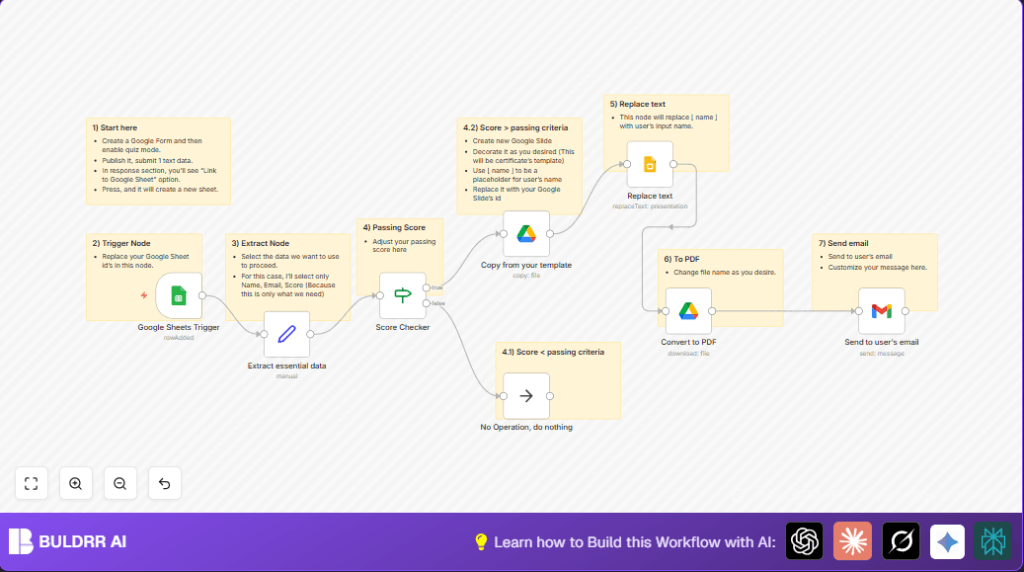

What This Workflow Does
This workflow reads quiz answers from Google Sheets when a new row appears. It checks if the score passed a set limit. If passed, it copies a certificate template from Google Slides, changes the name on it, turns it into a PDF, and emails it to the quiz taker automatically. If the score is too low, the workflow ends quietly.
This removes manual work and mistakes in making and sending certificates.
Who Should Use This Workflow
Users running quizzes via Google Forms who get answers in Google Sheets. If many people take a quiz each week and need personalized certificates, this saves a lot of time.
It is best if the quiz mode in Google Forms is turned on and respondent emails and names are collected.
Tools and Services Used
- Google Forms: Collect quiz answers.
- Google Sheets: Store quiz responses and trigger workflow.
- Google Slides: Hold certificate template with placeholder text.
- Google Drive: Copy template and convert slide to PDF.
- Gmail: Send emails with certificate attachments.
- n8n: Build and run the automation workflow.
Inputs, Processing Steps, and Outputs
Inputs
- New quiz submission row in Google Sheets including respondent name, email, and score.
Processing Steps
- Extract name, email, and score from the new row.
- Check if the score is greater than 3 (passing).
- If passed, copy the Google Slides certificate template to create a new file.
- Replace [ NAME ] placeholder in copied slide with actual respondent name.
- Convert this personalized Google Slide presentation to a PDF file.
- Send an email to the respondent with the PDF attached.
- If score is not passing, stop workflow without sending anything.
Outputs
- Personalized PDF certificate emailed to passing quiz takers.
Beginner Step-by-Step: How to Use This Workflow in n8n
Step 1: Import Workflow
- Download the workflow file by clicking the Download button on this page.
- Inside the n8n editor, use the “Import from File” option to bring the workflow into n8n.
Step 2: Configure Credentials and IDs
- Add Google Sheets, Google Slides, Google Drive, and Gmail OAuth2 credentials if not already set.
- Update any placeholder file IDs for the Google Slides template and Google Drive folder in the respective nodes.
- Update the email addresses if needed in the Gmail node for sending certificates.
Step 3: Test and Activate Workflow
- Run the workflow manually once to test it with sample data.
- If the test works, activate the workflow to run automatically when new form responses arrive.
After activation, the workflow listens for new quiz answers and sends certificates without manual work.
For knowledge about hosting n8n yourself, visit self-host n8n.
Customization Ideas
- Change the passing score number in the “Score Checker” node to fit your test rules.
- Edit the Google Slides template to update certificate look or add new placeholders.
- Modify the email subject and message in the Gmail node to match your tone or add details.
- Add more text replacements in the Google Slides node for date, course name, or other info.
- Instead of ending silently when the score is too low, add an email notice or alternative action.
Handling Errors and Troubleshooting
- Error: “Google Drive: file ID not found”
Cause: File or folder ID is wrong or expired.
Fix: Open the file or folder in Google Drive and copy the ID from the URL again. - Error: “Gmail: Authentication error”
Cause: OAuth2 credentials are missing or access was revoked.
Fix: Re-add Gmail credentials in n8n’s credential manager and grant access again.
Summary of Results
✓ Saves hours of manual work every time certificates are needed.
✓ Avoids mistakes in spelling or sending emails.
✓ Sends certificates instantly when quiz answers arrive.
→ Creates PDF certificates personalized with the right names.
→ Works quietly when quiz score is below the passing limit.
