
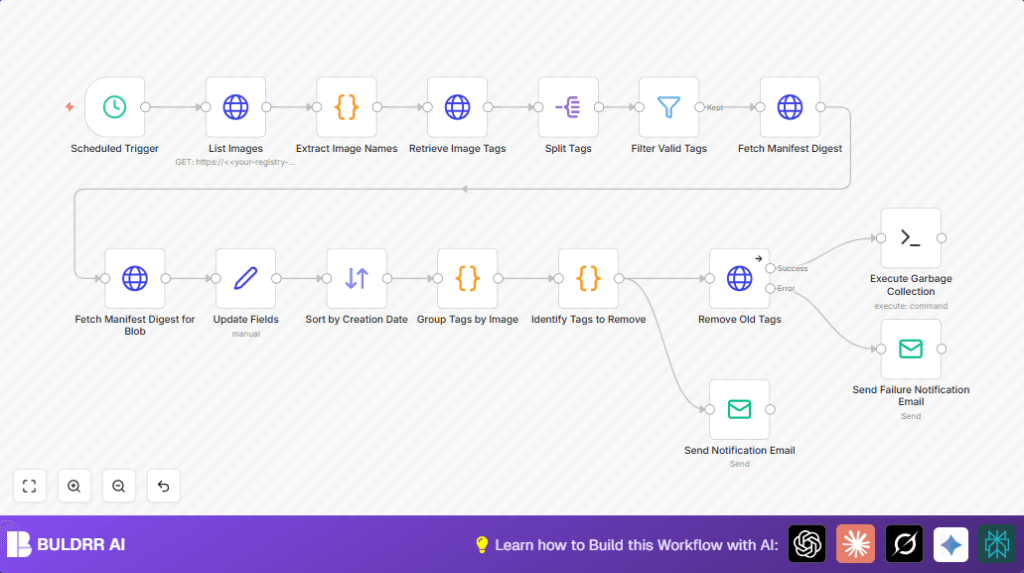

What This Workflow Does
This workflow cleans up old Docker image tags automatically to save storage and keep your registry tidy.
It finds all images, checks their tags, and deletes old ones safely while keeping the newest 10 tags and the important “latest” tag.
After deletion, it runs garbage collection to free space and emails you a report about what was deleted or if there were any problems.
This way, you don’t have to do this manually and risk mistakes or wasted storage.
Tools and Services Used
- n8n automation tool: Runs the workflow and connects nodes.
- Docker Registry HTTP API: Lists images, tags, and deletes tags.
- SSH access to the registry server: Runs garbage collection commands.
- Email service: Sends notification messages about cleanups and errors.
How the Workflow Works: Inputs → Processing → Output
Inputs
- Docker registry URL with authentication credentials.
- SSH private key and access info to connect to the registry server.
- Email account credentials for sending notifications.
- Schedule trigger to start the cleanup at set time.
Processing Steps
- List all repositories: Calls the registry API to get all image names.
- Get all tags per image: Requests tags list from each image.
- Process tags: Splits tag lists, filters valid tags, fetches manifest digests, and finds creation dates.
- Sort tags: Orders tags from newest to oldest by creation date.
- Group tags: Collects tags by their images.
- Identify tags to delete: Keeps the 10 newest and “latest” tag, marks older tags for deletion.
- Delete old tags: Sends HTTP DELETE requests for each old tag digest.
- Run garbage collection: Uses SSH to execute the registry’s garbage collector command.
- Send notifications: Emails success or failure messages with details.
Output
- Old Docker image tags removed safely.
- Disk space freed by garbage collection.
- Email summaries about deleted tags and errors.
Who Should Use This Workflow
This workflow is for anyone managing a Docker registry who wants to stop wasting time deleting old images manually.
Teams running many microservices with growing registries can reduce storage costs and keep deployments faster using this tool.
Non-experts can run it easily after initial setup to keep the registry clean.
Beginner Step-by-Step: How To Use This Workflow in n8n
1. Import Workflow
- Download the workflow file using the Download button on this page.
- Open your n8n editor (you can self-host n8n or use it cloud version).
- Click on “Import from File” and select the downloaded workflow.
2. Configure Required Credentials
- Add your Docker registry API credentials in the HTTP Request nodes that call registry endpoints.
- Configure SSH credentials with your private key for the SSH node running garbage collection.
- Set up your email account credentials in the Email Send nodes to allow sending notifications.
3. Update Workflow Settings
- Check and update any IDs, email addresses, or destination folders in the Email Send nodes.
- Verify the registry URL is correct in all HTTP Request node URLs.
- Paste any necessary code snippets or expressions from the workflow description into Code nodes, if not already present.
4. Test the Workflow
- Run the workflow manually once to see logs and emails.
- Check the messages and verify if old tags get detected for deletion without errors.
5. Activate for Production
- Enable the scheduled trigger node to run at your preferred time, such as daily at 1 AM.
- Monitor the emails regularly to confirm workflow runs successfully.
Following these steps lets you start automated Docker registry cleanup without building the workflow from scratch.
Customization Ideas
- Change the number of tags to keep by editing the slice in the “Identify Tags to Remove” node.
- Adjust schedule time in the scheduled trigger node for different cleanup times.
- Modify email content to add registry URL or timestamps.
- Add Slack node for immediate alert on deletion events.
- Create a dry run mode by adding a boolean parameter to skip actual deletions and simulate results.
Common Edge Cases and Troubleshooting
- 401 Unauthorized Errors: Check authentication details in HTTP Request nodes and confirm registry URL.
- No Tags Deleted: Validate the logic in the “Identify Tags to Remove” node and adjust retention count.
- SSH Connection Issues: Test SSH separately, verify private key, and check network firewall rules.
- Empty Tag Lists: Make sure API responses match expected structure in Code nodes.
- HTTP Request Failures: Enable error handling to allow the workflow to continue on minor failures.
Pre-Production Checklist
- Verify API Key and HTTP Basic Auth credentials for the Docker registry.
- Test HTTP Request nodes directly in n8n for correct responses.
- Run the workflow on test images and tags to check deletion logic.
- Confirm SSH credentials and run garbage collection command on the server manually to test.
- Send test email notifications to your inbox for validation.
Summary
✓ Automated deletion of old Docker image tags without manual work.
✓ Safely keeps most recent 10 tags and the “latest” tag.
✓ Frees up disk space by running garbage collection.
✓ Notifies users via email about deleted tags and errors.
→ Saves time and reduces storage costs.
→ Helps keep Docker registry clean and efficient.
→ Offers easy customization and scheduling options.
