
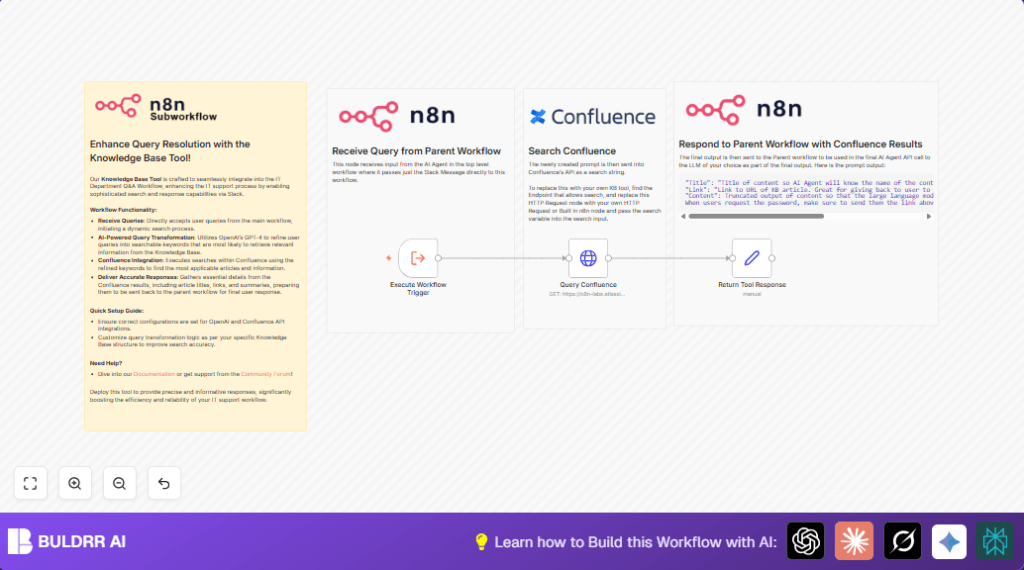

What This Automation Does
This workflow connects Slack user questions to a Confluence knowledge base using n8n.
It solves the problem of slow, manual searches for answers by automating the data lookup.
The result is fast, accurate replies with article titles, links, and summaries sent back to the Slack users.
This means IT support teams spend less time searching.
Employees get quick answers without leaving Slack.
Who Should Use This Workflow
This workflow is good for IT support and helpdesk teams who get many common questions.
It helps employees who want fast info from company knowledge bases without manual searching.
If you have Slack for chatting and Confluence for documentation, this workflow fits well.
Users don’t need deep technical knowledge to get answers updated in Confluence.
Tools and Services Used
- Slack: Receives user questions to trigger the workflow.
- Confluence REST API: Provides searchable knowledge base articles.
- HTTP Basic Auth: Authenticates access to Confluence API.
- n8n Automation Platform: Orchestrates the workflow and data processing.
Input → Process → Output Workflow Explanation
Input
Workflow starts when it gets a Slack message containing a user query.
The input carries the query text as JSON data for processing downstream.
Processing Steps
First, the input query is sent to the Confluence Search API using an HTTP Request node.
The query text is passed by templating into the Confluence CQL parameter to find matching articles.
Second, the workflow extracts useful info from the API response.
It gets the title, direct URL, and a short excerpt from the top search result.
Third, the data is formatted into a neat text block.
This text includes the title, link, summary, and a reminder about password reset links where relevant.
Output
The final formatted message is sent back to the calling workflow or Slack message handler.
This lets the user see the info fast inside Slack without manual searches.
Beginner Step-By-Step: How to Use This Workflow in n8n
Step 1: Download and Import
- Click the Download button on this page to get the workflow file.
- Open your n8n editor.
- Click on the main menu, choose “Import from File” and select the downloaded workflow JSON file.
Step 2: Configure Credentials and Details
- In n8n, update the HTTP Request node named Query Confluence with your Confluence domain URL.
- Add your Confluence API username and API key in the HTTP Basic Auth credentials section.
- If needed, change any folder IDs, email addresses, or Slack channel info in the workflow nodes to match your setup.
Step 3: Test the Workflow
- Trigger the Execute Workflow Trigger node with a sample Slack query payload.
- Check output from the Return Tool Response node to confirm the message is formatted correctly.
Step 4: Activate for Production
- Switch the workflow from draft to active mode in n8n.
- Connect the main parent workflow that pulls Slack messages to this workflow as a child.
- Monitor execution logs regularly and set retry or alert steps for any authentication errors.
If running n8n on your own server, consider self-host n8n for better control and security.
Step-By-Step Guide to Build the Workflow (Input → Process → Output)
Step 1: Setup the “Execute Workflow Trigger” Node to Receive Queries
Use the Execute Workflow Trigger node to receive JSON input from the parent workflow.
This captures user queries coming from Slack messages.
Step 2: Configure “Query Confluence” HTTP Request Node to Search the Knowledge Base
Set Query Confluence node with URL https://n8n-labs.atlassian.net/wiki/rest/api/search.
Use HTTP Basic Auth with your Confluence username and API token.
Add query parameter named cql with value =text ~ "{{ $json.query }}".
Add header accept: application/json.
Step 3: Add “Return Tool Response” Set Node to Format Confluence Output
Inside the Return Tool Response Set node, use this expression to format output:
="Title: " + {{ $json.results[0].content.title }} +
"\nLink: " + {{ $json._links.base }} + {{ $json.results[0].content._links.webui }} +
"\nContent: " + {{ $json.results[0].excerpt }} +
"\nWhen users request the password, make sure to send them the link above to reset it in markdown."
This makes the output easy to read and share with Slack users.
Step 4: Connect Nodes Properly
Link Execute Workflow Trigger to Query Confluence.
Then connect to the Return Tool Response node.
This flow receives query, searches Confluence, formats response, and sends it back.
Customization Ideas
- Change the HTTP Request URL in Query Confluence to point to other knowledge bases like Zendesk or Notion.
- Enhance the
cqlquery by adding filters or special operators to improve search accuracy. - Add extra fields in the response like author name or last update time in the Return Tool Response node for more context.
Troubleshooting Common Issues
Issue: Getting a 401 Unauthorized error.
Cause: API credentials are wrong or missing permissions.
Fix: Check username and API key. Try test calls with Postman.
Issue: No search results or empty output.
Cause: Query is badly formatted or no matches in KB.
Fix: Simplify the query keyword and check HTTP Request parameters.
Pre-Production Checklist
- Send a test payload to the Execute Workflow Trigger node and check output.
- Confirm that Query Confluence gets valid JSON results.
- Verify the Return Tool Response node creates the nicely formatted text.
- Backup workflow before deploying to avoid losing work.
- Test queries without matches to confirm safe failure responses.
Deployment Guide
Enable the workflow in n8n to start listening for incoming Slack queries.
Connect with parent workflows handling Slack messages or channels.
Watch execution logs for errors, especially authentication issues.
Use retry mechanisms for network hiccups.
Conclusion
The workflow gives fast search of Confluence articles, reducing time IT support spends answering repeated questions.
Fast replies improve employee happiness and help desks work efficiently.
Implementing this saves many hours weekly and delivers clear, relevant info right inside Slack.
Next ideas include AI query enhancement or full reply automation integrated back to Slack.
Summary of Benefits and Outcomes
✓ Saves 15+ hours per week by automating knowledge base lookups.
✓ Gives quick, accurate article titles, links, and excerpts.
✓ Reduces manual, error-prone search steps by IT teams.
✓ Improves employee satisfaction by fast Slack replies.
✓ Easy to configure and test in n8n with step-by-step import and setup.
