

What This Workflow Does
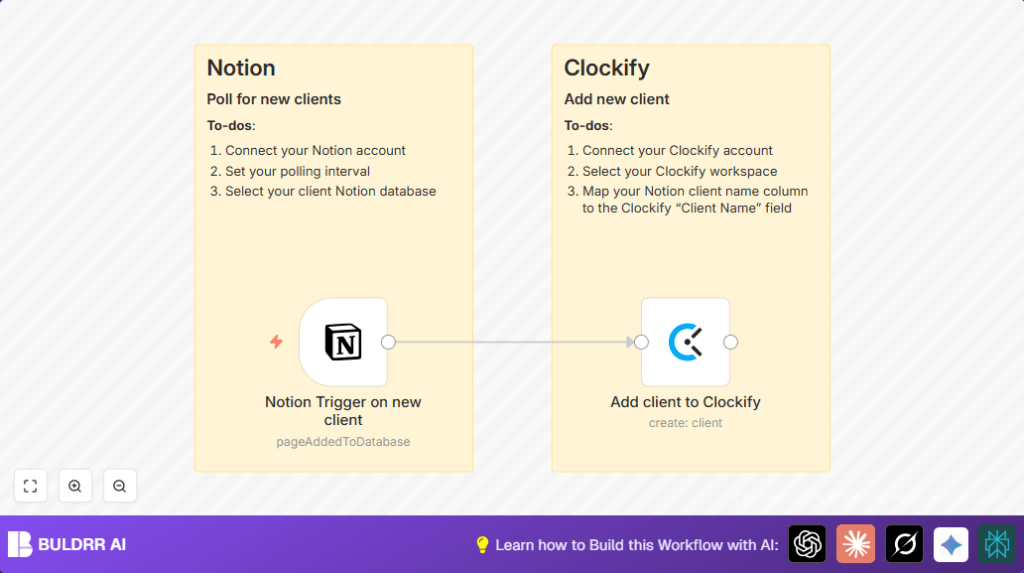
This workflow connects your Notion client database to Clockify. It checks for new clients every minute. When a new client appears in Notion, it adds the same client to Clockify automatically. This stops manual typing and possible mistakes.
You don’t need to copy client names or info by hand. The tool does it for you soon after you add the client. You save time and avoid missing clients in Clockify.
Who Should Use This Workflow
This workflow is for people who manage clients in both Notion and Clockify. It helps freelancers and project managers who want to track time accurately without extra work. Anyone who enters client info in Notion and needs that info in Clockify will find this useful.
If manual syncing from Notion to Clockify takes too long or causes errors, this workflow solves that problem.
Tools and Services Used
- Notion API: To watch the clients database for new entries.
- Clockify API: To create client records in the chosen workspace.
- n8n Automation Platform: Runs the workflow and links Notion to Clockify.
- Optional Self-hosting: Running self-host n8n for data control and privacy.
How This Workflow Works (Inputs → Process → Output)
Inputs
- New client entries added to the Notion clients database.
- Notion database ID for the clients table.
- Clockify workspace ID where clients will be created.
- API Credentials for Notion and Clockify inside n8n.
Processing Steps
- The Notion Trigger node polls the clients database every minute.
- When a new client is found, it sends client data to the next node.
- The Clockify node receives that data, then creates a new client in Clockify.
- The client name from Notion is given to the Clockify client name field using the expression
{{ $json.Name }}. - Data moves automatically without manual typing, matching client names between systems.
Output
The new client appears in the correct Clockify workspace within minutes of being added to Notion. You get fast syncing with fewer mistakes.
Beginner Step-by-Step: How to Use This Workflow in n8n
1. Import the Workflow
- Download the workflow file by clicking the Download button on this page.
- Open your n8n editor, then use Import from File to load the workflow.
- Check that all nodes appear correctly after import.
2. Configure Credentials and IDs
- Add your Notion API credentials to the Notion Trigger node.
- Enter your Notion clients database ID in the trigger settings.
- Add your Clockify API credentials in the Clockify node.
- Update the Clockify workspace ID if needed, to point to your active workspace.
3. Testing the Workflow
- Add a test client in your Notion clients database.
- Run the workflow manually or wait for the trigger to poll (every minute) to verify the client creates in Clockify.
- Check the workflow execution logs inside n8n for any errors.
4. Activate the Workflow
- Switch the workflow toggle to active inside n8n.
- Let the workflow run and keep syncing new clients automatically.
If self-hosting is preferred, see self-host n8n resources to run on your server.
Customization Ideas
- Change how often Notion checks for new clients by modifying the
pollTimesin the Notion Trigger node. - Add more client details to the Clockify node by mapping more Notion fields if available.
- Switch the Clockify workspace by changing the workspace ID in the Clockify node settings.
- Include a notification node after client creation (Slack, Gmail) to alert your team.
Common Problems and Fixes
Notion Trigger shows no new data
Check that the Notion database ID is exactly correct.
Make sure a new client row is added to test the trigger.
Clockify client names appear empty or API errors happen
Verify the Clockify node’s Name field uses {{ $json.Name }} exactly to map client names.
Workflow does not run or activate
Confirm the workflow is switched on.
Re-authenticate your API credentials if expired.
Pre-Production Checklist
- Notion client database exists and has a “Name” column.
- Clockify workspace ID is verified and correct.
- API credentials for both Notion and Clockify are set up and valid in n8n.
- Test the workflow with a sample client before full use.
- Backup important client data before starting the workflow live.
Expected Result
Every new client added in Notion appears automatically in Clockify. You save many hours monthly and reduce mistakes from manual entry.
The workflow runs every minute, keeping client info synced. This gives you better tracking and billing accuracy with less work.
