
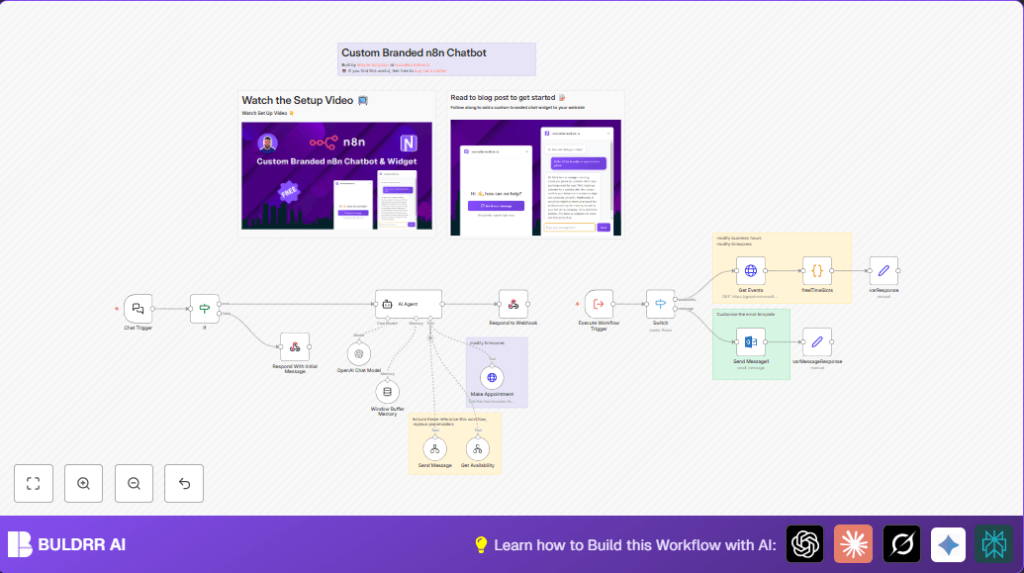

What this workflow does
This workflow automates booking 30-minute consultation appointments. It gets client requests from a website chat. Then it checks availability in a Microsoft Outlook calendar. The workflow blocks double bookings. It creates calendar invites and sends confirmation messages. If the client is not ready to book, it emails the business owner with details.
The automation saves time by handling scheduling and follow-ups. It works only during UK business hours and uses AI for chat conversations.
Who should use this workflow
Anyone managing client bookings manually with Outlook and chat. It suits businesses operating in the UK timezone. It helps if appointment scheduling takes too much time or causes overlaps.
No coding needed but basic n8n use is required. It is good for consultancy and service agencies using Microsoft Outlook calendars.
Tools and services used
- n8n: Runs the workflow and connects services.
- LangChain AI nodes: Manage chatbot and AI Agent (GPT-4) logic.
- Microsoft Outlook Calendar API: Fetches and updates calendar events.
- OpenAI API (GPT-4): Powers conversational agent.
- Webhook from website chat: Sends new client messages to workflow.
The workflow relies on OAuth credentials for Outlook and an OpenAI API key.
Inputs, processing steps, and output
Inputs
- User messages sent via webhook from website chat.
- Microsoft Outlook calendar events for next two weeks.
- Client availability and project details collected in chat.
Processing Steps
- The Webhook node receives chat messages.
- An If node checks if user input exists.
- The AI Agent node uses GPT-4 to gather client data and interpret requests.
- Window Buffer Memory node maintains chat context.
- An HTTP Request node fetches calendar events.
- A Code node processes events, finds free times during UK business hours.
- The AI Agent node schedules appointments using Microsoft Graph API.
- For clients not ready to book, an email is sent to the business owner.
- Respond to Webhook node replies back to user chat with booking status.
Output
- Microsoft Outlook calendar events booked without double booking.
- Chat responses confirming booking or requesting more info.
- Email notifications sent for follow-up when booking is not final.
Beginner step-by-step: How to use this workflow in n8n
1. Import the workflow
- Download the workflow file using the Download button on this page.
- Open n8n editor and select “Import from File”.
- Choose the downloaded workflow file to load it.
2. Configure credentials and IDs
- Add Microsoft Outlook Business account credentials with calendar API access.
- Enter OpenAI API key for GPT-4 model.
- Update any user or email IDs if needed, such as the business owner email for follow-ups.
- Make sure the Webhook node URL is correct and public for your website chat integration.
3. Test the workflow
- Send sample chat messages via your website chat to trigger the webhook.
- Check if the AI responds and free slots show correctly.
- Test booking an appointment and confirm if the event appears in your Outlook calendar.
4. Activate the workflow
- Set the workflow to “Active” in n8n so it runs automatically.
- Monitor logs for errors and update credentials as needed.
- Optionally, consider self-host n8n for more control.
Customization ideas
- Change business hours or timezone by editing variables in the Code node.
- Adjust appointment length by modifying the “end.dateTime” in the appointment creation JSON.
- Update AI system prompt inside the AI Agent node to match your tone and questions.
- Modify the HTML email template used for client enquiry notifications.
- Replace Microsoft Outlook with Google Calendar by changing API endpoints if preferred.
Handling errors and edge cases
- If the Webhook node does not trigger, check it is public and URL is correct in the chat widget.
- If Microsoft Outlook API shows auth errors, re-authenticate OAuth credentials and confirm permissions.
- If double bookings occur, review the Code node that calculates free time slots for logic and timezone consistency.
- Make sure OpenAI API key is valid to avoid AI agent failures.
Summary of results
✓ Saves hours spent manually managing appointments.
✓ Eliminates double booking errors.
✓ Provides polite, human-like chat responses anytime.
✓ Sends well-formatted emails for manual follow-ups.
✓ Integrates tightly with Microsoft Outlook calendar during UK business hours.
