

What This Automation Does
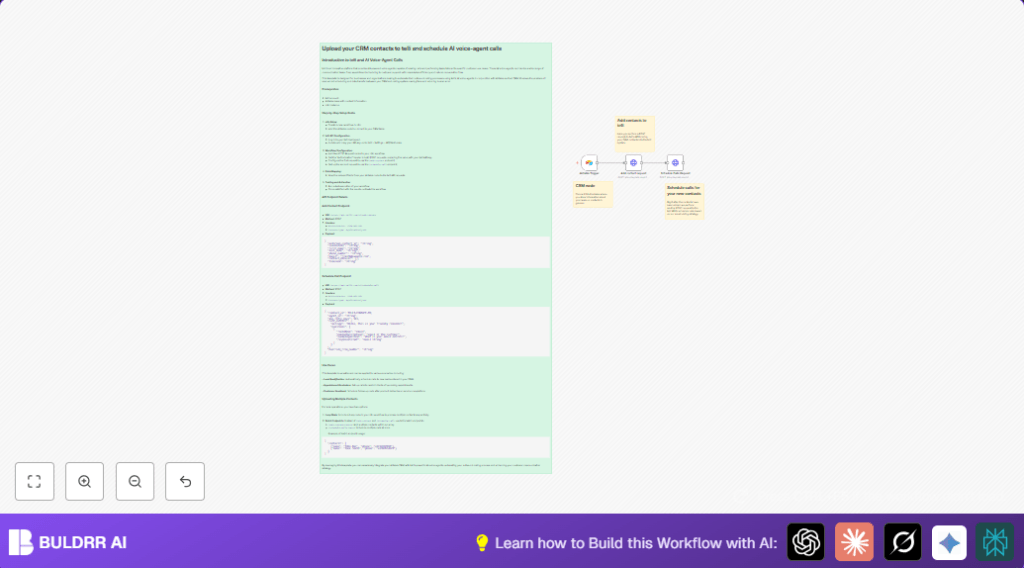
This workflow moves new contacts from Airtable to telli automatically. It stops manual copying of data and missed calls. When a contact is added in Airtable, the workflow sends the info to telli and then schedules an AI voice call for that contact.
This means users get calls made immediately without extra work. Fewer mistakes and faster lead engagement happen.
Inputs: New contact records created in Airtable base and table.
Processing Steps:
- The Airtable trigger node watches for new records.
- An HTTP Request node posts contact details to telli API to add the contact.
- Another HTTP Request node uses the response contact ID to schedule the AI voice call.
Output: Contact created in telli and call scheduled automatically.
Who Should Use This Workflow
Anyone who stores leads or contacts in Airtable and wants to call them without manual work can use this.
This fits sales, customer success, or support teams needing fast call follow-up. It helps reduce errors from copying data by hand.
Users who want to save hours by automating voice call setups benefit most.
Tools and Services Used
- n8n automation platform: Runs the workflow and connects services.
- Airtable CRM: Holds new contact information.
- telli AI voice call platform: Handles calls and scheduling using API.
Beginner Step-by-Step: How to Build This in n8n
Importing the Workflow
- Download the workflow file using the Download button on this page.
- Open the n8n editor where you work on automation.
- Use the “Import from File” feature to upload the downloaded workflow.
Configuring the Credentials
- Add your Airtable API Key in n8n credentials to allow access to the base and table.
- Add your telli API Key similarly for authorization in HTTP Request nodes.
Updating IDs and Fields
- Check the Airtable Base ID and Table ID in the Airtable Trigger Airtable Trigger node and update if different from default.
- Confirm field mappings in both HTTP Request nodes match your Airtable contact field names (like first_name, phone_number).
Testing and Activating
- Add a test contact record in Airtable to see if the workflow runs.
- Watch the execution in n8n to ensure contact is added to telli and call scheduled.
- When tests pass, activate the workflow to run automatically.
Note: If self-host n8n is used, make sure the server is running and polling or webhook listener is active.
Inputs, Processing, and Outputs Explained
Inputs
- Contact data fields entered in Airtable: names, phone number, external IDs, etc.
- New record creation triggers the workflow.
Processing Steps
- Airtable Trigger node polls for new contacts every minute (or set interval).
- HTTP Request node sends JSON with contact details to telli API endpoint
/v1/add-contact. - The node listens for API response to get a contact_id.
- Next HTTP Request node uses contact_id to POST to
/v1/schedule-callendpoint.
Outputs
Contact now exists in telli system and a call is scheduled using AI agents.
You get automated outbound calls with no extra manual steps.
Edge Cases and Failures
If wrong Airtable Base or Table ID is used, the trigger does not activate.
If wrong or missing telli API Key is in HTTP headers, API returns 401 Unauthorized error.
Wrong contact_id mapping in Schedule Calls HTTP Request node causes scheduling failure.
If API limits are hit, calls may be delayed or rejected.
Customization Ideas
- Change polling interval in the Airtable Trigger node for lower API usage.
- Add a Loop node to process many contacts if batch endpoints are unavailable.
- Modify call script JSON in the schedule call node to customize AI voice greetings.
- Add notification nodes (Slack or Email) on errors to monitor failures.
Summary and Results
✓ New contacts automatically sent from Airtable to telli.
✓ Contact added in telli system without manual work.
✓ Calls scheduled instantly with AI agents.
✓ Saves time and reduces errors in calling process.
→ Users focus on meaningful tasks, not copying data.
→ Workflow runs automatically on new contacts.
