
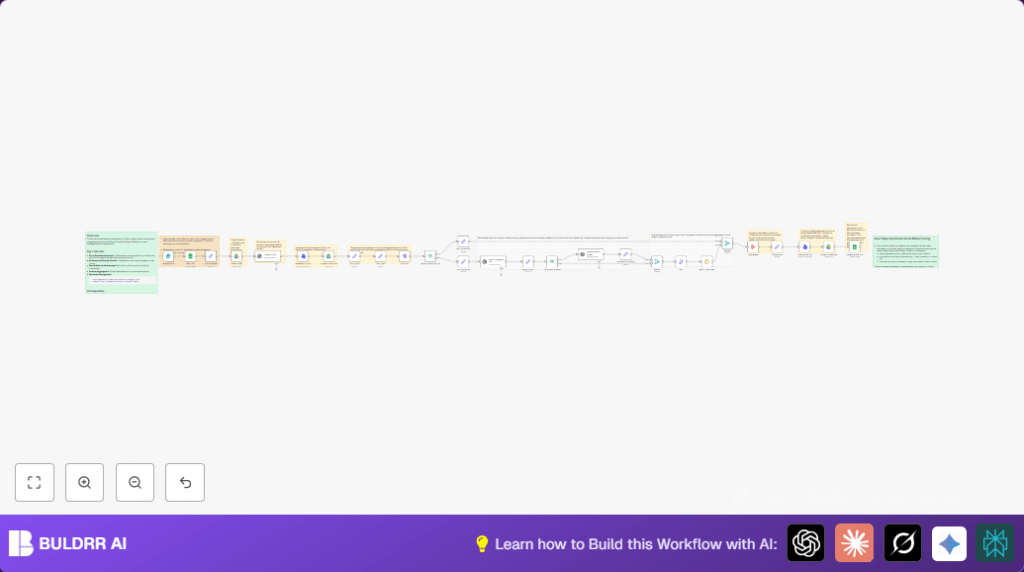

What this workflow does
This workflow automates creating blog articles from simple content requests.
It takes a title, keywords, and instructions, then writes a full article broken into sections.
The workflow saves the outline and final article to Google Drive and updates a content tracker in Google Sheets.
This stops manual copying, version mix-ups, and slows writing tasks.
Who should use this workflow
Users who manage content creation with many article requests.
Especially people using Google Sheets and Drive who want to save hours on writing and organizing.
Beginners can easily run this without deep coding skills.
Tools and services used
- Form Trigger node: Captures article requests through a form.
- Google Sheets API: Logs and updates content requests.
- Google Drive API: Creates folders and uploads files.
- OpenAI GPT-4o-mini model: Generates outlines and drafts articles.
- n8n workflow platform: Automates the whole process.
Inputs, processing steps, and outputs
Inputs
- Content brief via form: title, word count, primary and secondary keywords, plus optional links and extra instructions.
Processing Steps
- Add brief info as a new row in Google Sheets content tracker.
- Create a new Google Drive folder named after the article title.
- Ask OpenAI GPT-4o-mini to generate a Markdown content outline from brief.
- Save outline as a text file in Drive folder.
- Split outline into sections and generate each section text with AI separately.
- Enhance ~25% of sections with better formatting using bullet points and subheaders.
- Sort all sections by order and combine into one article.
- Upload the final article as a text file to the same Drive folder.
- Update Google Sheets row with links to the outline and final article files.
Outputs
- A neatly organized Google Drive folder with outline and final article files.
- A live Google Sheets tracker row updated with document links.
- A fully written article broken down and polished per section.
Beginner step-by-step: How to use this workflow in n8n
1. Import the workflow
- Download the workflow file using the Download button on this page.
- In the n8n editor, choose the Import option and select “Import from File”.
- Upload the downloaded file to add the workflow to your n8n instance.
2. Configure credentials
- Add Google Drive and Google Sheets OAuth2 credentials to n8n if not there yet.
- Add your OpenAI API key to the OpenAI nodes.
3. Update node settings
- Check the Form Trigger node webhook path and use the given URL for your form submissions.
- Update IDs of Google Drive folders or Google Sheets tables if you use different ones.
- Ensure prompt texts or code blocks inside nodes are correct for your use.
4. Test the workflow
- Submit a sample content brief using the form URL.
- Watch the workflow run and check Google Sheets row creation and Drive folder/files.
- Fix any errors related to permissions or node configurations.
5. Activate the workflow
- Turn on the workflow in the n8n editor to run automatically on form submission.
- Share the webhook form URL with content requesters inside your team.
- Optionally, connect Slack or email notifications for failure alerts.
- If running on your own server, consider self-host n8n for full control.
Edge cases and failure handling
- Check Google Sheets node settings carefully to match the exact sheet name and column headers to avoid write failures.
- Sort all OpenAI-generated sections properly to prevent incorrect article order before merging.
- Verify Google Drive folder permissions and ensure OAuth scopes cover full drive access.
- Watch out for incomplete AI answers, which can happen if prompts are too long or API limits are hit.
Customization ideas
- Use different OpenAI models like
gpt-3.5-turboor custom fine-tuned ones by changing modelId in the nodes. - Modify the chance of applying section formatting enhancements by adjusting If node math logic.
- Change naming patterns for uploaded files to include dates, project codes, or other tags.
- Add extra Convert To File nodes to create PDF or DOCX versions for varied uses.
- Extend the flow to post final article links automatically to social media using APIs.
Summary of results
✓ Saves time by automating article creation step by step.
✓ Keeps content files organized in dedicated Google Drive folders.
✓ Updates Google Sheets tracker with live document links.
→ Produces fully outlined, sectioned, and polished articles using AI.
→ Reduces manual errors and speeds up publishing.
