
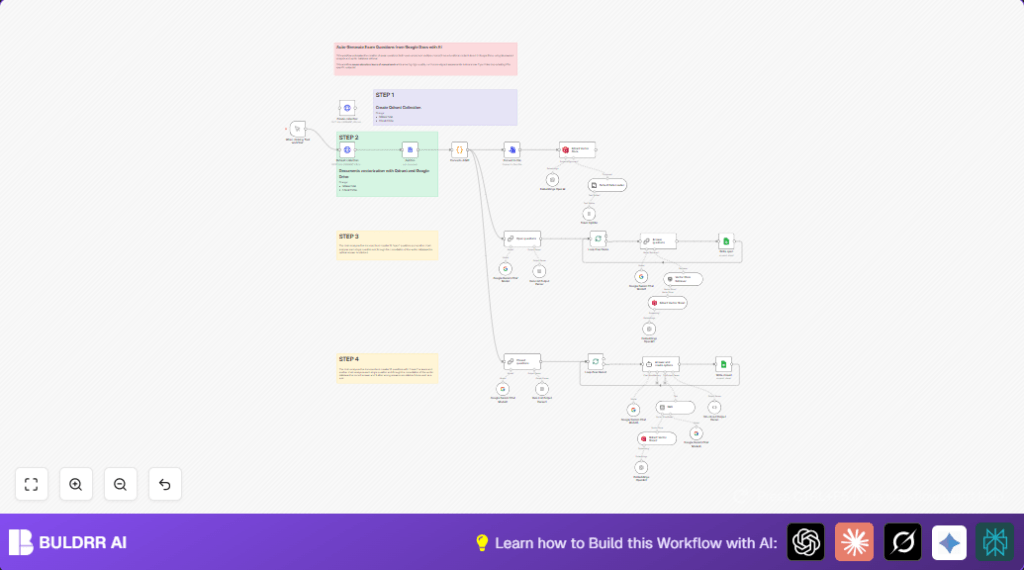

What this workflow does
This workflow reads a Google Docs article with educational content.
It makes two kinds of exam questions: open-ended and multiple-choice.
It uses AI to understand the text and a vector database to keep track of important parts.
The questions are saved to Google Sheets for easy use.
Who should use this workflow
Teachers or educators who want to save time making exam questions.
People who store study material in Google Docs and want questions made fast without mistakes.
Tools and services used
- n8n: Automation platform where the workflow runs.
- Google Docs API: Fetches the article content.
- Google Sheets API: Stores the generated questions and answers.
- OpenAI API: Creates text embeddings for document chunks.
- Google PaLM API (Google Gemini): AI models generate questions and answers.
- Qdrant Vector Database: Stores vectors for semantic search and retrieval.
How the workflow works (Input → Process → Output)
Input
The workflow starts when manually triggered.
The user gives the Google Docs URL with the educational article.
Processing steps
The workflow fetches the Google Docs content as JSON.
It converts this JSON into Markdown format, keeping headings and text styles.
The markdown is turned into a plain text file for AI processing.
This text is split into smaller parts (chunks) using tokens.
OpenAI creates embeddings (vectors) for each chunk.
Vectors are stored in the Qdrant database for fast semantic searching.
Google Gemini AI models generate 10 open-ended questions that ask for thoughtful answers.
Each open-ended question is checked against the vector store to produce accurate answers.
Results are saved to Google Sheets in one tab.
The Gemini model also generates 10 multiple-choice questions with one correct and three wrong but close answers.
These multiple-choice questions are validated and saved to another Google Sheets tab.
Output
The user gets two sets of exam questions: open-ended and multiple-choice.
Questions and answers are organized in Google Sheets, ready for use.
Beginner step-by-step: How to build this in n8n
1. Download and import the workflow
- Download the provided workflow file using the Download button on this page.
- In the n8n editor, click “Import from File” and select the downloaded workflow.
2. Configure credentials and settings
- Add your Google Docs and Google Sheets OAuth2 credentials in n8n’s credential manager.
- Add OpenAI API Key for embeddings generation.
- Add Google PaLM API Key or OAuth2 credentials for Gemini chat models.
- Set Qdrant database URL and API Key in the HTTP Request nodes for collection management and vector insertion.
- Update the Google Docs document URL in the Get Doc node to match your article.
- Update Google Sheets IDs and worksheet names if you want to save questions to your own sheet.
3. Test and activate
- Run the workflow once using the Test button to verify all nodes work and generate questions.
- Check your Google Sheets for the new exam questions data.
- If all works, activate the workflow in n8n to use it for production.
Consider self-host n8n for more control and security if running on your own server.
Customization ideas
- Change the document URL in Get Doc to use different articles.
- Adjust chunk size and overlap in the Token Splitter for finer or broader text sections.
- Switch AI models in the question generation nodes to adjust question style or difficulty.
- Edit Qdrant collection parameters like vector size or distance metric for different data types.
- Modify Google Sheets columns or add email integration for automatic question sharing.
Edge cases and common errors
- Qdrant 401 Unauthorized error: Check API key is correct in HTTP Request headers.
- Google Docs fetch failure: Verify OAuth2 access and the document URL is valid and shared correctly.
- OpenAI embedding timeout: Reduce chunk size or add retries to handle API limits.
- AI generated questions seem wrong or repeat: Adjust chunk sizes or add more article content for better training context.
Summary of benefits and results
✓ Saves many hours by automating question creation.
✓ Produces both open-ended and multiple-choice questions from Google Docs.
✓ Uses AI combined with vector search to make accurate and relevant questions.
→ Gives clear, organized output in Google Sheets ready for educators to use.
