

What This Workflow Does
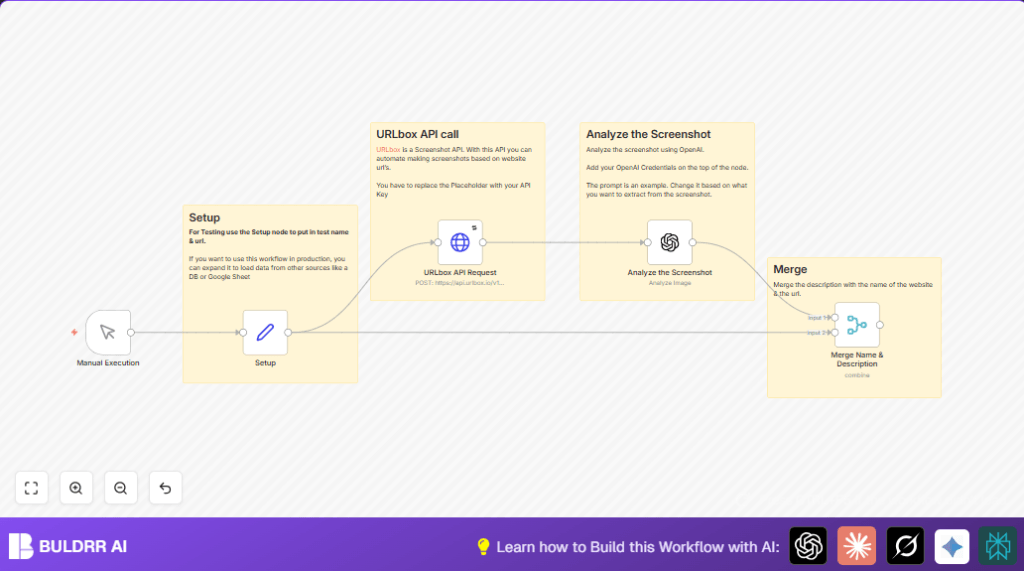
This workflow captures screenshots of websites and then uses AI to describe what the website looks like in one sentence.
It solves the problem of spending too much time taking screenshots manually and guessing website content.
The result is a quick, organized summary of each website’s name, URL, and visual description.
Who Should Use This Workflow
This workflow is useful for people managing many websites and needing fast summaries without manual work.
It helps digital marketers, content reviewers, and anyone needing quick website insights.
Tools and Services Used
- n8n: Automation platform where the workflow runs.
- URLbox Screenshot API: Captures full webpage screenshots.
- OpenAI API: Analyzes screenshots and generates a short text summary.
Inputs, Processing, and Outputs
Inputs
- Website Name: User-entered name for the site.
- Website URL: User entered web address to capture.
Processing Steps
- Take full-page screenshot using URLbox API.
- Send screenshot to OpenAI for one-sentence description.
- Merge website name, URL, and AI summary into one output.
Output
Combined data with website name, URL, and a short AI-generated description.
Beginner Step-by-Step: How to Use This Workflow in n8n
Download and Import Workflow
- Click the Download button on this page to get the workflow file.
- Go to your n8n editor and select “Import from File” to upload the workflow.
Configure Credentials and Settings
- Open the URLbox API Request node and replace
YOUR_API_KEYin the Authorization header with your real URLbox API Key. - Open the Analyze the Screenshot (OpenAI) node and enter your OpenAI API Key.
- Go to the Setup node and update the
website_nameandurlfields with the site you want to test.
Test and Activate
- Run the workflow using the Manual Execution node to check if everything works.
- If successful, activate the workflow for use in production.
For users hosting n8n on their own server, check self-host n8n options to keep API keys secure.
Common Problems and Troubleshooting
- URLbox API Unauthorized Error: Check that the API Key is correct and not expired.
- Empty or Wrong AI Description: Verify the prompt text and make sure the screenshot image URL is passed right.
- No Output from Merge Node: Confirm all nodes are connected properly and data formats match.
Customization Ideas
- Change AI prompt to ask for details like website colors or product info instead of a simple description.
- Add a Google Sheets node before Setup to process many websites in batch.
- Save results to a database like MySQL or PostgreSQL after merging.
- Use scheduled triggers or webhooks instead of manual execution.
- Store API Keys as environment variables to keep them safe.
Summary of Benefits
✓ Saves hours weekly by automating website screenshots and summaries.
✓ Reduces errors from manual screen captures.
✓ Creates simple, unified data for better marketing messages.
✓ Allows fast testing and easy production deployment in n8n.
