

What This Workflow Does
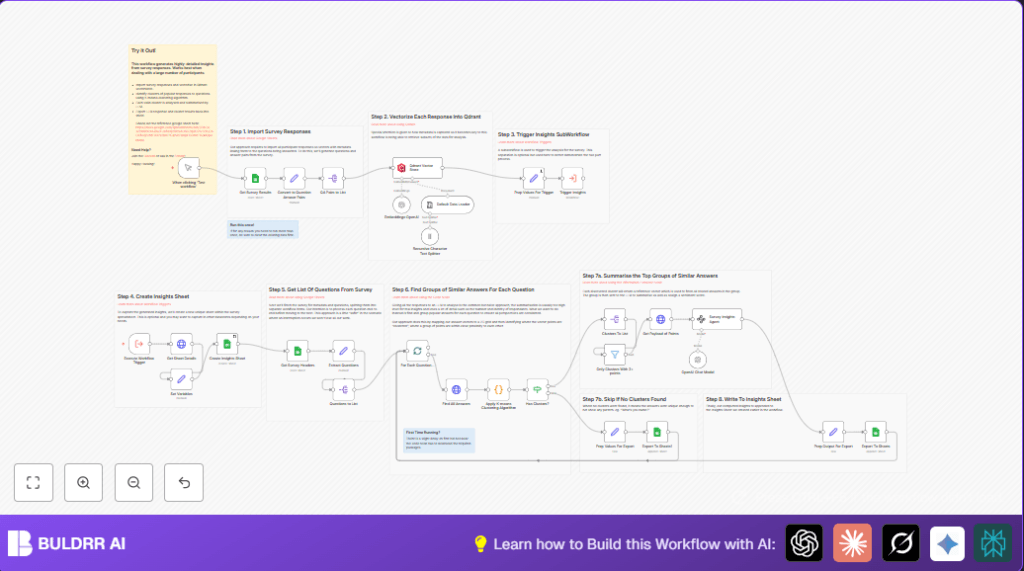
This workflow reads survey answers from a Google Sheet and groups similar answers by question.
It uses AI to turn answers into vectors stored in a Qdrant vector database.
Then, it finds clusters of similar answers per question using K-means clustering.
For clusters with 3 or more answers, it creates a summary and sentiment analysis using OpenAI.
Finally, it writes these insights back to a new sheet in the same spreadsheet.
This saves time by replacing manual review with automatic, detailed analysis of open-ended survey data.
Who Should Use This Workflow
This workflow is best for product managers, HR teams, or researchers who collect many open answers in Google Sheets.
People who want to see clear insights and sentiment from survey answers fast will find it useful.
Users without deep coding skills can run this using n8n’s visual interface.
It requires active Google Sheets access and OpenAI API keys.
Tools and Services Used
- Google Sheets: Store and retrieve raw survey responses and write final insights.
- OpenAI API: Create text embeddings of answers and generate summaries plus sentiment analysis.
- Qdrant Vector Store: Save numeric vectors and metadata for fast semantic searching and clustering.
- n8n Automation Platform: Orchestrate data flow, API calls, and processing logic.
How This Workflow Works
Inputs
- Survey answers in a specified Google Sheets document. Each row contains participant ID and open-text answers.
- Google Sheets header row listing the questions.
- API keys for OpenAI and Qdrant services.
Processing Steps
- Use Google Sheets node to pull all raw rows from the sheet.
- Convert each row into multiple question-answer objects using a Set node.
- Split the question-answer pairs into individual workflow items via a Split Out node.
- Generate vector embeddings for each answer text using Embeddings OpenAI node.
- Store embeddings and metadata (question text, participant ID, survey name) in Qdrant through its Vector Store node.
- Trigger a subworkflow to analyze and create insights.
- Create a new sheet in Google Sheets with a timestamped name for insights storage.
- Extract question headers from the sheet via a separate Google Sheets node and Set node.
- Process each question one by one using batch splitting nodes.
- Query Qdrant for all answers related to the current question.
- Run Python K-means clustering on answer embeddings to group similar responses.
- Filter clusters to skip groups with fewer than 3 answers.
- Fetch full text and metadata for answers in each cluster from Qdrant.
- Send grouped answers to an OpenAI GPT-4-powered node to generate detailed summaries and sentiment reports.
- Prepare output data including summaries, sentiment, participant counts, and raw data with Set node.
- Append summaries and details to the newly created insights sheet using Google Sheets nodes.
Outputs
- A new Google Sheet tab within the original file containing summarized insights and sentiments for each question cluster.
- Raw answer examples and participant counts linked to each insight.
Beginner Step-by-Step: How to Use This Workflow in n8n
Step 1: Import the Workflow
- Download the workflow JSON file using the Download button on this page.
- Open the n8n editor where the workflow will run.
- Click “Import from File” and select the downloaded workflow JSON.
Step 2: Configure Credentials and IDs
- Set up Google Sheets OAuth credentials with access to your survey spreadsheet.
- Enter your OpenAI API Key in the Embeddings OpenAI node and the summarization node.
- Provide Qdrant connection details in the Qdrant Vector Store node and HTTP request nodes.
- If needed, update Google Sheet IDs, sheet names, or folder names to match your spreadsheet structure.
Step 3: Test and Activate
- Run the workflow manually first to check for errors and verify output.
- Review the new “Insights” sheet in Google Sheets for summaries and details.
- If all works well, activate the workflow trigger in n8n for scheduled or automatic runs.
The workflow is now ready to analyze survey answers and produce insights automatically.
Consider self-host n8n to run this safely and with more control.
Customization Ideas
- Change the number of clusters in the Python Code node to group answers more broadly or narrowly.
- Switch Embeddings model to a larger OpenAI version in the Embeddings OpenAI node for better semantic detail.
- Modify the summary prompt in the OpenAI node to add extra questions or adjust sentiment categories.
- Change output formats or export destinations, like Excel or Airtable, by editing the final Set node and Google Sheets nodes.
- Speed up processing by increasing batch sizes or running question batches in parallel in the Split In Batches node.
Edge Cases and Troubleshooting
- If the Google Sheets node returns empty or incomplete data, check sheet ID and permissions.
- If OpenAI embedding calls fail, verify API key limits or replace keys.
- No clusters found may mean answers are too unique or there is too little data; try increasing cluster count or adding more answers.
- Qdrant API failures signal connection or token issues; confirm Qdrant service is running and credentials are correct.
Summary of Benefits
✓ Saves hours by automating survey text analysis and insight generation.
✓ Finds detailed answer groups and sentiment that manual review misses.
✓ Works fully within Google Sheets and n8n, easy to run without coding.
→ Produces clear, concise summaries linked to original responses.
→ Enables faster decisions with better data understanding.
