
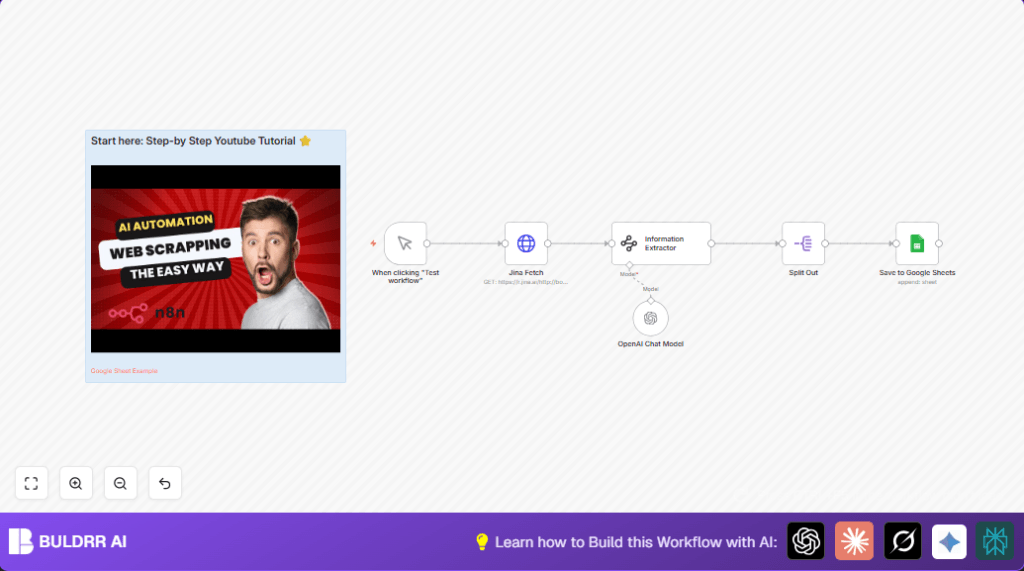

What This Automation Does
This workflow grabs book data from a web page.
It solves the problem of spending hours copying book info by hand.
You get a neat list of titles, prices, availability, images, and links on Google Sheets.
Instead of manual work, it runs with one click.
Tools and Services Used
- n8n Manual Trigger node: Starts the workflow when clicked.
- n8n HTTP Request node: Downloads the book category HTML page securely via Jina.ai.
- OpenAI Information Extractor node: Reads raw HTML and pulls out book data into JSON format.
- n8n Split Out node: Breaks the book list so each book can be handled alone.
- Google Sheets node: Adds each book’s data as a new row into a spreadsheet.
Inputs, Processing, and Outputs
Inputs
- Manual click in the Manual Trigger to start.
- HTTP request to get the historical fiction books page HTML.
Processing Steps
- Parse raw HTML with the OpenAI Information Extractor node to find book details.
- Split the array of books into single entries using the Split Out node.
- Prepare each book’s data for sheet insertion.
Output
- Each book’s info appended as a row to a specified Google Sheets spreadsheet.
- A clean and organized list to use for inventory or analysis.
Beginner Step-by-Step: How to Use This Workflow in n8n
Step 1: Import the Workflow
- Download the workflow file using the Download button on this page.
- Open the n8n editor where you want to run the automation.
- Use the “Import from File” option in n8n to add the workflow.
Step 2: Setup Credentials and Configuration
- Add your Jina.ai API credentials in the designated credential section of the HTTP Request node.
- Provide your OpenAI API key within the Information Extractor node credentials.
- Make sure Google Sheets OAuth2 credentials are connected in the Google Sheets node.
- Check and update the Google Sheet document ID and sheet tab ID if needed.
- Paste the extraction system prompt exactly in the Information Extractor node, if required (see prompt in the workflow details).
- Confirm the URL in the HTTP Request node matches the book category you want.
Step 3: Test the Workflow
- Click “Test workflow” or manually trigger it to check if it fetches and processes the data correctly.
- Look at the execution data in n8n and verify data appears in your Google Sheets.
Step 4: Activate for Production
- Turn on the workflow by toggling the activate switch in the n8n editor.
- Optionally, replace the Manual Trigger with a scheduled Cron node if you want automatic runs.
- Monitor logs regularly to catch any errors early.
- If self hosting n8n, use a recommended self-host n8n setup for reliability.
Customization Ideas
- Modify the Information Extractor prompt to pull extra details like author or book rating.
- Add new columns in the Google Sheet and map them in the Google Sheets node for more data.
- Change the URL in the HTTP Request node to scrape other book categories or pages.
- Add notification nodes, such as email or Slack, to alert on errors or new entries.
Troubleshooting
Issue: No data output from Information Extractor
The page HTML might have changed or become harder to parse.
Try updating the system prompt or fetch new sample HTML to help the AI understand what to extract.
Issue: Google Sheets append fails
OAuth credentials may be invalid or sheet IDs wrong.
Re-authenticate the Google Sheets node and verify permissions and IDs.
Pre-Production Checklist
- Confirm you have write access to the Google Sheets document and correct sheet tab ID.
- Test the Jina.ai HTTP Request node separately to ensure it fetches HTML properly.
- Validate the Information Extractor prompt with example HTML to verify correct output format.
- Run a full test of the workflow and verify the data in Google Sheets matches expectations.
Deployment Guide
After testing, enable the workflow to make it live inside n8n.
Switch from manual trigger to scheduled trigger for regular scraping.
Keep a backup of the Google Sheets data in case of errors.
If running on your own server, consider using self-host n8n for good uptime and control.
Summary
✓ Saves hours by automating book data entry.
✓ Prevents errors common in manual copy-paste.
✓ Delivers complete book info ready in Google Sheets.
→ Workflow is controlled manually or scheduled.
→ Easy to customize for other book types or sites.
→ Works using Jina.ai scraping and OpenAI AI extraction.
