

What This Workflow Does
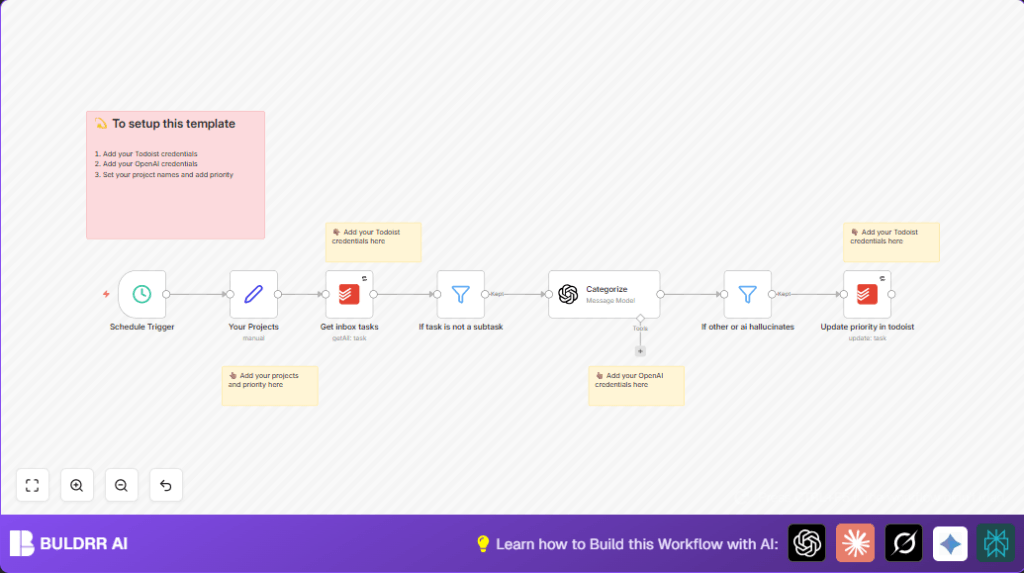
This workflow automatically sorts and updates the priority of tasks in a Todoist inbox using AI. It solves the problem of having to manually organize tasks every day, saving time and reducing missed deadlines.
It reads all top-level tasks from the Todoist inbox, sends their descriptions to OpenAI GPT-4o-mini to assign a project category, then updates the task priority in Todoist based on this category.
Who Should Use This Workflow
This workflow is good for people with many daily Todoist tasks who spend time sorting them manually.
It helps freelancers, project managers, or anyone wanting tasks automatically prioritized by defined projects with minimal effort.
Tools and Services Used
- Todoist API: To fetch and update tasks in the inbox.
- OpenAI GPT-4o-mini model: To categorize tasks by content.
- n8n automation platform: To create and run the workflow.
How The Workflow Works (Input → Process → Output)
Inputs:
- All top-level tasks from Todoist Inbox project.
- User-defined project names with priority values.
Processing Steps:
- Fetch all tasks from Todoist Inbox using project ID.
- Filter to keep only tasks without a parent (top-level tasks).
- Send each task content to OpenAI GPT-4o-mini node asking to categorize into predefined projects or “other.”
- Filter out tasks categorized as “other” or invalid results.
- Update the task’s priority in Todoist based on category priority value.
- Retry API calls on failure for reliability.
Output:
Tasks in Todoist Inbox get assigned correct priority values automatically based on AI categorization.
Beginner Step-by-Step: How To Use This Workflow In n8n
Step 1: Import Workflow
- Download the workflow file using the Download button on this page.
- In the n8n editor, click “Import from File” and select the downloaded workflow.
Step 2: Configure Credentials
- Add and save your Todoist API credentials in n8n.
- Add your OpenAI API key for GPT-4o-mini in the LangChain OpenAI node.
Step 3: Update IDs and Projects
- Replace Inbox project ID in the Todoist nodes to match your Todoist inbox.
- In the “Your Projects” Set node, verify or edit project names and their priority numbers.
Step 4: Test the Workflow
- Run the workflow manually to make sure tasks are fetched and categorized.
- Check if the task priorities update correctly in Todoist.
Step 5: Activate For Production
- Switch the workflow ON for automatic running at the scheduled time.
- Adjust schedule interval if needed.
- If you use self-host n8n, check self-host n8n options.
Common Edge Cases and Failures
- If Todoist API calls fail or rate limits hit, check API credentials and consider reducing run frequency.
- Empty or wrong AI categorization may happen if prompt is not formatted right; edit prompt in OpenAI node.
- Incorrect project names in the “Your Projects” set node cause failures; ensure no typos.
- Subtasks are not processed by default; adjust filter if subtasks are needed.
Customization Ideas
- Add more categories by editing the “Your Projects” node with new key-value pairs.
- Change the AI model in the OpenAI node if different precision or cost is preferred.
- Include subtasks by changing the filter logic.
- Change the schedule trigger timing to run more or less often.
- Tweak the AI prompt message to better fit specific task styles or terminology.
Summary of Results
✓ Automates sorting and prioritizing Todoist inbox tasks.
✓ Reduces manual task management time by over an hour daily.
✓ Provides consistent, AI-driven project categorization.
→ Todoist tasks have priorities updated automatically based on task content.
→ Limits missed deadlines and task oversight.
