

What this workflow does 📁
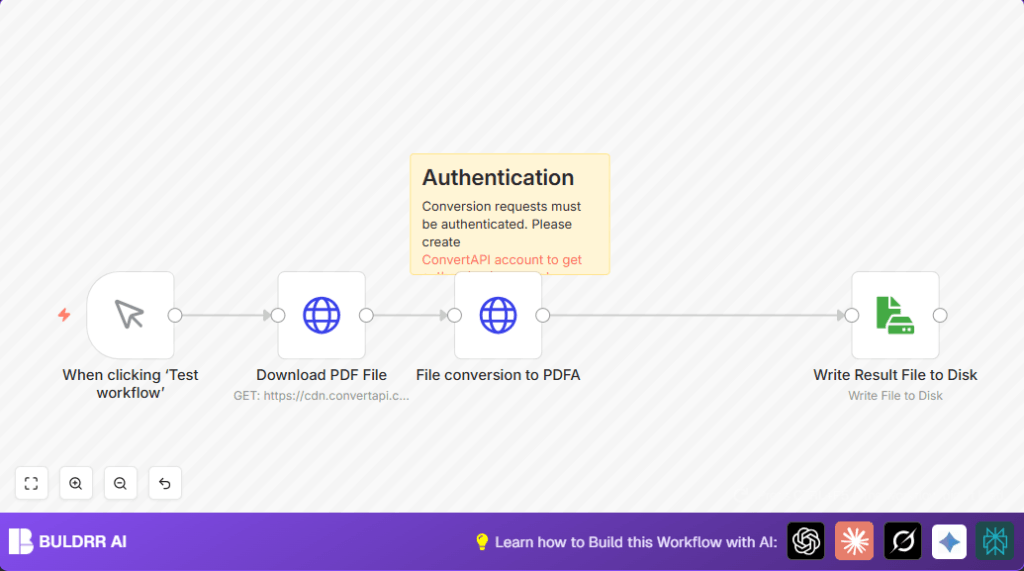
This workflow changes normal PDF files into PDF/A files for archiving. PDF/A keeps files safe and proper for a long time. It stops people from doing the work by hand and making mistakes.
The workflow downloads a PDF, sends it to ConvertAPI to make it PDF/A, then saves the new file. This saves time and stops errors.
Tools and services used
- n8n: Runs the workflow automation.
- ConvertAPI: Converts PDF files to PDF/A format.
- HTTP Request node: Downloads and sends files.
- Read & Write File node: Saves files to disk.
Inputs → Processing → Outputs
Inputs
- URL link to a PDF file (public link).
- ConvertAPI API Key for authentication.
Processing Steps
- Manual trigger to start workflow.
- HTTP Request node to download PDF file as binary.
- HTTP Request node sends file to ConvertAPI for PDF to PDF/A conversion.
- ConvertAPI returns the PDF/A file in binary form.
- Read & Write File node saves the PDF/A file to local disk.
Output
- A local PDF file named document.pdf compliant with PDF/A archival standards.
Beginner step-by-step: How to use this workflow in n8n
Step 1: Download and Import Workflow
- Click the Download button on this page to save the workflow file.
- Open the n8n editor where you want to run the automation.
- Use the “Import from File” option in n8n and pick the downloaded file.
Step 2: Configure API Keys and Settings
- Go to the File conversion to PDFA HTTP Request node.
- Add or update the ConvertAPI API Key in the HTTP Query Authentication section.
- Check if Download PDF File node URL needs to be changed to your own PDF file link.
- Change any other IDs, emails, folders, or table info if present.
Step 3: Test and Activate Workflow
- Run the workflow once by clicking the manual trigger’s execute button to test.
- If the PDF/A file saves correctly without errors, the workflow is ready.
- Activate the workflow in n8n for production use.
You don’t need to build the workflow from scratch. Just import, configure, test, and run. Simple and clear.
Common Problems and Fixes 🔧
- 401 Unauthorized Error: Happens when the API key is missing or wrong.
Fix it by updating the API Key in the File conversion to PDFA node. - Empty or Corrupt Output File: Happens if binary data is not mapped right.
Fix it by making sure the File conversion to PDFA node outputs binary and the Write Result File to Disk node uses the correct binary data.
Customization Ideas ✏️
- You can change the PDF link in the Download PDF File node to any public file.
- Adjust the
PdfaVersionform parameter to other versions like “pdfa-1b” if supported. - Save PDF/A files with unique names using expressions like
{{$now}}.pdfin the write file node. - Add an email node after saving the file to send alerts when conversion finishes.
Pre-Production Checklist ✅
- Make sure the ConvertAPI account is active and the API Key is valid.
- Test the workflow manually to check if document.pdf opens as PDF/A.
- Try different PDF files as input to confirm workflow handles varied inputs.
- Backup the workflow before deploying to avoid losing work.
Deployment Guide
Save and activate the workflow inside n8n to run live.
Use the manual trigger for tests or add webhook and other triggers for automation.
Enable error logging in n8n to watch for problems.
For those using self-host n8n, check this link for server help.
Summary of the result
✓ Saves hours by automating PDF to PDF/A conversion.
✓ Removes human error in file formatting.
✓ Provides a simple way to ensure documents meet archival compliance.
✓ Outputs a ready-to-use, properly formatted PDF/A file on disk.
