
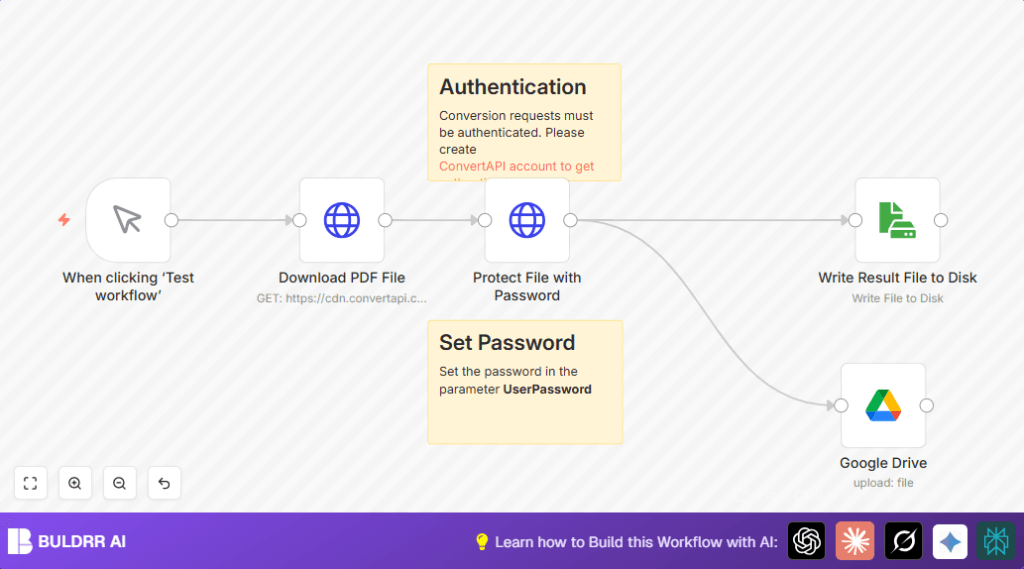

What this workflow does
This workflow helps you take a PDF file from a web link, add password protection to it, save it on your local machine, and then upload it securely to Google Drive.
This stops mistakes like forgetting to add a password or sharing unsafe files. It saves a lot of time and keeps your documents safe.
Who should use this workflow
This is useful for anyone who needs to share PDF files securely and wants to avoid doing the same tasks over and over.
People who often handle contracts, legal documents, or confidential files will find it very helpful.
Tools and services used
- n8n: Workflow automation tool where the automation is created.
- ConvertAPI: Service used to add password protection to PDF files via API.
- Google Drive: Cloud storage service to upload and share the secured PDF files.
Inputs, processing steps, and outputs
Inputs
- PDF file URL to download the original document.
- Your ConvertAPI secret key for authentication.
- Google Drive OAuth2 credentials for upload permission.
- Password that will protect the PDF file.
Processing Steps
- Download PDF: A HTTP Request node gets the PDF file from the provided URL with response set to “file”.
- Password Protect PDF: Another HTTP Request node sends the PDF file to ConvertAPI using multipart/form-data with the user password set, via POST request.
- Save File Locally: The Read & Write File node writes the password-protected PDF binary data to disk.
- Upload to Google Drive: The Google Drive node uploads the secured PDF to a chosen Drive folder with a set filename.
Outputs
- Password-protected PDF saved on the local machine.
- Password-protected PDF uploaded to Google Drive for secure sharing.
Beginner step-by-step: How to use this workflow in n8n
Importing and setup
- Download the workflow file using the Download button on this page.
- Open your n8n editor (cloud or self-host n8n).
- Click “Import from File” and select the downloaded workflow file.
Configuring credentials and parameters
- Add your ConvertAPI API Key in the Protect File with Password node under Query Auth.
- Authenticate Google Drive in the Google Drive node with OAuth2 credentials.
- Check and update the PDF download URL in the Download PDF File node if needed.
- Set your desired PDF password in the “UserPassword” field inside the Protect File with Password node.
- Update file names or Google Drive upload folder IDs as required.
Testing and activating
- Run the workflow manually once using the Manual Trigger node.
- Check that the PDF downloads, is password protected, saved locally, and uploaded to Google Drive.
- If all looks good, activate the workflow to run automatically or with manual trigger.
Common problems and fixes
- ConvertAPI 401 Unauthorized: API key missing or wrong. Fix by updating Query Auth in the Protect File with Password node.
- Empty or broken downloaded file: Response format not set to file. Check Download PDF File node options.
- Google Drive upload fails: OAuth2 token expired or wrong. Re-authenticate Google Drive credentials.
Customization ideas
- Change the PDF source link in the download node to any valid PDF URL.
- Set different passwords per file dynamically inside the password protection node.
- Change local file path and name to your needs in the Read & Write File node.
- Upload files to client-specific Google Drive folders by changing the folder ID.
Summary of results
✓ Automates downloading a PDF from web
✓ Automatically adds password protection via ConvertAPI
✓ Saves protected PDF on local disk for backup
✓ Uploads secured PDF to Google Drive folder
→ Saves time and avoids manual mistakes
→ Ensures sensitive PDFs are secure before sharing
