

What This Workflow Does
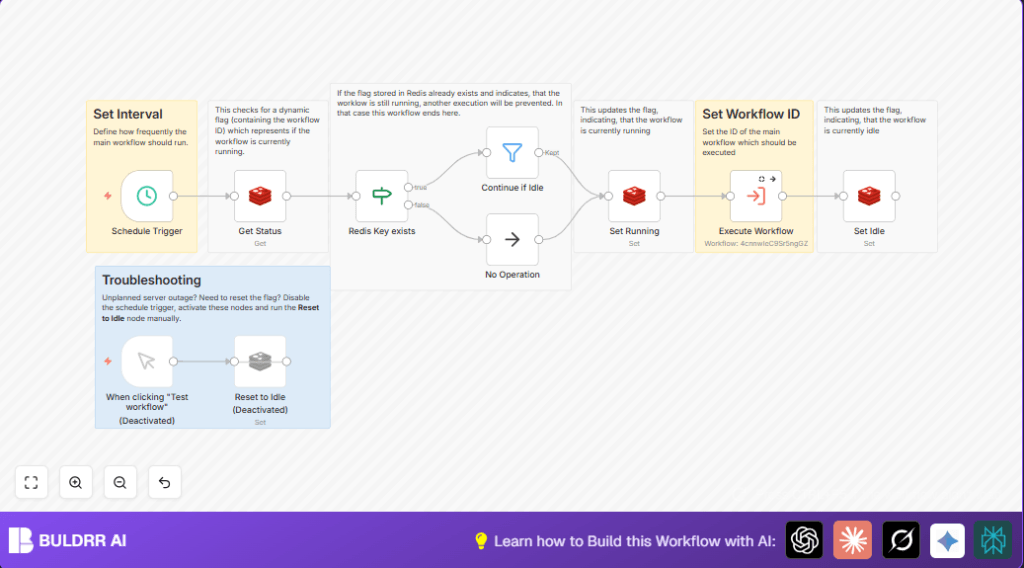
This workflow runs every 5 seconds in n8n and controls when it can start a new run.
It uses Redis to check if a previous run is still working.
If yes, it stops the new run to avoid problems like duplicated tasks and system overload.
If no, it sets a flag in Redis to say it is running, then starts the main workflow, and after finishing, it resets the flag to idle.
This way, no two workflows run at the same time.
The result is clean syncs without errors and saves time fixing overlaps.
Tools and Services Used
- n8n: Automation platform to build and run workflows.
- Redis: Key-value store used as a locking system to mark running or idle status.
Inputs, Processing, and Outputs
Inputs
- A schedule trigger activates the workflow every 5 seconds.
- Redis key to check the workflow’s current state: running or idle.
Processing Steps
- Check Redis to see if the workflow is currently running.
- If running, stop the workflow early.
- If idle, set the Redis key to running.
- Execute the main workflow.
- After finishing, reset the Redis key back to idle.
Output
- Only one instance of the workflow runs at a time.
- Prevents duplicated tasks, data conflict, and wasted resources.
Beginner Step-by-Step: How to Use This Workflow in n8n
Download and Import Workflow
- Download the workflow file using the Download button on this page.
- Open n8n editor and click Import from File.
- Select the downloaded file to import the workflow.
Configure the Workflow
- Add Redis credentials under the Redis nodes to connect to your database.
- Check and update the
workflowStatus_{{ $workflow.id }}key if you want a custom key name. - Update the Execute Workflow node with the correct main workflow ID you want to control.
Test and Activate
- Run the workflow manually once to check if Redis keys update properly.
- After testing, activate the Schedule Trigger node.
- Monitor runs to see if overlaps occur or redis flags stay stuck.
If you use self-host n8n, see this resource.
Common Problems and How to Fix
- Missing Redis Key: The key does not exist or was misspelled.
- Stuck Running State: Workflow crashed or did not reset flag.
- Strong Frequency: Schedule runs faster than workflow finishes.
Use manual reset node if flag gets stuck.
Customization Ideas
- Change Schedule Trigger interval to adjust frequency.
- Switch main workflow in Execute Workflow node to control different tasks.
- Rename Redis key to organize multi-workflow concurrency.
- Add alerts for stuck flags or failed executions.
- Build logging with Slack or Google Sheets using nodes.
Summary
→ Stops multiple runs of the same workflow at once.
→ Uses Redis key as a lock to control status.
→ Saves time by avoiding duplicated tasks.
→ Makes automated tasks stable and avoid errors.
