
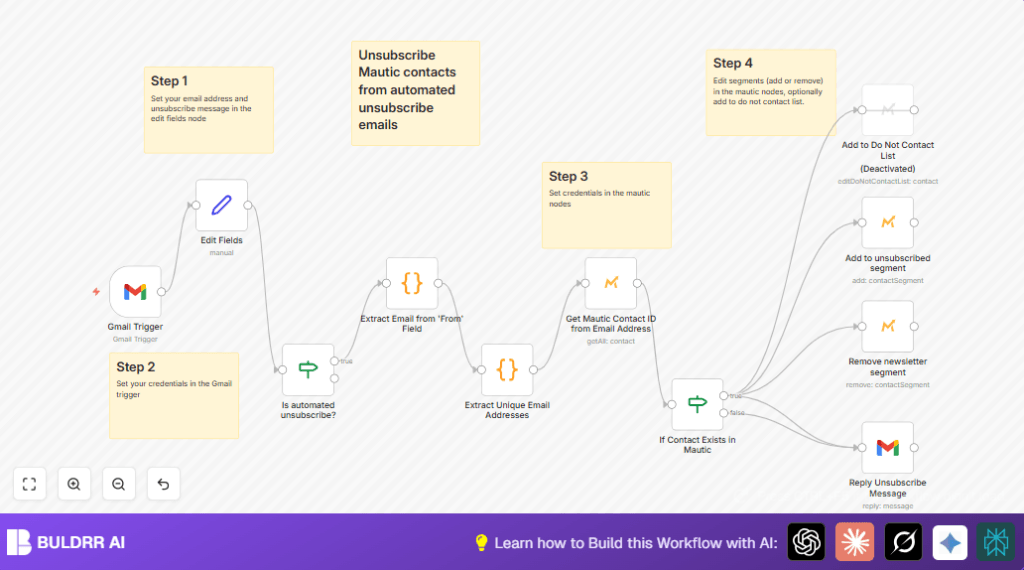

What this workflow does
This workflow watches a Gmail inbox for unsubscribe emails and automates removing those emails from active mailing lists in Mautic.
It finds the sender’s email, checks Mautic for that contact, moves the contact to an unsubscribed group, and replies to confirm the opt-out.
This stops email clutter, saves time, and keeps unsubscribe requests handled correctly.
Who should use this workflow
This workflow is for marketing managers or anyone running email campaigns with Mautic.
It helps when unsubscribe emails come in high volume and cause manual work or mistakes.
Users must have a Gmail account with OAuth2 and a Mautic account with API access.
Tools and services used
- Gmail with OAuth2: receives and replies to unsubscribe emails.
- Mautic with OAuth2: accesses contact information and updates segments.
- n8n automation platform: runs the workflow every minute to manage emails and API calls.
- Optional self-host n8n: for users wanting full control, running on servers like self-host n8n.
Workflow inputs, processing steps, and outputs
Inputs
- New unsubscribe emails arrive in Gmail inbox.
- From field and To field to identify and extract sender email.
- Configured email address and message templates in the workflow.
Processing steps
- Check if emails are unsubscribe requests using filters on To and From fields.
- Extract clean sender email addresses with JavaScript.
- Remove repeated emails so each contact is processed once.
- Search Mautic for contact matching the email address.
- Verify that the contact exists before updating.
- Add contact to unsubscribed segment and remove from active newsletter segment.
- Reply politely to the original email confirming unsubscribe success.
Outputs
- Subscriber is removed from active mailing list in Mautic.
- Subscriber is added to unsubscribed segment in Mautic.
- Sender receives confirmation reply email from Gmail.
- Workflow logs show processed emails and updates.
Beginner step-by-step: Running this workflow in n8n
1. Import the workflow
- Download the workflow JSON file using the Download button on this page.
- Open your n8n editor where workflows are created.
- Click “Import from File” and select the downloaded JSON file to load the workflow.
2. Configure credentials and settings
- Add your Gmail OAuth2 credentials in the Gmail Trigger and reply nodes.
- Add your Mautic OAuth2 credentials in all Mautic API nodes.
- Update your Gmail email address and unsubscribe confirmation message in the Edit Fields node.
- Check segment IDs in Mautic and update them in the nodes for adding/removing segments.
3. Test and activate
- Send a test unsubscribe email to your Gmail to verify the workflow triggers.
- Check the workflow execution log to confirm contact lookup, segment changes, and reply email.
- Once happy, activate the workflow using the button in n8n to run every minute.
Key code snippets explained
The following JavaScript extracts sender email in the Extract Email from ‘From’ Field node:
var fromField = $input.item.json.From;
var extractedEmail;
if (fromField.includes('<') && fromField.includes('>')) {
  var regex = /[^< ]+(?=>)/g;
  extractedEmail = fromField.match(regex)[0];
} else {
  extractedEmail = fromField;
}
return {json: {extractedEmail}};
This code reads the From field and finds the email inside angled brackets or uses the full value if brackets are missing.
The output is a clean email string used for searching Mautic.
The following JavaScript in Extract Unique Email Addresses removes duplicates:
const inputData = $input.all();
const uniqueEmailsSet = new Set();
inputData.forEach(item => {
  uniqueEmailsSet.add(item.json.extractedEmail);
});
const uniqueEmailsArray = Array.from(uniqueEmailsSet).map(email => {
  return { json: { extractedEmail: email } };
});
return uniqueEmailsArray;
This collects all extracted emails and returns only one instance per email to avoid repeated steps.
Customization ideas
- Change the unsubscribe reply message by editing the
unsubscribeMessagein the Edit Fields node. - Update segment IDs in the Mautic nodes to match your account setup.
- Enable the “Do Not Contact List” node for stricter unsubscribe rules.
- Adjust the polling frequency in the Gmail Trigger node to suit your email load.
- Add new conditions in the unsubscribe filter node to catch more email formats.
Troubleshooting tips
- If Mautic nodes show “No credentials returned” error, re-add your OAuth2 credentials.
- If the Gmail Trigger misses emails, check API limits and those emails aren’t in Spam or Trash.
- If segments don’t update, verify Mautic segment IDs and user API permission.
Pre-Production checklist
- Test Gmail OAuth2 with real unsubscribe emails.
- Verify successful Mautic contact queries with test emails.
- Confirm segment IDs match Mautic dashboard settings.
- Send test unsubscribe emails to ensure extraction and replies work.
- Backup workflows and important Mautic data before live deployment.
Deployment instructions
After testing, activate the workflow in n8n for live processing.
Monitor the executions for errors and adjust poll frequency to avoid API limits.
Consider adding alerts or logging for error handling.
Summary
✓ Automates processing unsubscribe emails in Gmail.
✓ Updates contact segments in Mautic without manual work.
✓ Sends confirmation replies to unsubscribing contacts.
✓ Saves user time and reduces errors.
✓ Maintains GDPR and unsubscribe compliance.
→ Efficient email list management through automation.
→ Clear contact updates and professional communication.
→ Easy to configure and extend in n8n.
