
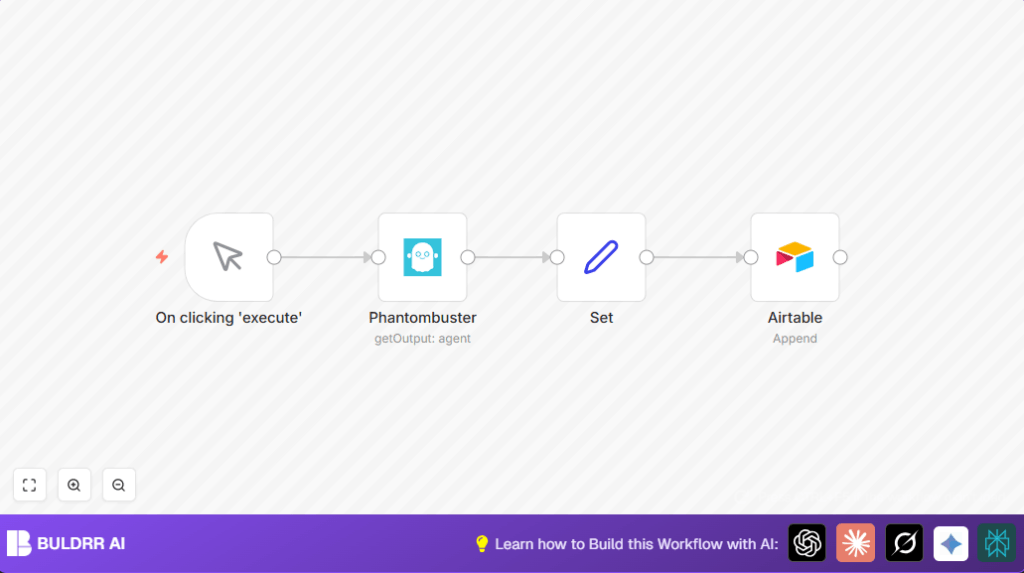

What this workflow does
This workflow automatically gets lead data from Phantombuster and adds it to Airtable without manual copy-paste.
It solves the problem of spending hours every day moving data by hand and avoids errors from copying mistakes.
The result is clean lead records in Airtable ready for sales or marketing use.
Who should use this workflow
This automation is for people who use Phantombuster to scrape LinkedIn or web leads.
It helps anyone who wants to save time and reduce errors when putting scraped data into Airtable or similar databases.
Tools and services used
- Phantombuster API: To fetch scraped data from a specific agent.
- n8n Automation Platform: To build and run the automation workflow.
- Airtable API: To store the leads in an Airtable base and table.
- n8n Nodes: Manual Trigger, Phantombuster, Set, Airtable for workflow steps.
Workflow inputs, processing, and output
Inputs
- Phantombuster agent ID to get scraped lead data.
- API credentials for Phantombuster and Airtable.
- Airtable base and table setup with fields like Name, Email, Company.
Processing steps
- Trigger starts workflow manually.
- Phantombuster node calls API to fetch agent output in JSON.
- Set node extracts full name, email, company from JSON.
- Airtable node appends extracted lead data as new records.
Output
New structured lead records appear in Airtable automatically after running the workflow.
Data is clean and ready for sales or marketing use.
How to use this workflow in n8n
Step 1: Import the workflow
- Download the workflow file using the Download button on this page.
- In the n8n editor, click on top right menu then select Import from File.
- Upload the downloaded workflow.
Step 2: Configure credentials and IDs
- Open each node needing authentication, like Phantombuster and Airtable.
- Add your Phantombuster API credentials and Airtable API key.
- Update the Phantombuster node with your agent ID.
- Set the Airtable node to point to your base and table names.
Step 3: Test and activate
- Run the workflow once by clicking Manual Trigger and then Execute Workflow.
- Check if new records appear in Airtable as expected.
- If all looks good, turn on the workflow toggle in n8n to activate for production.
If automatic runs are wanted instead of manual trigger, replace the Manual Trigger with a Cron node.
For better control and speed in production, consider self-host n8n.
Common problems and solutions
- Problem: Phantombuster node shows no data.
Cause: Wrong or missing Agent ID, or agent not run recently.
Fix: Double check Agent ID and make sure the agent completed a run in Phantombuster dashboard. - Problem: Airtable node errors or no data added.
Cause: Wrong base/table name or API key mistake.
Fix: Confirm Airtable base/table names exactly and verify API key permissions. - Problem: Empty fields in Set node output.
Cause: Incorrect JSON field references in expressions.
Fix: Use n8n expression editor to confirm correct JSON paths from Phantombuster node.
Customization ideas
- Add more fields in Set node, like phone or location using JSON expressions.
- Use a Cron node instead of Manual Trigger for scheduled automation.
- Add a condition node to filter out unwanted records before saving.
- Replace the Airtable node with Google Sheets or other data storage nodes.
Summary of benefits
✓ Saves hours of manual work every day.
✓ Eliminates copy-paste errors.
✓ Automatically keeps your Airtable updated with fresh lead data.
✓ Frees more time for important sales or research tasks.
✓ Easy to customize and expand for different data needs.
