
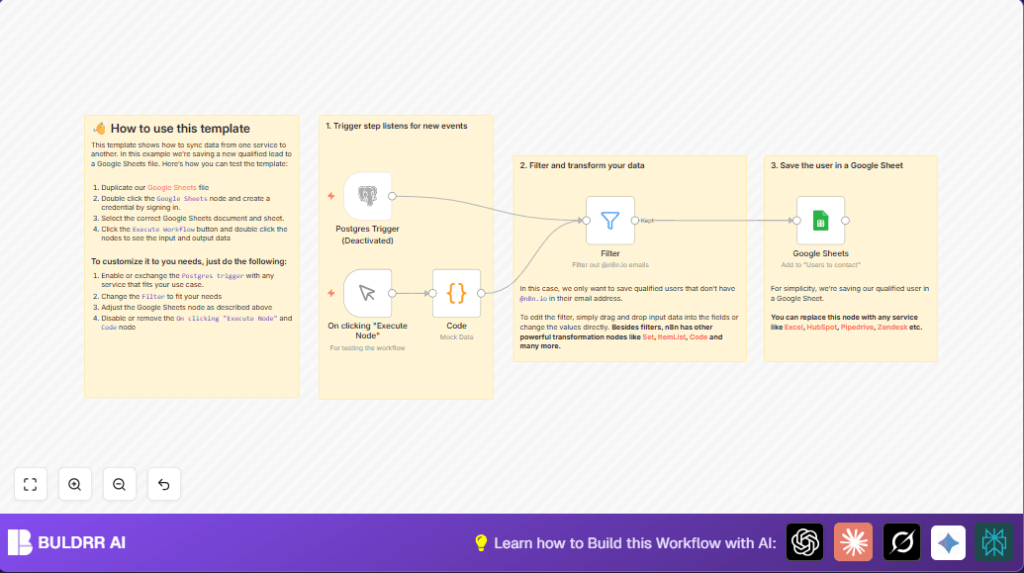

What This Automation Does
This workflow automatically moves updated user data from a Postgres database to a Google Sheets file after removing certain users.
It stops emails with @n8n.io addresses from being added to sales leads.
This makes sure only real customers’ contacts are saved in the sheet.
The outcome is that the sales team has fresh, clean lead info to work with every day without doing any manual work.
The workflow listens for changes in the user data in Postgres.
It filters out emails containing n8n.io.
Then it formats the relevant data and adds or updates rows in Google Sheets.
A manual trigger and example data lets users test and see how the process works before going live.
This stops wasted time copying and pasting data.
It also reduces mistakes from outdated spreadsheets and missing important leads.
Step-by-Step Guide
How to use this workflow in production inside n8n
1. Download and Import the Workflow
- Download the workflow file using the Download button on this page.
- Open the n8n editor where you want to use the workflow.
- Click “Import from File” and select the downloaded file.
2. Configure Credentials and Settings
- Add Postgres credentials named “Postgres Product Analytics” if not already set up.
- Add Google Sheets OAuth2 credentials.
- Update Google Sheets document and sheet IDs inside the Google Sheets node if your sheet names or IDs are different.
- If needed, update any columns mapped in the Google Sheets node for
id,email, andusername. - Confirm the Filter node filters out emails containing “n8n.io” as “notContains” to keep internal emails excluded.
3. Test the Workflow
- Run the Manual Trigger node by clicking “Execute Node”.
- Make sure the filter removes mock user data with internal emails properly.
- Check that Google Sheets node appends or updates the sample data correctly in the sheet.
4. Activate for Production
- Enable the Postgres Trigger node to start listening for live database updates.
- Save the workflow.
- Monitor executions in the n8n interface as new user data updates come in.
This will let the workflow run by itself whenever the database changes happen.
Using this method avoids building the workflow manually, so beginner users can get started easily.
For self hosting n8n, check self-host n8n for helpful details.
What This Workflow Uses
- Postgres database: Supplies user data and sends updates triggering the workflow.
- Google Sheets: Receives cleaned user data for sales teams to see and use.
- Postgres Trigger node: Watches for updates on the users table.
- Filter node: Removes users with
@n8n.ioemails not fit for outreach. - Manual Trigger node: Lets users run and test workflow manually.
- Code node: Supplies example test data in a simple array format.
- Google Sheets node: Appends or updates rows with filtered user info.
How the Workflow Works: Inputs → Processing → Outputs
Inputs
- Live updates to rows in the Postgres
userstable trigger the workflow through the Postgres Trigger node. - For testing, a user manually activates the Manual Trigger node, which starts the flow with mock user data in the Code node.
Processing
- The Filter node scans each user and excludes any with
emailcontainingn8n.io. - Accepted users then pass to the Google Sheets node.
- The Google Sheets node adds new rows or updates existing ones based on matching the
idfield.
Outputs
- The Google Sheets file contains only qualified leads with emails outside of internal domains.
- The sales team can use this sheet confidently to contact valid prospective customers.
Customizations ✏️
- Change email filtering: Edit the Filter node to exclude different email domains by adjusting the string inside the
notContainsrule. - Use a CRM instead of Google Sheets: Swap the Google Sheets node for integrations like HubSpot or Pipedrive to send leads directly to a CRM.
- Activate real database triggers: Enable the Postgres Trigger node fully, ensuring Postgres supports event notifications correctly.
Troubleshooting 🔧
- Workflow does not start on database update
Cause: The Postgres Trigger node is disabled or Postgres notifications are not set.
Fix: Enable the Postgres Trigger node and set up Postgres NOTIFY/LISTEN on theuserstable. - Internal emails are not filtered out
Cause: The Filter node uses “contains” instead of “notContains”.
Fix: Change filter condition to “notContains” with the correct fieldemail. - Google Sheets updates fail
Cause: Wrong Google Sheets credentials or sheet ID.
Fix: Reauthenticate Google Sheets node and verify the document and sheet IDs.
Pre-Production Checklist ✅
- Make sure the Postgres Trigger node is enabled and can receive update events.
- Run the Manual Trigger node to test the workflow and confirm filtering works properly.
- Check Google Sheets node settings and permissions on the targeted document.
- Confirm that after live triggers, the Google Sheet updates as expected.
Deployment Guide
Turn on the Postgres Trigger node and save the workflow.
Watch execution logs in n8n’s user interface to see that new user data flows into Google Sheets.
Optionally, add a logging step to capture success or failure for monitoring.
Conclusion
✓ This workflow sends updated user data from Postgres into Google Sheets automatically.
✓ It removes internal @n8n.io emails so the sales list has only valid contacts.
✓ Automated syncing saves hours of manual work and reduces errors.
→ The result is always fresh, clean lead data ready for sales outreach.
→ Next steps could be linking leads directly to CRM or alerting sales when new leads arrive.
