
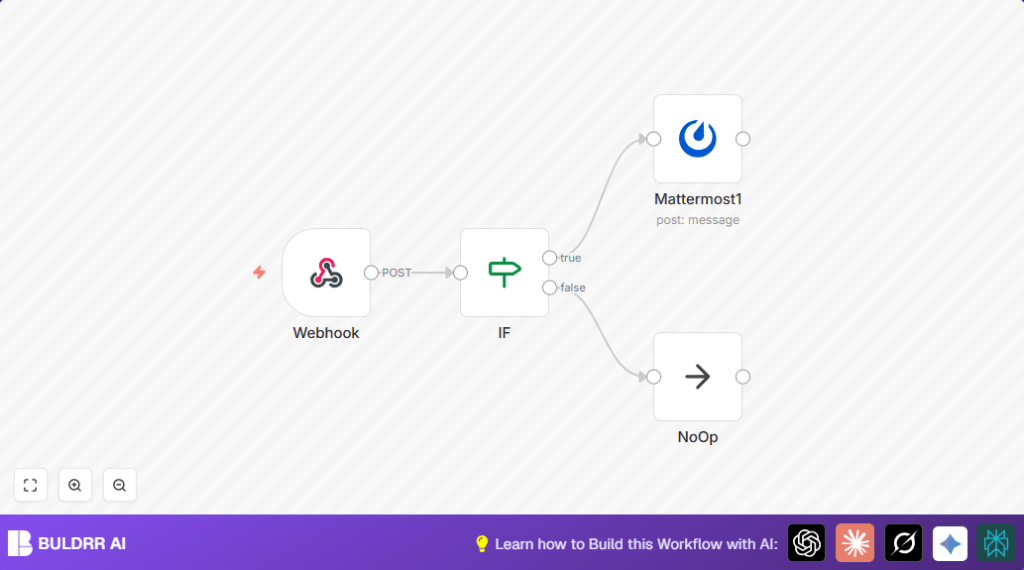

What This Workflow Does
This automation checks each new message in a Mattermost channel for words like “guys” or “dudes” that might make people feel left out.
If such words show up, it sends a friendly note back to suggest using words like “folks” or “y’all” to be more inclusive.
The workflow listens all the time and only talks when needed, making chats friendlier without bothering users.
Who Should Use This Workflow
Anyone managing a team chat where people want a respectful and kind space can use this.
This is good for people who want to save time reminding others about inclusive words and keep the chat positive.
Tools and Services Used
- n8n: Automates the listening and messaging.
- Mattermost API: Lets the automation read messages and send replies.
- Mattermost Webhook: Sends new messages to the n8n workflow as they come.
Inputs, Processing Steps, and Outputs
Inputs
- New chat messages from specific Mattermost channels.
- Message text and channel ID sent through webhook to n8n.
Processing Steps
- Webhook node receives messages.
- IF node checks if message contains specific non-inclusive words like “guys”, “bros”, “dudes”, or “gals” (case insensitive).
- If yes, Mattermost node sends a polite reminder message in the same channel.
- If no, a NoOp node runs to do nothing and keep workflow clean.
Outputs
- Inclusive language suggestions appear automatically in the right Mattermost channel only for messages with flagged words.
- Messages without flagged words cause no response, keeping the chat flow smooth.
Beginner Step-by-Step: How to Use This Workflow in n8n
Step 1: Get the Workflow
- Find the Download button on this page and save the workflow file to your computer.
- Open your n8n editor, go to main menu, and select “Import from File”.
- Upload the workflow file you downloaded.
Step 2: Set Up Credentials
- Add your Mattermost API Key in n8n credentials to let the workflow send messages.
- Make sure your bot in Mattermost has permission to read and write messages in the channels you want monitored.
Step 3: Update Channel or IDs if Needed
- If monitoring different channels, update channel IDs or webhook paths inside n8n using expressions like:
{{$node["Webhook"].json["body"]["channel_id"]}
Step 4: Test the Workflow
- Send a test message in Mattermost with a flagged word like “guys”.
- Check if n8n workflow activates and sends the reminder message back in the same channel.
Step 5: Activate the Workflow
- Toggle the workflow to active in n8n editor.
- Save all changes.
- The workflow will now listen and respond automatically for all new messages.
If you are hosting n8n yourself, you can check this self-host n8n resource for optimized running.
Customization Ideas
- Add more words to catch in the IF node to fit your team’s style.
- Change the suggestion text in the Mattermost node to use your own friendly tone or add links for learning.
- Use multiple IF nodes or Switch nodes to give different messages based on the specific word found.
Troubleshooting Common Problems
- Webhook does not get messages: Confirm webhook URL is correct and set in Mattermost outgoing webhook or bot settings.
- Messages not sent from n8n: Check Mattermost API Key is correctly entered and the bot has send message rights.
- No messages trigger responses: Make sure IF node words match message case and spelling.
- Workflow errors: Connect a NoOp node on false paths to avoid breaks and keep the workflow neat.
Pre-Production Checklist
- Verify the Webhook node receives live test payloads.
- Confirm IF node triggers true only for messages with flagged words.
- Check Mattermost node sends messages to correct channels by reviewing channel IDs.
- Run several test messages end-to-end before going live.
- Save backup of your workflow before activating changes.
Deployment Guide
After testing, turn the workflow on in n8n editor with the active toggle.
The workflow will start listening and suggesting without manual check.
Watch execution logs in n8n regularly to catch any problems with API or permissions.
Adjust trigger words or messages as team needs change over time.
Summary
✓ This workflow reads Mattermost channel messages in real-time.
✓ It finds and flags non-inclusive words automatically.
✓ Sends polite suggestions encouraging inclusive language in correct channels.
✓ Works hands-free, saving time and building a respectful chat environment.
