
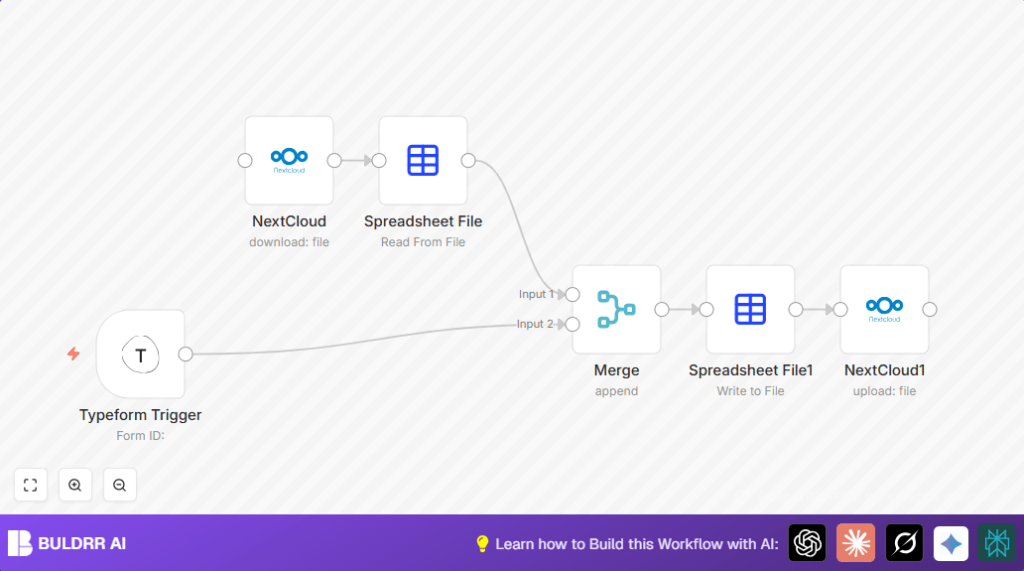

What This Automation Does
This workflow takes new survey answers from Typeform and adds them to an existing Excel file on NextCloud without mistakes.
It stops the slow, manual work of copying and pasting data.
The result is an updated Excel file that always has all responses combined.
The automation watches for new answers, downloads the current Excel file from NextCloud, reads it, joins the new answers, then saves the updated file back to NextCloud.
This saves the user time and prevents errors in the data.
Inputs, Processing, and Output
Inputs: New form submissions from Typeform and an existing Excel file stored on NextCloud.
Processing Steps: The workflow automatically triggers on new Typeform responses, downloads the Excel file from NextCloud, parses it into data the tool can understand, merges new responses with old ones, converts the data back to an Excel file, and uploads it back.
Output: An updated Excel file on NextCloud containing all collected survey data in one place.
Who Should Use This Workflow
This workflow fits people who gather survey or form data regularly using Typeform.
It is for anyone needing to keep their project or team files up to date with new responses without manual work.
It is especially helpful if you store files on NextCloud and want to avoid errors from manual data merging.
Tools and Services Used
- Typeform: Collects survey or form responses.
- NextCloud: Stores Excel files online for sharing.
- n8n: Runs the automated workflow connecting Typeform and NextCloud.
Beginner Step-by-Step: How to Use This Workflow in n8n
Importing the Workflow
- Download the workflow file using the Download button shown on this page.
- Open your n8n editor where you manage your workflows.
- Use the “Import from File” option in n8n to bring this workflow into your workspace.
Configuring the Workflow
- Add your Typeform API Key and form ID in the stored credentials section.
- Enter your NextCloud API credentials and check the file path matches your Excel file location, like
examples/Problems.xls. - Update any IDs, emails, or folder paths if the workflow has placeholders.
Testing and Activating
- Run the workflow once to test if it correctly triggers when a new Typeform response arrives.
- Verify the Excel file downloads, merges new data, and uploads back to NextCloud.
- If all works well, activate the workflow to run automatically on future submissions.
- If self hosting n8n, consider checking self-host n8n for setup help.
Troubleshooting Common Problems
File Not Found on Download
Cause: The Excel file path on NextCloud is wrong or credentials lack permission.
Fix: Check the file path exactly and make sure credentials have read access rights.
Typeform Trigger Does Not Fire
Cause: Form ID may be empty or API key invalid.
Fix: Confirm the form ID is correct and API key has permission to read responses.
Customization Ideas
- Change the output file format in the second Spreadsheet File node, by selecting CSV instead of Excel.
- Filter specific fields from the Typeform response by placing a Function node before the merge to select needed answers.
- Add timestamps to uploaded file names to avoid overwriting by using expressions like:
examples/Problems_{{$now.format("YYYYMMDD_HHmmss")}}.xlsThis helps keep versions of the file.
Summary
✓ Saves time by automating the process of adding new Typeform responses to an Excel file.
✓ Prevents human errors caused by manual copying and pasting.
✓ Keeps data updated and accurate in shared NextCloud storage.
→ Runs automatically on each new Typeform submission.
→ Produces a merged Excel file always ready for team use.
