

What this workflow does
Every time you call an API — a CRM, analytics platform, eCommerce
tool, or any external service — the response comes back as JSON.
Getting that into Google Sheets has always meant manual copy-pasting
or complex coding.
This n8n workflow eliminates that entirely.
→ Sync API responses directly into Google Sheets as clean rows
→ Automate data exports — replace manual CSV downloads
→ Feed live data into reporting spreadsheets automatically
→ Eliminate copy-paste errors between systems
One workflow. Any JSON source. Google Sheets updated automatically.
Who should use this workflow
Anyone needing to move user or other structured data from JSON files into Google Sheets regularly will benefit.
It suits data analysts or teams tired of manual copy-pasting and looking for simple automation inside n8n.
Tools and services used
- n8n platform: For creating and running the workflow.
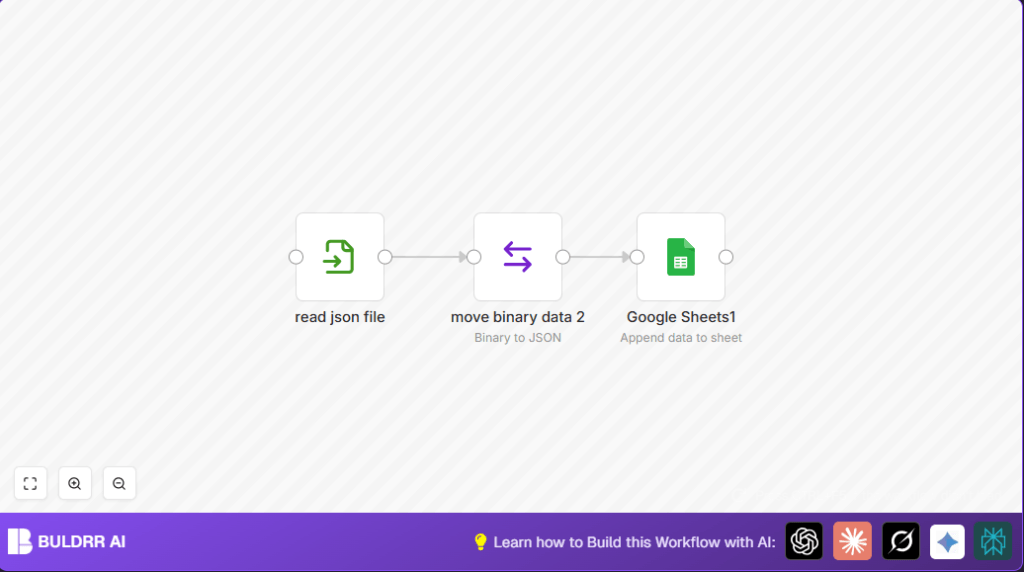
- Read Binary File node: To read JSON file data from disk.
- Move Binary Data node: To prepare binary data into the main stream.
- Google Sheets node: To append rows to a specific spreadsheet using OAuth2 authentication.
- Google Sheets OAuth2 credentials: For secure access to spreadsheet data.
Inputs, process, and outputs explained
Inputs
- A JSON file stored at a set file path (example: /username/users_spreadsheet.json) containing user data.
- Google Sheets spreadsheet ID and range where data should be appended (example range: A:C).
- OAuth2 credentials for Google Sheets API access.
Processing steps
- Read Binary File node reads the JSON file as binary data.
- Move Binary Data node moves binary data to the main data stream so later nodes can access it.
- The JSON data is parsed and formatted inside the Google Sheets node before appending.
- Google Sheets node appends the structured data to the specified spreadsheet and range using secure OAuth2.
Outputs
- The user data appears as new rows in Google Sheets at the chosen range.
- The workflow confirms successful addition or shows errors if any processing fails.
Beginner step-by-step: How to use this workflow in n8n
Importing the workflow
- Download the workflow file using the Download button on this page.
- Open your n8n editor.
- Click the top-left menu, choose “Import from File”, and select the downloaded workflow file.
Configuring after import
- Add Google Sheets OAuth2 credentials in the Credentials tab if not already set up.
- In the Read Binary File node, update the
filePathto match your JSON file location.
- In the Read Binary File node, update the
- In the Google Sheets node, enter the correct
sheetIdandrangewhere data should append in your spreadsheet.
- In the Google Sheets node, enter the correct
Testing and Activating
- Run the workflow once manually to check if the JSON data goes into Google Sheets.
- If it works, enable the workflow by clicking the “Active” toggle in the top right for production use.
- Optionally, set a Cron node trigger before the Read Binary File node for running it automatically at intervals.
For users running n8n on their own server, refer to self-host n8n resources to schedule or monitor workflow operations.
How to Handle Nested JSON — The #1 Pain Point
Flat JSON imports without issues. But most real-world API responses
are nested — arrays inside objects, fields two levels deep. That’s
where manual imports break.
Here are the 3 scenarios and exactly how to handle each:
**Scenario 1 — Flat JSON (works out of the box)**
{“name”: “Alice”, “email”: “[email protected]”, “plan”: “Pro”}
→ No extra steps. Google Sheets node appends this directly.
**Scenario 2 — Array of objects (most common API response)**
[
{“name”: “Alice”, “email”: “[email protected]”},
{“name”: “Bob”, “email”: “[email protected]”}
]
→ Add a Split In Batches node after Move Binary Data to process
each object as a separate row.
**Scenario 3 — Deeply nested JSON**
{“user”: {“name”: “Alice”, “contact”: {“email”: “[email protected]”}}}
→ Add a Function node after Move Binary Data and flatten it:
const item = $input.first().json;
return [{json: {
name: item.user.name,
email: item.user.contact.email
}}];
Match your scenario — data lands in Google Sheets as clean flat
rows every time.
Possible problems and solutions
File not found error: Check the JSON file path is perfectly correct. Make sure n8n can read the folder and file.
Google Sheets authentication error: Check the OAuth2 credentials setup in n8n. Reauthorize if expired.
No data appended: Ensure the JSON structure matches the columns expected. Add a Function node before the Google Sheets node to adjust data formatting if needed.
Customizations
- Change the
filePathin the Read Binary File node to use another JSON file.
- Change the
- Adjust the
rangein the Google Sheets node to append data to other columns or sheets.
- Adjust the
- Add a Function node after Move Binary Data to clean or transform JSON data before appending.
- Use a Cron node at the start to automate running this workflow regularly without manual start.
Using This Workflow to Sync API Data to Google Sheets
Swap the Read Binary File node for an HTTP Request node pointed
at any API endpoint. The JSON response flows into Google Sheets
exactly the same way.
Common APIs this works with:
→ Stripe — sync daily transaction records
→ HubSpot — export contacts or deals automatically
→ Shopify — sync order data for fulfillment tracking
→ Google Analytics — pull metrics into reporting sheets
→ Any REST API — if it returns JSON, this workflow handles it
Summary of results
✓ Eliminates manual copying of JSON data to Google Sheets.
✓ Saves several hours a week in data handling.
✓ Reduces errors from human input mistakes.
→ Data from JSON files is added directly and securely as new rows in Google Sheets.
→ Users get fast, consistent data updates with little effort.
