
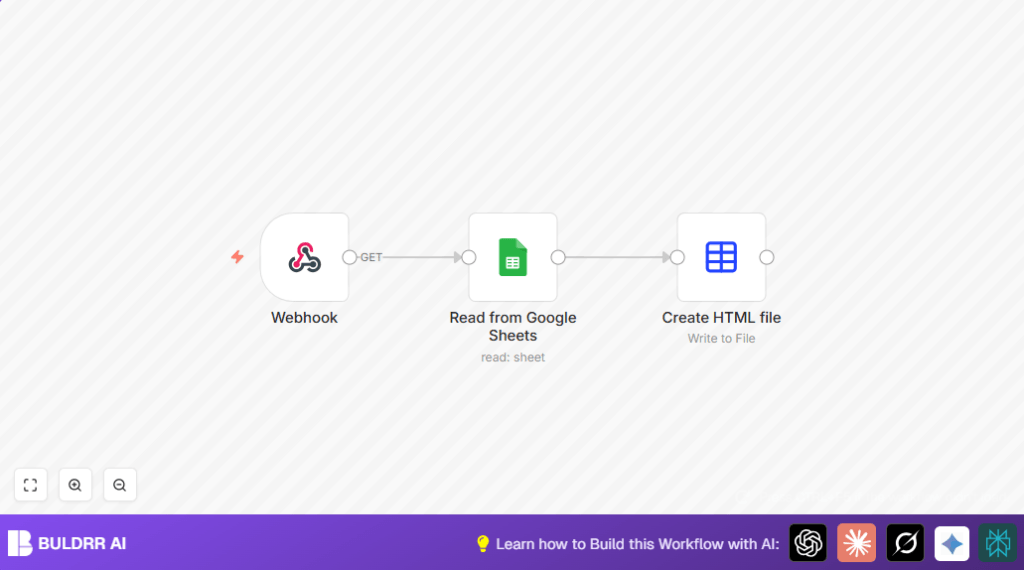

What This Workflow Does
This workflow converts data from a Google Sheets spreadsheet into an HTML file automatically.
It solves the problem of manual exporting, saving time and reducing errors.
When activated, it fetches the latest campaign data and sends back clean HTML ready to use.
The inputs are Google Sheets data accessed via API.
It processes data by reading the sheet and converting the rows into HTML format.
The output is an HTML file content that can be shared or stored.
Tools and Services Used
- n8n Webhook node: Starts the workflow via an HTTP request.
- Google Sheets node: Reads spreadsheet data from Google Sheets with OAuth2 authentication.
- Spreadsheet File node: Converts sheet data into an HTML file format.
Beginner Step-by-Step: How to Use This Workflow in Production
Import Workflow File
- Download the workflow file using the Download button on this page.
- Inside the n8n editor, click the menu button and choose “Import from File”.
- Select the downloaded workflow file to import it.
Configure Credentials and IDs
- Add Google Sheets OAuth2 credentials in n8n if not already done.
- Open the imported workflow and confirm the
sheetIdis correct for your Google Sheet. - Update any emails, folders, or channels if the workflow sends files or notifications (for example, if extended).
Test and Activate
- Run the workflow once manually or trigger the webhook by visiting the URL in a browser or Postman.
- Check the output to confirm the HTML is generated correctly.
- Activate the workflow to run in production so it listens for webhook requests continuously.
The workflow is now ready to convert Google Sheets data into HTML automatically when the webhook is called.
For self hosting, explore resources on self-host n8n to run the workflow securely on your own server.
Workflow Inputs, Processing Steps, and Output
Inputs
- Webhook trigger receives an HTTP request to start.
- Google Sheets node reads rows from the specified spreadsheet using
sheetId.
Processing Steps
- Webhook node listens and starts workflow when triggered.
- Google Sheets node fetches the latest spreadsheet data with OAuth2 credentials.
- Spreadsheet File node converts fetched data into a clean HTML file format.
Output
- The HTML file content is returned from the workflow via the webhook response.
Customization Ideas
- Change the
sheetIdin the Google Sheets node to use a different spreadsheet. - In the Spreadsheet File node, switch
fileFormattocsvorxlsxfor other file types. - Add email nodess or cloud storage nodes after HTML creation to send or save the file automatically.
- Secure the webhook node by turning on authentication options to stop unauthorized triggers.
Troubleshooting Common Issues
Error: “Error authenticating with Google Sheets API”
Cause: OAuth2 credentials missing or expired.
Solution: Go to Credentials in n8n, find the Google Sheets OAuth2 credentials and reauthenticate.
Problem: “No data returned from Google Sheets”
Cause: The sheetId is wrong or the sheet is not shared properly.
Solution: Check the sheetId and share the Google Sheet with the connected Google account.
Pre-Production and Deployment
- Verify the Google Sheets
sheetIdpoints to the correct, accessible spreadsheet. - Test the webhook URL manually before activating the workflow.
- Use n8n editor to check outputs of each node during test runs.
- Confirm OAuth2 credentials for Google Sheets are valid and not expired before going live.
After testing, activate the workflow for regular use. Monitor executions often in n8n to confirm HTML results.
Integration with emailing or cloud storage can expand automation further if needed.
Summary
✓ Saves time by automating Google Sheets to HTML conversion.
✓ Reduces manual errors during data export.
✓ Instant access to up-to-date HTML files via webhook.
→ Outputs clean HTML from spreadsheet data.
→ Easy to import, configure and test inside n8n.
→ Secure with webhook authentication and credential setup.
