

What This Automation Does
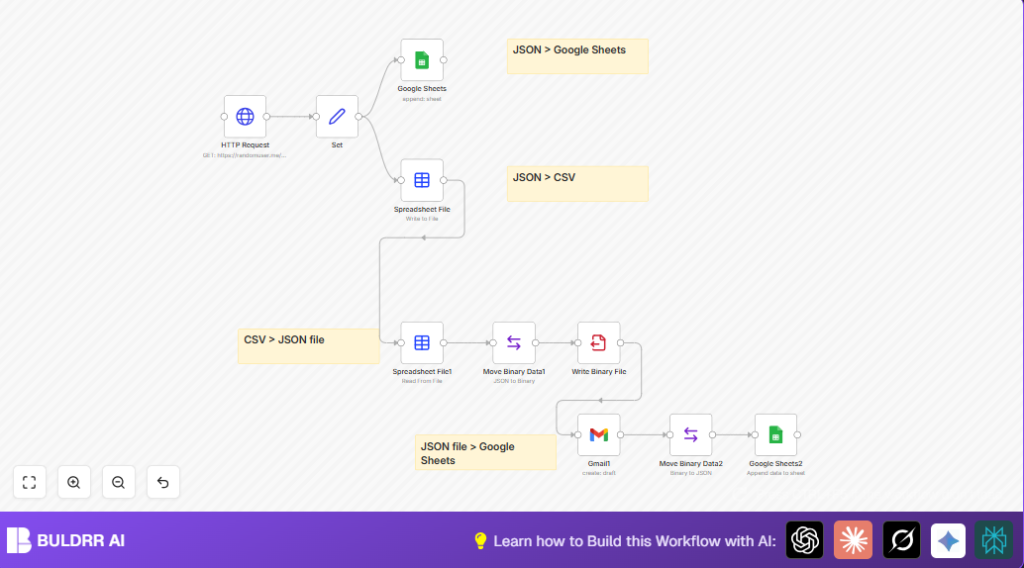
This workflow gets random user info from the https://randomuser.me/api/ API.
It picks out only the user names and countries for easy reading.
It adds this data as new rows in a Google Sheets file to keep a record growing.
Then it turns the spreadsheet data into a CSV file format for backup or sharing.
From the CSV data, it creates a JSON file ready for flexible use.
Next, it sends this JSON file by email using Gmail so the data reaches others fast.
Finally, it reads that emailed JSON file and adds its data into another Google Sheets to keep all info updated.
This automation saves time spent copying data, stops manual mistakes, and keeps data safe in two formats.
Step-by-Step Guide
Step 1: Configure HTTP Request Node to Fetch Random User Data
Open the HTTP Request node.
Set URL to https://randomuser.me/api/. Leave other options as default.
When you run this, it gets random user data including names and countries.
Common mistake with Step 1
- Wrong URL or HTTP method causes no data return.
Step 2: Extract User Data Using Set Node
Open the Set node.
Add two string fields: name and country.
Use these expressions for values:
{{$json["results"][0]["name"]["first"]}} {{$json["results"][0]["name"]["last"]}}
{{$json["results"][0]["location"]["country"]}}
This cleans raw data to just the columns you want.
Common mistake with Step 2
- Wrong expression syntax or not choosing “Keep Only Set” adds cluttered data.
Step 3: Add Data to Google Sheets
Use the Google Sheets node.
Set operation to Append.
Select your spreadsheet by sheet ID, like “qwertz”.
Set range to “A:C” and enable “Use Path For Key Row”.
New user info will add to the sheet bottom.
Common mistake with Step 3
- Missing or bad OAuth2 credentials block sheet editing.
Step 4: Turn Spreadsheet Data into CSV File
Use the Spreadsheet File node.
Set Operation to toFile and File Format to CSV.
Name the file like “users_spreadsheet.csv”.
This saves spreadsheet rows as a CSV file for backups.
Common mistake with Step 4
- Wrong file name or unsupported format breaks node run.
Step 5: Change CSV to JSON Binary Data
Connect this CSV file output to another Spreadsheet File node to parse CSV back to JSON.
Then use the Move Binary Data node set to “jsonToBinary” mode to get JSON as a binary file.
Common mistake with Step 5
- Skipping proper data changes leads to bad file output.
Step 6: Save JSON as a File
Use the Write Binary File node.
Save binary JSON data in a file called “randomusers.json” on your system.
Common mistake with Step 6
- Wrong file path or no write permissions cause failure.
Step 7: Email the JSON File Using Gmail
Use the Gmail node with OAuth credentials set.
Write message like “Hello, attached is the random user JSON file.”.
Set the subject.
Add the JSON file as a binary attachment using property “data” under attachmentsBinary.
Common mistake with Step 7
- Wrong attachment data reference causes email to miss file.
Step 8: Read JSON Attachment and Add Back to Google Sheets
After sending, extract the email attachment binary using the Move Binary Data node with sourceKey “attachment_0”.
Append this data to another Google Sheets node spreadsheet.
Common mistake with Step 8
- Wrong sourceKey leads to empty or wrong sheet data.
Beginner Step-by-Step: Using the Workflow in n8n
Step 1: Download and Import
- Download the workflow file here on this page using the Download button.
- Open your n8n editor.
- Click the menu and select “Import from File”.
- Choose the downloaded workflow file to import.
Step 2: Configure Credentials and IDs
- Add your Google Sheets OAuth2 credentials in the Google Sheets nodes.
- Add your Gmail OAuth2 credentials in the Gmail node.
- Update sheet IDs in Google Sheets nodes if your spreadsheets are different.
- Update recipient emails in the Gmail node as needed.
Step 3: Test and Activate
- Run the workflow manually in n8n once to confirm data flows correctly.
- Check Google Sheets and your inbox for new data and email.
- If all works, turn the workflow ON using the toggle.
- Optionally, add a Cron node or other triggers for automatic runs.
This lets users quickly use the workflow in production without coding.
For self hosting n8n, visit this page for help.
Prerequisites ⚙️
- n8n account: Cloud or self-hosted (self-host n8n)
- Google Sheets account: OAuth credentials configured in n8n
- Gmail account: OAuth credentials configured in n8n
- Internet access: To call Random User API via HTTP Request node
Customizations ✏️
- Change Data Range in Google Sheets: Adjust
rangein Google Sheets nodes to add more columns, e.g. “A:D”. - Email More People: Add multiple addresses separated by commas in the Gmail node.
- Get Many Users: Add query parameters like “?results=5” to HTTP Request URL to fetch many users at once.
- Save JSON to Cloud Storage: Replace Write Binary File node with cloud storage nodes such as S3 or Google Drive.
Troubleshooting ????
Problem: Invalid OAuth2 Credentials in Google Sheets
Cause: Missed re-authentication or expired token.
Fix: Update OAuth2 credentials in n8n credentials manager and check permissions.
Problem: Gmail Node Sends Email Without Attachment
Cause: Attachment binary property not linked properly.
Fix: Check Gmail node’s attachmentsBinary field uses property “data” from previous node.
Problem: Data Not Added to Google Sheets
Cause: Wrong sheet ID or exceeded API quota.
Fix: Confirm sheet ID is correct and check quotas on Google Cloud Console.
Pre-Production Checklist ✅
- Check HTTP Request node retrieves user data.
- Confirm Google Sheets OAuth2 credentials and sheet IDs are correct.
- Run a test to verify data enters Google Sheets.
- Verify Write Binary File node creates JSON file.
- Send a test email with Gmail node and check mailbox for attachment.
- Check appended data in final Google Sheets node.
- Backup sheets before full runs for safety.
Deployment Guide
Turn the workflow ON in n8n using the toggle.
Run the first test manually.
Add triggers like Cron node to automate runs at intervals.
Watch executions list in n8n for errors.
Set failure email alerts if possible.
Conclusion
✓ Automates getting user info from Random User API to Google Sheets.
✓ Saves hours of cutting, pasting, and fixing data mistakes.
✓ Keeps data in spreadsheets and JSON format for backups and sharing.
✓ Sends JSON files by email so data is shared fast.
✓ Imports emailed data back into Google Sheets to keep all info updated.
→ You get accurate, fast user data logs with less manual work.
→ Use extra time on analysis or other key tasks.
